# ide-python
**Repository Path**: Windows_f74a/ide-python
## Basic Information
- **Project Name**: ide-python
- **Description**: No description available
- **Primary Language**: Unknown
- **License**: MIT
- **Default Branch**: master
- **Homepage**: None
- **GVP Project**: No
## Statistics
- **Stars**: 0
- **Forks**: 3
- **Created**: 2024-01-31
- **Last Updated**: 2024-01-31
## Categories & Tags
**Categories**: Uncategorized
**Tags**: None
## README
[转到中文描述](#python-插件)
# Python extension
A [Visual Studio Code](https://code.visualstudio.com/) [extension](https://marketplace.visualstudio.com/VSCode) with rich support for the [Python language](https://www.python.org/) (for all [actively supported versions](https://devguide.python.org/#status-of-python-branches) of the language: >=3.7), including features such as IntelliSense (Pylance), linting, debugging, code navigation, code formatting, refactoring, variable explorer, test explorer, and more!
## Support for [vscode.dev](https://vscode.dev/)
The Python extension does offer [some support](https://github.com/microsoft/vscode-python/wiki/Partial-mode) when running on [vscode.dev](https://vscode.dev/) (which includes [github.dev](http://github.dev/)). This includes partial IntelliSense for open files in the editor.
## Modified based on the tag2022.8.1 of ms-python.python
In order to accommodate KylinOS, the plugin does some work on the tag2022.8.1, and implement semantic highting for friendly licence.
## Quick start
- **Step 1.** [Install a supported version of Python on your system](https://code.visualstudio.com/docs/python/python-tutorial#_prerequisites) (note: that the system install of Python on macOS is not supported).
- **Step 2.** [Install the Python extension for Visual Studio Code](https://code.visualstudio.com/docs/editor/extension-gallery).
- **Step 3.** Open or create a Python file and start coding!
## Set up your environment
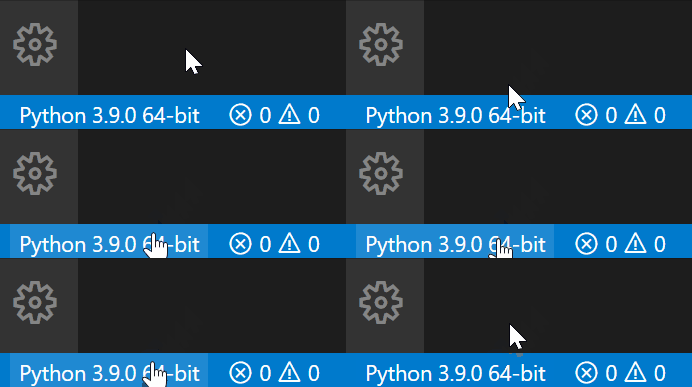
- Select your Python interpreter by clicking on the status bar
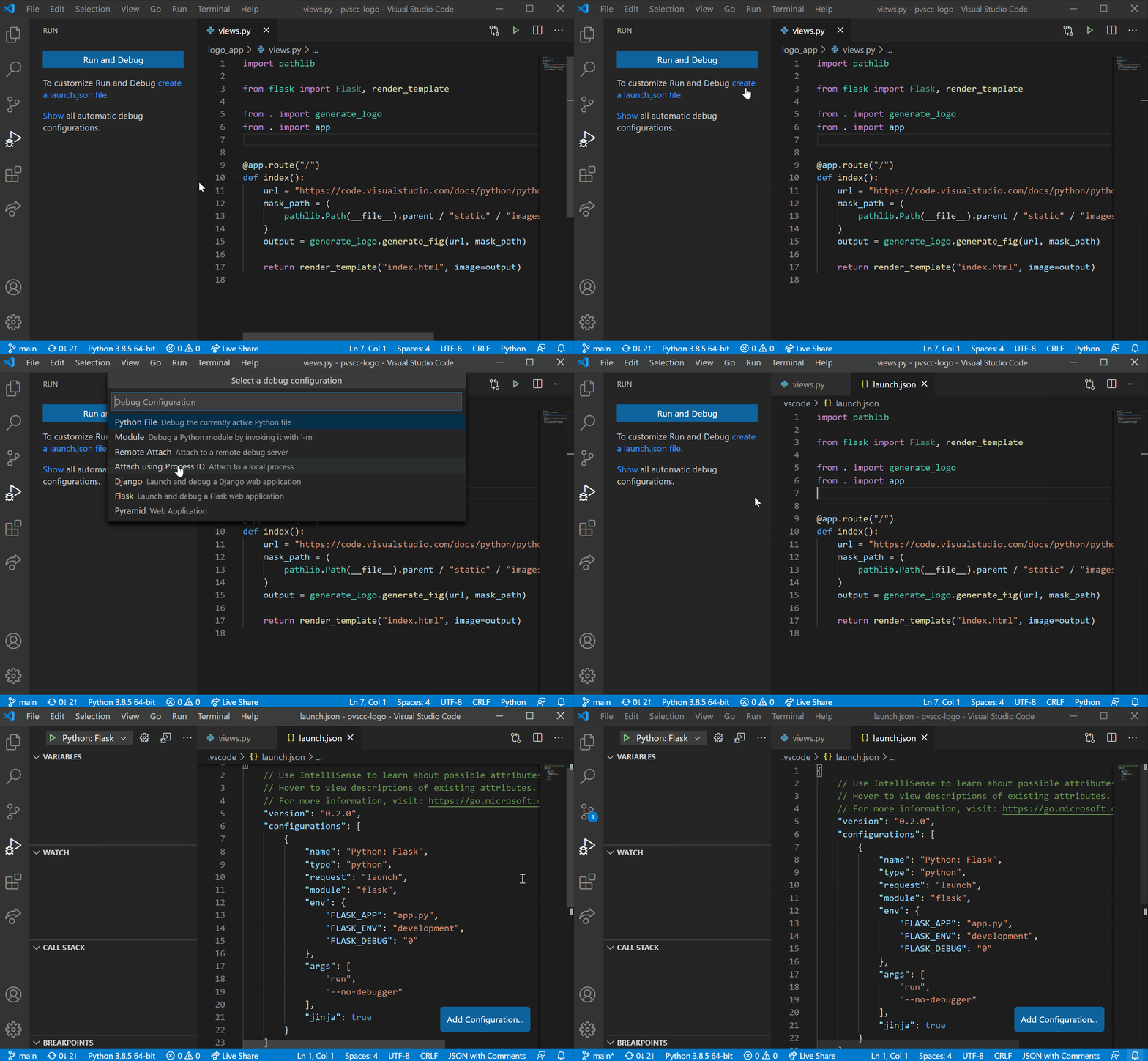
 - Configure the debugger through the Debug Activity Bar
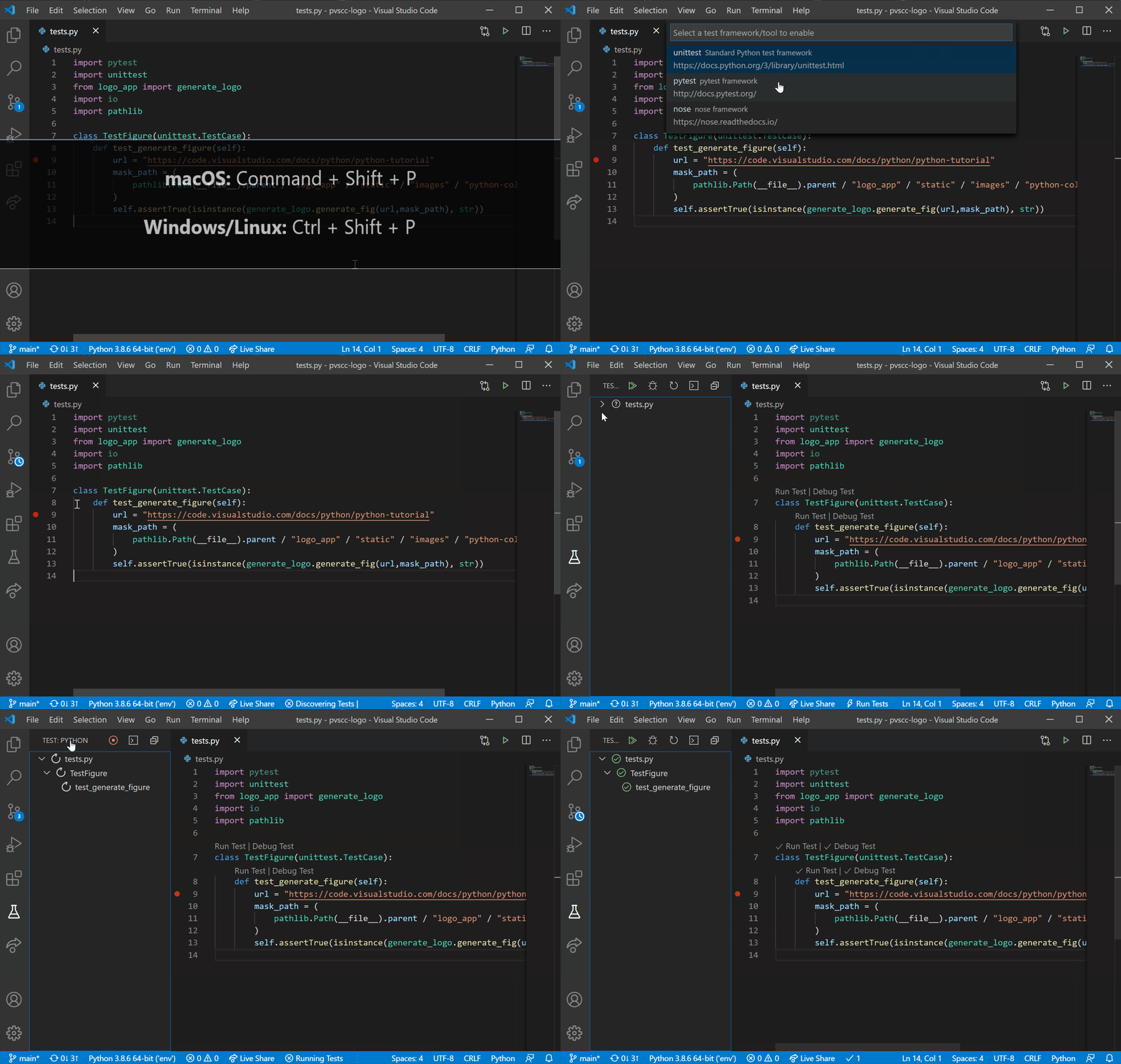
 - Configure tests by running the `Configure Tests` command
 ## Useful commands
Open the Command Palette (Command+Shift+P on macOS and Ctrl+Shift+P on Windows/Linux) and type in one of the following commands:
| Command | Description |
| ------------------------------------- | -------------------------------------------------------------------------------------------------------------------------------------------------------------- |
| `Python: Select Interpreter` | Switch between Python interpreters, versions, and environments. |
| `Python: Start REPL` | Start an interactive Python REPL using the selected interpreter in the IDE terminal. |
| `Python: Run Python File in Terminal` | Runs the active Python file in the IDE terminal. You can also run a Python file by right-clicking on the file and selecting `Run Python File in Terminal`. |
| `Python: Select Linter` | Switch from Pylint to Flake8 or other supported linters. |
| `Format Document` | Formats code using the provided [formatter](https://code.visualstudio.com/docs/python/editing#_formatting) in the `settings.json` file. |
| `Python: Configure Tests` | Select a test framework and configure it to display the Test Explorer. |
To see all available Python commands, open the Command Palette and type `Python`.
## Feature details
Learn more about the rich features of the Python extension:
- [IntelliSense](https://code.visualstudio.com/docs/python/editing#_autocomplete-and-intellisense): Edit your code with auto-completion, code navigation, syntax checking and more
- [Linting](https://code.visualstudio.com/docs/python/linting): Get additional code analysis with Pylint, Flake8 and more
- [Code formatting](https://code.visualstudio.com/docs/python/editing#_formatting): Format your code with black, autopep or yapf
- [Debugging](https://code.visualstudio.com/docs/python/debugging): Debug your Python scripts, web apps, remote or multi-threaded processes
- [Testing](https://code.visualstudio.com/docs/python/unit-testing): Run and debug tests through the Test Explorer with unittest or pytest.
- [Environments](https://code.visualstudio.com/docs/python/environments): Automatically activate and switch between virtualenv, venv, pipenv, conda and pyenv environments
- [Refactoring](https://code.visualstudio.com/docs/python/editing#_refactoring): Restructure your Python code with variable extraction, method extraction and import sorting
## Supported locales
The extension is available in multiple languages: `en`, `zh-cn`
[english](#python-extension)
# Python 插件
一个对[Python语言](https://www.python.org/)(对于该语言的所有[积极支持的版本](https://devguide.python.org/#status-of-python-branches): >=3.7)提供丰富支持的插件,包括智能感知(Pylance)、检查、调试、代码导航、代码格式化、重构、变量资源管理器、测试资源管理器等功能!
## 支持 [vscode.dev](https://vscode.dev/)
The Python extension does offer [some support](https://github.com/microsoft/vscode-python/wiki/Partial-mode) when running on [vscode.dev](https://vscode.dev/) (which includes [github.dev](http://github.dev/)). This includes partial IntelliSense for open files in the editor.
Python插件在[vcode .dev](https://vscode.dev/)(其中包括[github.dev](http://github.dev/))上运行时确实提供[一些支持](https://github.com/microsoft/vscode-python/wiki/Partial-mode)。这包括编辑器中打开文件的部分智能感知。
## 在 ms-python.python插件的tag2022.8.1 上修改
为了应用KylinOS,该插件在tag2022.8.1上做了一些工作,并实现了语言高亮(semantic highting)。
## 快速开始
- **步骤 1.** 在您的系统上安装受支持的Python版本(注意:不支持macOS上的Python系统安装)。
- **步骤 2.** 安装Python插件。
- **步骤 3.** 打开或创建一个Python文件并开始编码!
## 设置环境
- 通过单击状态栏选择Python解释器
- 通过Debug活动栏配置调试器
- 运行 `Configure Tests`命令配置测试
## 可用命令
打开命令面板(macOS上是Command+Shift+P, Windows/Linux上是Ctrl+Shift+P),输入以下命令之一:
| 命令 | 描述 |
| ------------------------------------- | -------------------------------------------------------------------------------------------------------------------------------------------------------------- |
| `Python: Select Interpreter` | 在Python解释器、版本和环境之间切换。 |
| `Python: Start REPL` | 在IDE终端中使用选定的解释器启动一个交互式Python REPL。 |
| `Python: Run Python File in Terminal` | 在IDE终端中运行活动Python文件。您还可以通过右键单击该文件并选择在`Run Python File in Terminal`来运行该文件。 |
| `Python: Select Linter` |从Pylint切换到Flake8或其他支持的lint。 |
| `Format Document` | 使用`settings.json`文件中提供的[formatter](https://code.visualstudio.com/docs/python/editing#_formatting)格式化代码。 |
| `Python: Configure Tests` | 选择一个测试框架配置它并显示test Explorer。 |
要查看所有可用的Python命令,请打开命令面板并键入`Python`。
## 特性
了解更多关于Python插件的丰富功能:
- [智能感知](https://code.visualstudio.com/docs/python/editing#_autocomplete-and-intellisense):编辑您的代码与自动完成,代码导航,语法检查以及更多
- [Linting](https://code.visualstudio.com/docs/python/linting):使用Pylint、Flake8等工具获得额外的代码分析
- [代码格式化](https://code.visualstudio.com/docs/python/editing#_formatting):使用black、autopep或yapf格式化代码
- [调试](https://code.visualstudio.com/docs/python/debugging):调试Python脚本、web应用程序、远程或多线程进程
- [测试](https://code.visualstudio.com/docs/python/unit-testing):使用unittest或pytest通过Test Explorer运行和调试测试。
- [环境](https://code.visualstudio.com/docs/python/environments):自动激活和切换virtualenv, venv, pipenv, conda和pyenv环境
- [重构](https://code.visualstudio.com/docs/python/editing#_refactoring):用变量提取、方法提取和导入排序来重构Python代码
## 支持语言
插件支持多种语言:`en`,`zh-cn`
## Useful commands
Open the Command Palette (Command+Shift+P on macOS and Ctrl+Shift+P on Windows/Linux) and type in one of the following commands:
| Command | Description |
| ------------------------------------- | -------------------------------------------------------------------------------------------------------------------------------------------------------------- |
| `Python: Select Interpreter` | Switch between Python interpreters, versions, and environments. |
| `Python: Start REPL` | Start an interactive Python REPL using the selected interpreter in the IDE terminal. |
| `Python: Run Python File in Terminal` | Runs the active Python file in the IDE terminal. You can also run a Python file by right-clicking on the file and selecting `Run Python File in Terminal`. |
| `Python: Select Linter` | Switch from Pylint to Flake8 or other supported linters. |
| `Format Document` | Formats code using the provided [formatter](https://code.visualstudio.com/docs/python/editing#_formatting) in the `settings.json` file. |
| `Python: Configure Tests` | Select a test framework and configure it to display the Test Explorer. |
To see all available Python commands, open the Command Palette and type `Python`.
## Feature details
Learn more about the rich features of the Python extension:
- [IntelliSense](https://code.visualstudio.com/docs/python/editing#_autocomplete-and-intellisense): Edit your code with auto-completion, code navigation, syntax checking and more
- [Linting](https://code.visualstudio.com/docs/python/linting): Get additional code analysis with Pylint, Flake8 and more
- [Code formatting](https://code.visualstudio.com/docs/python/editing#_formatting): Format your code with black, autopep or yapf
- [Debugging](https://code.visualstudio.com/docs/python/debugging): Debug your Python scripts, web apps, remote or multi-threaded processes
- [Testing](https://code.visualstudio.com/docs/python/unit-testing): Run and debug tests through the Test Explorer with unittest or pytest.
- [Environments](https://code.visualstudio.com/docs/python/environments): Automatically activate and switch between virtualenv, venv, pipenv, conda and pyenv environments
- [Refactoring](https://code.visualstudio.com/docs/python/editing#_refactoring): Restructure your Python code with variable extraction, method extraction and import sorting
## Supported locales
The extension is available in multiple languages: `en`, `zh-cn`
[english](#python-extension)
# Python 插件
一个对[Python语言](https://www.python.org/)(对于该语言的所有[积极支持的版本](https://devguide.python.org/#status-of-python-branches): >=3.7)提供丰富支持的插件,包括智能感知(Pylance)、检查、调试、代码导航、代码格式化、重构、变量资源管理器、测试资源管理器等功能!
## 支持 [vscode.dev](https://vscode.dev/)
The Python extension does offer [some support](https://github.com/microsoft/vscode-python/wiki/Partial-mode) when running on [vscode.dev](https://vscode.dev/) (which includes [github.dev](http://github.dev/)). This includes partial IntelliSense for open files in the editor.
Python插件在[vcode .dev](https://vscode.dev/)(其中包括[github.dev](http://github.dev/))上运行时确实提供[一些支持](https://github.com/microsoft/vscode-python/wiki/Partial-mode)。这包括编辑器中打开文件的部分智能感知。
## 在 ms-python.python插件的tag2022.8.1 上修改
为了应用KylinOS,该插件在tag2022.8.1上做了一些工作,并实现了语言高亮(semantic highting)。
## 快速开始
- **步骤 1.** 在您的系统上安装受支持的Python版本(注意:不支持macOS上的Python系统安装)。
- **步骤 2.** 安装Python插件。
- **步骤 3.** 打开或创建一个Python文件并开始编码!
## 设置环境
- 通过单击状态栏选择Python解释器
- 通过Debug活动栏配置调试器
- 运行 `Configure Tests`命令配置测试
## 可用命令
打开命令面板(macOS上是Command+Shift+P, Windows/Linux上是Ctrl+Shift+P),输入以下命令之一:
| 命令 | 描述 |
| ------------------------------------- | -------------------------------------------------------------------------------------------------------------------------------------------------------------- |
| `Python: Select Interpreter` | 在Python解释器、版本和环境之间切换。 |
| `Python: Start REPL` | 在IDE终端中使用选定的解释器启动一个交互式Python REPL。 |
| `Python: Run Python File in Terminal` | 在IDE终端中运行活动Python文件。您还可以通过右键单击该文件并选择在`Run Python File in Terminal`来运行该文件。 |
| `Python: Select Linter` |从Pylint切换到Flake8或其他支持的lint。 |
| `Format Document` | 使用`settings.json`文件中提供的[formatter](https://code.visualstudio.com/docs/python/editing#_formatting)格式化代码。 |
| `Python: Configure Tests` | 选择一个测试框架配置它并显示test Explorer。 |
要查看所有可用的Python命令,请打开命令面板并键入`Python`。
## 特性
了解更多关于Python插件的丰富功能:
- [智能感知](https://code.visualstudio.com/docs/python/editing#_autocomplete-and-intellisense):编辑您的代码与自动完成,代码导航,语法检查以及更多
- [Linting](https://code.visualstudio.com/docs/python/linting):使用Pylint、Flake8等工具获得额外的代码分析
- [代码格式化](https://code.visualstudio.com/docs/python/editing#_formatting):使用black、autopep或yapf格式化代码
- [调试](https://code.visualstudio.com/docs/python/debugging):调试Python脚本、web应用程序、远程或多线程进程
- [测试](https://code.visualstudio.com/docs/python/unit-testing):使用unittest或pytest通过Test Explorer运行和调试测试。
- [环境](https://code.visualstudio.com/docs/python/environments):自动激活和切换virtualenv, venv, pipenv, conda和pyenv环境
- [重构](https://code.visualstudio.com/docs/python/editing#_refactoring):用变量提取、方法提取和导入排序来重构Python代码
## 支持语言
插件支持多种语言:`en`,`zh-cn`