
💻 A better and friendly vi(vim) mode plugin for ZSH.
💻 A better and friendly vi(vim) mode plugin for ZSH.
ZSH plugin for Agnosticism.





 ## 🤔 Why ZVM?
Maybe you have experienced the default Vi mode in Zsh, after turning on
the default Vi mode, you gradually found that it had many problems, some
features were not perfect or non-existent, and some behaviors even were
different from the native Vi(Vim) mode.
Although the default Vi mode was a bit embarrassing and unpleasant, you
kept on using it and gradually lost your interest on it after using for
a period of time. Eventually, you disappointedly gave up.
You never think of the Vi mode for a long time, one day you accidentally
discovered this plugin, you read here and realize that this plugin is to
solve the above problems and make you fall in love to Vi mode again. A
smile suddenly appeared on your face like regaining a good life.
> If winter comes, can spring be far behind?
## ✨ Features
- 🌟 Pure Zsh's script without any third-party dependencies.
- 🎉 Better experience with the near-native vi(vim) mode.
- ⌛ Lower delay and better response (Mode switching speed, etc.).
- ✏️ Mode indication with different cursor styles.
- 🧮 Cursor movement (Navigation).
- 📝 Insert & Replace (Insert mode).
- 💡 Text Objects (A word, inner word, etc.).
- 🔎 Searching history.
- ❇️ Undo, Redo, Cut, Copy, Paste, and Delete.
- 🪐 Better surrounds functionality (Add, Replace, Delete, Move Around, and Highlight).
- 🧽 Switch keywords (Increase/Decrease Number, Boolean, Weekday, Month, etc.).
- ⚙️ Better functionality in command mode (**In progress**).
- 🪀 Repeating command such as `10p` and `4fa` (**In progress**).
- 📒 System clipboard (**In progress**).
## 💼 Requirements
ZSH: >= 5.1.0
## 🛠️ Installation
#### Using [Antigen](https://github.com/zsh-users/antigen)
Bundle `zsh-vi-mode` in your `.zshrc`
```shell
antigen bundle jeffreytse/zsh-vi-mode
```
#### Using [zplug](https://github.com/b4b4r07/zplug)
Load `zsh-vi-mode` as a plugin in your `.zshrc`
```shell
zplug "jeffreytse/zsh-vi-mode"
```
#### Using [zgen](https://github.com/tarjoilija/zgen)
Include the load command in your `.zshrc`
```shell
zgen load jeffreytse/zsh-vi-mode
```
#### Using [zinit](https://github.com/zdharma-continuum/zinit)
Include the load command in your `.zshrc`
```shell
zinit ice depth=1
zinit light jeffreytse/zsh-vi-mode
```
Note: the use of `depth=1` ice is optional, other types of ice are neither
recommended nor officially supported by this plugin.
#### As an [Oh My Zsh!](https://github.com/robbyrussell/oh-my-zsh) custom plugin
Clone `zsh-vi-mode` into your custom plugins repo
```shell
git clone https://github.com/jeffreytse/zsh-vi-mode \
$ZSH_CUSTOM/plugins/zsh-vi-mode
```
Then load as a plugin in your `.zshrc`
```shell
plugins+=(zsh-vi-mode)
```
Keep in mind that plugins need to be added before `oh-my-zsh.sh` is sourced.
#### Using [Antibody](https://getantibody.github.io/)
Add `zsh-vi-mode` to your plugins file (e.g. `~/.zsh_plugins.txt`)
```shell
jeffreytse/zsh-vi-mode
```
#### Using [Homebrew](https://brew.sh/)
For Homebrew users, you can install it through the following command
```shell
brew install zsh-vi-mode
```
#### Arch Linux (AUR)
For Arch Linux users, you can install it through the following command
```shell
yay -S zsh-vi-mode
```
or the latest update (unstable)
```shell
yay -S zsh-vi-mode-git
```
Then source it in your `.zshrc` (or `.bashrc`)
```shell
source /usr/share/zsh/plugins/zsh-vi-mode/zsh-vi-mode.plugin.zsh
```
#### Nix
For users of Nix, as of [e7e3480530b34a9fe8cb52963ec2cf66e6707e15](https://github.com/NixOS/nixpkgs/commit/e7e3480530b34a9fe8cb52963ec2cf66e6707e15) you can source the plugin through the following configuration
```shell
programs = {
zsh = {
interactiveShellInit = ''
source ${pkgs.zsh-vi-mode}/share/zsh-vi-mode/zsh-vi-mode.plugin.zsh
'';
};
};
```
Or if you prefer `home-manager`:
```shell
home-manager.users.[your username] = { pkgs, ... }: {
programs = {
zsh = {
initExtra = ''
source ${pkgs.zsh-vi-mode}/share/zsh-vi-mode/zsh-vi-mode.plugin.zsh
'';
};
};
};
```
#### Manually
Clone this repository somewhere (`$HOME/.zsh-vi-mode` for example)
```shell
git clone https://github.com/jeffreytse/zsh-vi-mode.git $HOME/.zsh-vi-mode
```
Then source it in your `.zshrc` (or `.bashrc`)
```shell
source $HOME/.zsh-vi-mode/zsh-vi-mode.plugin.zsh
```
## 📚 Usage
Use `ESC` or `CTRL-[` to enter `Normal mode`.
But some people may like the custom escape key such as `jj`, `jk` and so on,
if you want to custom the escape key, you can learn more from [here](#custom-escape-key).
History
-------
- `ctrl-p` : Previous command in history
- `ctrl-n` : Next command in history
- `/` : Search backward in history
- `n` : Repeat the last `/`
Mode indicators
---------------
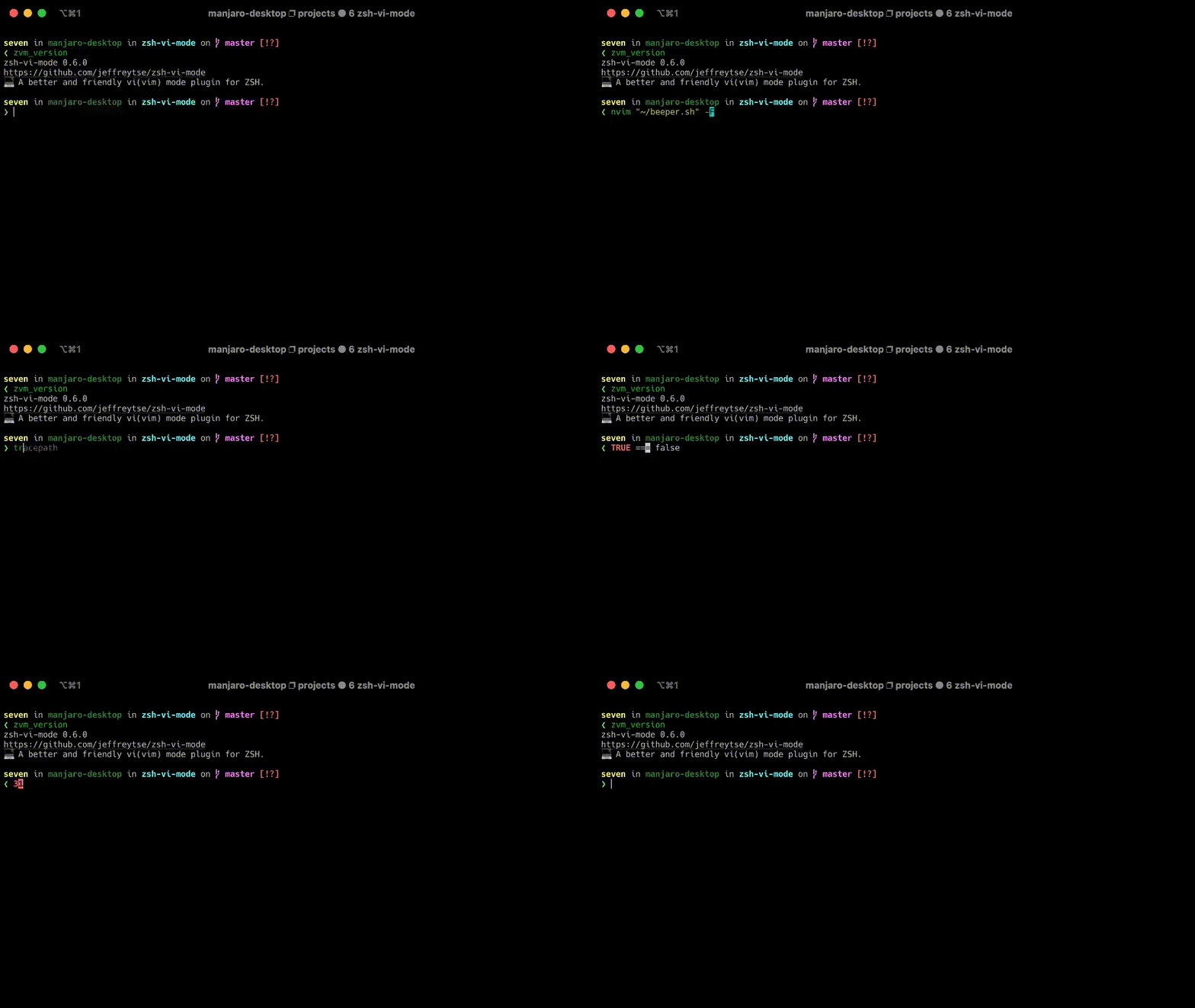
`Normal mode` is indicated with block style cursor, and `Insert mode` with
beam style cursor by default.
Vim edition
-----------
In `Normal mode` you can use `vv` to edit current command line in an editor
(e.g. `vi`/`vim`/`nvim`...), because it is bound to the `Visual mode`.
You can change the editor by `ZVM_VI_EDITOR` option, by default it is
`$EDITOR`.
Movement
--------
- `$` : To the end of the line
- `^` : To the first non-blank character of the line
- `0` : To the first character of the line
- `w` : [count] words forward
- `W` : [count] WORDS forward
- `e` : Forward to the end of word [count] inclusive
- `E` : Forward to the end of WORD [count] inclusive
- `b` : [count] words backward
- `B` : [count] WORDS backward
- `t{char}` : Till before [count]'th occurrence of {char} to the right
- `T{char}` : Till before [count]'th occurrence of {char} to the left
- `f{char}` : To [count]'th occurrence of {char} to the right
- `F{char}` : To [count]'th occurrence of {char} to the left
- `;` : Repeat latest f, t, F or T [count] times
- `,` : Repeat latest f, t, F or T in opposite direction
Insertion
---------
- `i` : Insert text before the cursor
- `I` : Insert text before the first character in the line
- `a` : Append text after the cursor
- `A` : Append text at the end of the line
- `o` : Insert new command line below the current one
- `O` : Insert new command line above the current one
Surround
--------
There are 2 kinds of keybinding mode for surround operating, default is
`classic` mode, you can choose the mode by setting `ZVM_VI_SURROUND_BINDKEY`
option.
1. `classic` mode (verb->s->surround)
- `S"` : Add `"` for visual selection
- `ys"` : Add `"` for visual selection
- `cs"'` : Change `"` to `'`
- `ds"` : Delete `"`
2. `s-prefix` mode (s->verb->surround)
- `sa"` : Add `"` for visual selection
- `sd"` : Delete `"`
- `sr"'` : Change `"` to `'`
Note that key sequences must be pressed in fairly quick succession to avoid a timeout. You may extend this timeout with the [`ZVM_KEYTIMEOUT` option](#readkey-engine).
#### How to select surround text object?
- `vi"` : Select the text object inside the quotes
- `va(` : Select the text object including the brackets
Then you can do any operation for the selection:
1. Add surrounds for text object
- `vi"` -> `S[` or `sa[` => `"object"` -> `"[object]"`
- `va"` -> `S[` or `sa[` => `"object"` -> `["object"]`
2. Delete/Yank/Change text object
- `di(` or `vi(` -> `d`
- `ca(` or `va(` -> `c`
- `yi(` or `vi(` -> `y`
Increment and Decrement
--------
In normal mode, typing `ctrl-a` will increase to the next keyword, and typing
`ctrl-x` will decrease to the next keyword. The keyword can be at the cursor,
or to the right of the cursor (on the same line). The keyword could be as
below:
- Number (Decimal, Hexadecimal, Binary...)
- Boolean (True or False, Yes or No, On or Off...)
- Weekday (Sunday, Monday, Tuesday, Wednesday...)
- Month (January, February, March, April, May...)
- Operator (&&, ||, ++, --, ==, !==, and, or...)
- ...
For example:
1. Increment
- `9` => `10`
- `aa99bb` => `aa100bb`
- `aa100bc` => `aa101bc`
- `0xDe` => `0xdf`
- `0Xdf` => `0Xe0`
- `0b101` => `0b110`
- `0B11` => `0B101`
- `true` => `false`
- `yes` => `no`
- `on` => `off`
- `T` => `F`
- `Fri` => `Sat`
- `Oct` => `Nov`
- `Monday` => `Tuesday`
- `January` => `February`
- `+` => `-`
- `++` => `--`
- `==` => `!=`
- `!==` => `===`
- `&&` => `||`
- `and` => `or`
- ...
2. Decrement:
- `100` => `99`
- `aa100bb` => `aa99bb`
- `0` => `-1`
- `0xdE0` => `0xDDF`
- `0xffFf0` => `0xfffef`
- `0xfffF0` => `0xFFFEF`
- `0x0` => `0xffffffffffffffff`
- `0Xf` => `0Xe`
- `0b100` => `0b010`
- `0B100` => `0B011`
- `True` => `False`
- `On` => `Off`
- `Sun` => `Sat`
- `Jan` => `Dec`
- `Monday` => `Sunday`
- `August` => `July`
- `/` => `*`
- `++` => `--`
- `==` => `!=`
- `!==` => `===`
- `||` => `&&`
- `or` => `and`
- ...
Custom Escape Key
--------
You can use below options to custom the escape key which could better match
your flavor, such as `jj` or `jk` and so on.
- `ZVM_VI_ESCAPE_BINDKEY`: The vi escape key in all modes (default is `^[`
=> `ESC`)
- `ZVM_VI_INSERT_ESCAPE_BINDKEY`: The vi escape key in insert mode (default
is `$ZVM_VI_ESCAPE_BINDKEY`)
- `ZVM_VI_VISUAL_ESCAPE_BINDKEY`: The vi escape key in visual mode (default
is `$ZVM_VI_ESCAPE_BINDKEY`)
- `ZVM_VI_OPPEND_ESCAPE_BINDKEY`: The vi escape key in operator pending mode
(default is `$ZVM_VI_ESCAPE_BINDKEY`)
For example:
```zsh
# Only changing the escape key to `jk` in insert mode, we still
# keep using the default keybindings `^[` in other modes
ZVM_VI_INSERT_ESCAPE_BINDKEY=jk
```
Readkey Engine
--------
This plugin has supported to choose the readkey engine for reading and
processing the key events. It easy to do by the `ZVM_READKEY_ENGINE`option,
currently the below engines are supported:
- `ZVM_READKEY_ENGINE_NEX`: It is a better readkey engine to replace ZLE (Beta).
- `ZVM_READKEY_ENGINE_ZLE`: It is Zsh's default readkey engine (ZLE).
- `ZVM_READKEY_ENGINE_DEFAULT`: It is the default engine of this plugin
(It's the NEX engine now).
The NEX is a better engine for reading and handling the key events than the
Zsh's ZLE engine, currently the NEX engine is still at beta stage, you can
change back to Zsh's ZLE engine if you want.
For example:
```zsh
# Change to Zsh's default readkey engine
ZVM_READKEY_ENGINE=$ZVM_READKEY_ENGINE_ZLE
```
You can use `ZVM_KEYTIMEOUT` option to adjust the key input timeout for
waiting for next key, default is `0.4` seconds.
The escape key is a special case, it can be used standalone. NEX engine
waits for a period after receiving the escape character, to determine
whether it is standalone or part of an escape sequence. While waiting,
additional key presses make the escape key behave as a meta key. If no
other key presses come in, it is handled as a standalone escape.
For the NEX engine, we can use `ZVM_ESCAPE_KEYTIMEOUT` option to adjust
the waiting timeout for the escape key, default is `0.03` seconds.
Configuration Function
--------
Since there are some config options relied to some variables defined in
the plugin, however, some not. We need to provide an unified config entry
function. The name of entry function is stored in an option called
`ZVM_CONFIG_FUNC` and default value is `zvm_config`, you can change to
others for fitting your flavor.
If this config function exists, it will be called automatically, you can
do some configurations in this aspect before you source this plugin. For
example:
```zsh
function zvm_config() {
ZVM_LINE_INIT_MODE=$ZVM_MODE_INSERT
ZVM_VI_INSERT_ESCAPE_BINDKEY=jk
}
source ~/zsh-vi-mode.zsh
```
Execute Extra Commands
--------
This plugin has provided a mechanism to execute extra commands, and now
you have the below aspects for executing something:
```zsh
zvm_before_init_commands=()
zvm_after_init_commands=()
zvm_before_select_vi_mode_commands=()
zvm_after_select_vi_mode_commands=()
zvm_before_lazy_keybindings_commands=()
zvm_after_lazy_keybindings_commands=()
```
Since the default [initialization mode](#initialization-mode), this plugin
will overwrite the previous key bindings, this causes the key bindings of
other plugins (i.e. `fzf`, `zsh-autocomplete`, etc.) to fail.
You can solve the compatibility issue as below:
```zsh
# Append a command directly
zvm_after_init_commands+=('[ -f ~/.fzf.zsh ] && source ~/.fzf.zsh')
```
or
```zsh
# Define an init function and append to zvm_after_init_commands
function my_init() {
[ -f ~/.fzf.zsh ] && source ~/.fzf.zsh
}
zvm_after_init_commands+=(my_init)
```
or
```zsh
# The plugin will auto execute this zvm_after_init function
function zvm_after_init() {
[ -f ~/.fzf.zsh ] && source ~/.fzf.zsh
}
```
or if you are using the `zinit`:
```zsh
# For postponing loading `fzf`
zinit ice lucid wait
zinit snippet OMZP::fzf
```
By default, [the lazy keybindings feature](#lazy-keybindings) is enabled, all
the keybindings of `normal` and `visual` mode should be executed by the
`zvm_after_lazy_keybindings_commands`. For example:
```zsh
# The plugin will auto execute this zvm_after_lazy_keybindings function
function zvm_after_lazy_keybindings() {
bindkey -M vicmd 's' your_normal_widget
bindkey -M visual 'n' your_visual_widget
}
```
Custom widgets and keybindings
--------
This plugin has two functions for you to define custom widgets and keybindings.
In case of unnecessary problems, it is better to use them, especially when you
meet the key conflicts.
To define a custom widget, you should:
```zsh
# If [your_custom_widget] were ignored, it will be the same with
## 🤔 Why ZVM?
Maybe you have experienced the default Vi mode in Zsh, after turning on
the default Vi mode, you gradually found that it had many problems, some
features were not perfect or non-existent, and some behaviors even were
different from the native Vi(Vim) mode.
Although the default Vi mode was a bit embarrassing and unpleasant, you
kept on using it and gradually lost your interest on it after using for
a period of time. Eventually, you disappointedly gave up.
You never think of the Vi mode for a long time, one day you accidentally
discovered this plugin, you read here and realize that this plugin is to
solve the above problems and make you fall in love to Vi mode again. A
smile suddenly appeared on your face like regaining a good life.
> If winter comes, can spring be far behind?
## ✨ Features
- 🌟 Pure Zsh's script without any third-party dependencies.
- 🎉 Better experience with the near-native vi(vim) mode.
- ⌛ Lower delay and better response (Mode switching speed, etc.).
- ✏️ Mode indication with different cursor styles.
- 🧮 Cursor movement (Navigation).
- 📝 Insert & Replace (Insert mode).
- 💡 Text Objects (A word, inner word, etc.).
- 🔎 Searching history.
- ❇️ Undo, Redo, Cut, Copy, Paste, and Delete.
- 🪐 Better surrounds functionality (Add, Replace, Delete, Move Around, and Highlight).
- 🧽 Switch keywords (Increase/Decrease Number, Boolean, Weekday, Month, etc.).
- ⚙️ Better functionality in command mode (**In progress**).
- 🪀 Repeating command such as `10p` and `4fa` (**In progress**).
- 📒 System clipboard (**In progress**).
## 💼 Requirements
ZSH: >= 5.1.0
## 🛠️ Installation
#### Using [Antigen](https://github.com/zsh-users/antigen)
Bundle `zsh-vi-mode` in your `.zshrc`
```shell
antigen bundle jeffreytse/zsh-vi-mode
```
#### Using [zplug](https://github.com/b4b4r07/zplug)
Load `zsh-vi-mode` as a plugin in your `.zshrc`
```shell
zplug "jeffreytse/zsh-vi-mode"
```
#### Using [zgen](https://github.com/tarjoilija/zgen)
Include the load command in your `.zshrc`
```shell
zgen load jeffreytse/zsh-vi-mode
```
#### Using [zinit](https://github.com/zdharma-continuum/zinit)
Include the load command in your `.zshrc`
```shell
zinit ice depth=1
zinit light jeffreytse/zsh-vi-mode
```
Note: the use of `depth=1` ice is optional, other types of ice are neither
recommended nor officially supported by this plugin.
#### As an [Oh My Zsh!](https://github.com/robbyrussell/oh-my-zsh) custom plugin
Clone `zsh-vi-mode` into your custom plugins repo
```shell
git clone https://github.com/jeffreytse/zsh-vi-mode \
$ZSH_CUSTOM/plugins/zsh-vi-mode
```
Then load as a plugin in your `.zshrc`
```shell
plugins+=(zsh-vi-mode)
```
Keep in mind that plugins need to be added before `oh-my-zsh.sh` is sourced.
#### Using [Antibody](https://getantibody.github.io/)
Add `zsh-vi-mode` to your plugins file (e.g. `~/.zsh_plugins.txt`)
```shell
jeffreytse/zsh-vi-mode
```
#### Using [Homebrew](https://brew.sh/)
For Homebrew users, you can install it through the following command
```shell
brew install zsh-vi-mode
```
#### Arch Linux (AUR)
For Arch Linux users, you can install it through the following command
```shell
yay -S zsh-vi-mode
```
or the latest update (unstable)
```shell
yay -S zsh-vi-mode-git
```
Then source it in your `.zshrc` (or `.bashrc`)
```shell
source /usr/share/zsh/plugins/zsh-vi-mode/zsh-vi-mode.plugin.zsh
```
#### Nix
For users of Nix, as of [e7e3480530b34a9fe8cb52963ec2cf66e6707e15](https://github.com/NixOS/nixpkgs/commit/e7e3480530b34a9fe8cb52963ec2cf66e6707e15) you can source the plugin through the following configuration
```shell
programs = {
zsh = {
interactiveShellInit = ''
source ${pkgs.zsh-vi-mode}/share/zsh-vi-mode/zsh-vi-mode.plugin.zsh
'';
};
};
```
Or if you prefer `home-manager`:
```shell
home-manager.users.[your username] = { pkgs, ... }: {
programs = {
zsh = {
initExtra = ''
source ${pkgs.zsh-vi-mode}/share/zsh-vi-mode/zsh-vi-mode.plugin.zsh
'';
};
};
};
```
#### Manually
Clone this repository somewhere (`$HOME/.zsh-vi-mode` for example)
```shell
git clone https://github.com/jeffreytse/zsh-vi-mode.git $HOME/.zsh-vi-mode
```
Then source it in your `.zshrc` (or `.bashrc`)
```shell
source $HOME/.zsh-vi-mode/zsh-vi-mode.plugin.zsh
```
## 📚 Usage
Use `ESC` or `CTRL-[` to enter `Normal mode`.
But some people may like the custom escape key such as `jj`, `jk` and so on,
if you want to custom the escape key, you can learn more from [here](#custom-escape-key).
History
-------
- `ctrl-p` : Previous command in history
- `ctrl-n` : Next command in history
- `/` : Search backward in history
- `n` : Repeat the last `/`
Mode indicators
---------------
`Normal mode` is indicated with block style cursor, and `Insert mode` with
beam style cursor by default.
Vim edition
-----------
In `Normal mode` you can use `vv` to edit current command line in an editor
(e.g. `vi`/`vim`/`nvim`...), because it is bound to the `Visual mode`.
You can change the editor by `ZVM_VI_EDITOR` option, by default it is
`$EDITOR`.
Movement
--------
- `$` : To the end of the line
- `^` : To the first non-blank character of the line
- `0` : To the first character of the line
- `w` : [count] words forward
- `W` : [count] WORDS forward
- `e` : Forward to the end of word [count] inclusive
- `E` : Forward to the end of WORD [count] inclusive
- `b` : [count] words backward
- `B` : [count] WORDS backward
- `t{char}` : Till before [count]'th occurrence of {char} to the right
- `T{char}` : Till before [count]'th occurrence of {char} to the left
- `f{char}` : To [count]'th occurrence of {char} to the right
- `F{char}` : To [count]'th occurrence of {char} to the left
- `;` : Repeat latest f, t, F or T [count] times
- `,` : Repeat latest f, t, F or T in opposite direction
Insertion
---------
- `i` : Insert text before the cursor
- `I` : Insert text before the first character in the line
- `a` : Append text after the cursor
- `A` : Append text at the end of the line
- `o` : Insert new command line below the current one
- `O` : Insert new command line above the current one
Surround
--------
There are 2 kinds of keybinding mode for surround operating, default is
`classic` mode, you can choose the mode by setting `ZVM_VI_SURROUND_BINDKEY`
option.
1. `classic` mode (verb->s->surround)
- `S"` : Add `"` for visual selection
- `ys"` : Add `"` for visual selection
- `cs"'` : Change `"` to `'`
- `ds"` : Delete `"`
2. `s-prefix` mode (s->verb->surround)
- `sa"` : Add `"` for visual selection
- `sd"` : Delete `"`
- `sr"'` : Change `"` to `'`
Note that key sequences must be pressed in fairly quick succession to avoid a timeout. You may extend this timeout with the [`ZVM_KEYTIMEOUT` option](#readkey-engine).
#### How to select surround text object?
- `vi"` : Select the text object inside the quotes
- `va(` : Select the text object including the brackets
Then you can do any operation for the selection:
1. Add surrounds for text object
- `vi"` -> `S[` or `sa[` => `"object"` -> `"[object]"`
- `va"` -> `S[` or `sa[` => `"object"` -> `["object"]`
2. Delete/Yank/Change text object
- `di(` or `vi(` -> `d`
- `ca(` or `va(` -> `c`
- `yi(` or `vi(` -> `y`
Increment and Decrement
--------
In normal mode, typing `ctrl-a` will increase to the next keyword, and typing
`ctrl-x` will decrease to the next keyword. The keyword can be at the cursor,
or to the right of the cursor (on the same line). The keyword could be as
below:
- Number (Decimal, Hexadecimal, Binary...)
- Boolean (True or False, Yes or No, On or Off...)
- Weekday (Sunday, Monday, Tuesday, Wednesday...)
- Month (January, February, March, April, May...)
- Operator (&&, ||, ++, --, ==, !==, and, or...)
- ...
For example:
1. Increment
- `9` => `10`
- `aa99bb` => `aa100bb`
- `aa100bc` => `aa101bc`
- `0xDe` => `0xdf`
- `0Xdf` => `0Xe0`
- `0b101` => `0b110`
- `0B11` => `0B101`
- `true` => `false`
- `yes` => `no`
- `on` => `off`
- `T` => `F`
- `Fri` => `Sat`
- `Oct` => `Nov`
- `Monday` => `Tuesday`
- `January` => `February`
- `+` => `-`
- `++` => `--`
- `==` => `!=`
- `!==` => `===`
- `&&` => `||`
- `and` => `or`
- ...
2. Decrement:
- `100` => `99`
- `aa100bb` => `aa99bb`
- `0` => `-1`
- `0xdE0` => `0xDDF`
- `0xffFf0` => `0xfffef`
- `0xfffF0` => `0xFFFEF`
- `0x0` => `0xffffffffffffffff`
- `0Xf` => `0Xe`
- `0b100` => `0b010`
- `0B100` => `0B011`
- `True` => `False`
- `On` => `Off`
- `Sun` => `Sat`
- `Jan` => `Dec`
- `Monday` => `Sunday`
- `August` => `July`
- `/` => `*`
- `++` => `--`
- `==` => `!=`
- `!==` => `===`
- `||` => `&&`
- `or` => `and`
- ...
Custom Escape Key
--------
You can use below options to custom the escape key which could better match
your flavor, such as `jj` or `jk` and so on.
- `ZVM_VI_ESCAPE_BINDKEY`: The vi escape key in all modes (default is `^[`
=> `ESC`)
- `ZVM_VI_INSERT_ESCAPE_BINDKEY`: The vi escape key in insert mode (default
is `$ZVM_VI_ESCAPE_BINDKEY`)
- `ZVM_VI_VISUAL_ESCAPE_BINDKEY`: The vi escape key in visual mode (default
is `$ZVM_VI_ESCAPE_BINDKEY`)
- `ZVM_VI_OPPEND_ESCAPE_BINDKEY`: The vi escape key in operator pending mode
(default is `$ZVM_VI_ESCAPE_BINDKEY`)
For example:
```zsh
# Only changing the escape key to `jk` in insert mode, we still
# keep using the default keybindings `^[` in other modes
ZVM_VI_INSERT_ESCAPE_BINDKEY=jk
```
Readkey Engine
--------
This plugin has supported to choose the readkey engine for reading and
processing the key events. It easy to do by the `ZVM_READKEY_ENGINE`option,
currently the below engines are supported:
- `ZVM_READKEY_ENGINE_NEX`: It is a better readkey engine to replace ZLE (Beta).
- `ZVM_READKEY_ENGINE_ZLE`: It is Zsh's default readkey engine (ZLE).
- `ZVM_READKEY_ENGINE_DEFAULT`: It is the default engine of this plugin
(It's the NEX engine now).
The NEX is a better engine for reading and handling the key events than the
Zsh's ZLE engine, currently the NEX engine is still at beta stage, you can
change back to Zsh's ZLE engine if you want.
For example:
```zsh
# Change to Zsh's default readkey engine
ZVM_READKEY_ENGINE=$ZVM_READKEY_ENGINE_ZLE
```
You can use `ZVM_KEYTIMEOUT` option to adjust the key input timeout for
waiting for next key, default is `0.4` seconds.
The escape key is a special case, it can be used standalone. NEX engine
waits for a period after receiving the escape character, to determine
whether it is standalone or part of an escape sequence. While waiting,
additional key presses make the escape key behave as a meta key. If no
other key presses come in, it is handled as a standalone escape.
For the NEX engine, we can use `ZVM_ESCAPE_KEYTIMEOUT` option to adjust
the waiting timeout for the escape key, default is `0.03` seconds.
Configuration Function
--------
Since there are some config options relied to some variables defined in
the plugin, however, some not. We need to provide an unified config entry
function. The name of entry function is stored in an option called
`ZVM_CONFIG_FUNC` and default value is `zvm_config`, you can change to
others for fitting your flavor.
If this config function exists, it will be called automatically, you can
do some configurations in this aspect before you source this plugin. For
example:
```zsh
function zvm_config() {
ZVM_LINE_INIT_MODE=$ZVM_MODE_INSERT
ZVM_VI_INSERT_ESCAPE_BINDKEY=jk
}
source ~/zsh-vi-mode.zsh
```
Execute Extra Commands
--------
This plugin has provided a mechanism to execute extra commands, and now
you have the below aspects for executing something:
```zsh
zvm_before_init_commands=()
zvm_after_init_commands=()
zvm_before_select_vi_mode_commands=()
zvm_after_select_vi_mode_commands=()
zvm_before_lazy_keybindings_commands=()
zvm_after_lazy_keybindings_commands=()
```
Since the default [initialization mode](#initialization-mode), this plugin
will overwrite the previous key bindings, this causes the key bindings of
other plugins (i.e. `fzf`, `zsh-autocomplete`, etc.) to fail.
You can solve the compatibility issue as below:
```zsh
# Append a command directly
zvm_after_init_commands+=('[ -f ~/.fzf.zsh ] && source ~/.fzf.zsh')
```
or
```zsh
# Define an init function and append to zvm_after_init_commands
function my_init() {
[ -f ~/.fzf.zsh ] && source ~/.fzf.zsh
}
zvm_after_init_commands+=(my_init)
```
or
```zsh
# The plugin will auto execute this zvm_after_init function
function zvm_after_init() {
[ -f ~/.fzf.zsh ] && source ~/.fzf.zsh
}
```
or if you are using the `zinit`:
```zsh
# For postponing loading `fzf`
zinit ice lucid wait
zinit snippet OMZP::fzf
```
By default, [the lazy keybindings feature](#lazy-keybindings) is enabled, all
the keybindings of `normal` and `visual` mode should be executed by the
`zvm_after_lazy_keybindings_commands`. For example:
```zsh
# The plugin will auto execute this zvm_after_lazy_keybindings function
function zvm_after_lazy_keybindings() {
bindkey -M vicmd 's' your_normal_widget
bindkey -M visual 'n' your_visual_widget
}
```
Custom widgets and keybindings
--------
This plugin has two functions for you to define custom widgets and keybindings.
In case of unnecessary problems, it is better to use them, especially when you
meet the key conflicts.
To define a custom widget, you should:
```zsh
# If [your_custom_widget] were ignored, it will be the same with