# hexo-theme-amazing
**Repository Path**: codecooko/hexo-theme-amazing
## Basic Information
- **Project Name**: hexo-theme-amazing
- **Description**: No description available
- **Primary Language**: Unknown
- **License**: MIT
- **Default Branch**: master
- **Homepage**: None
- **GVP Project**: No
## Statistics
- **Stars**: 0
- **Forks**: 0
- **Created**: 2021-03-09
- **Last Updated**: 2021-03-09
## Categories & Tags
**Categories**: Uncategorized
**Tags**: None
## README
**预览图**
+ 首页1
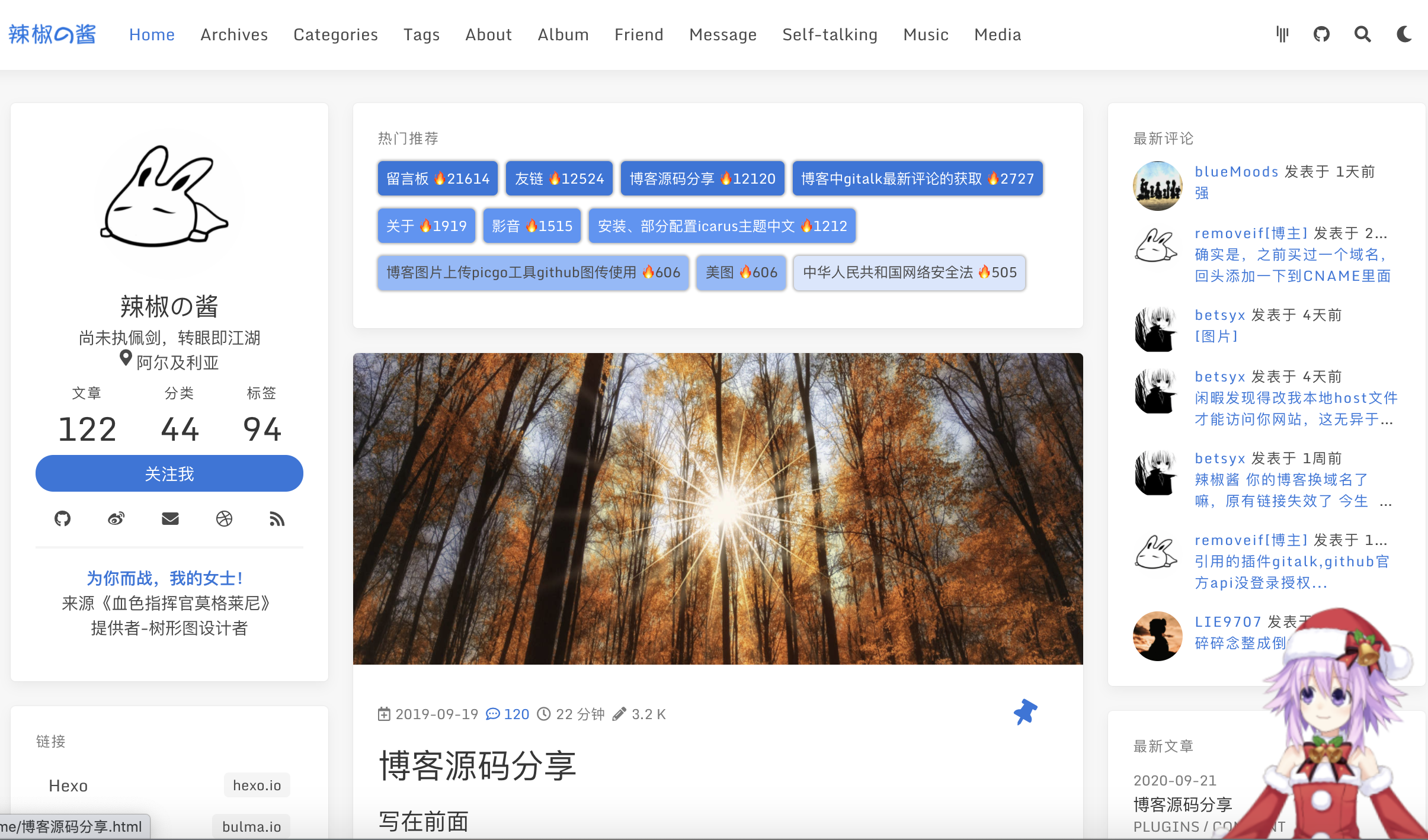
+ 首页2

+ 首页深色
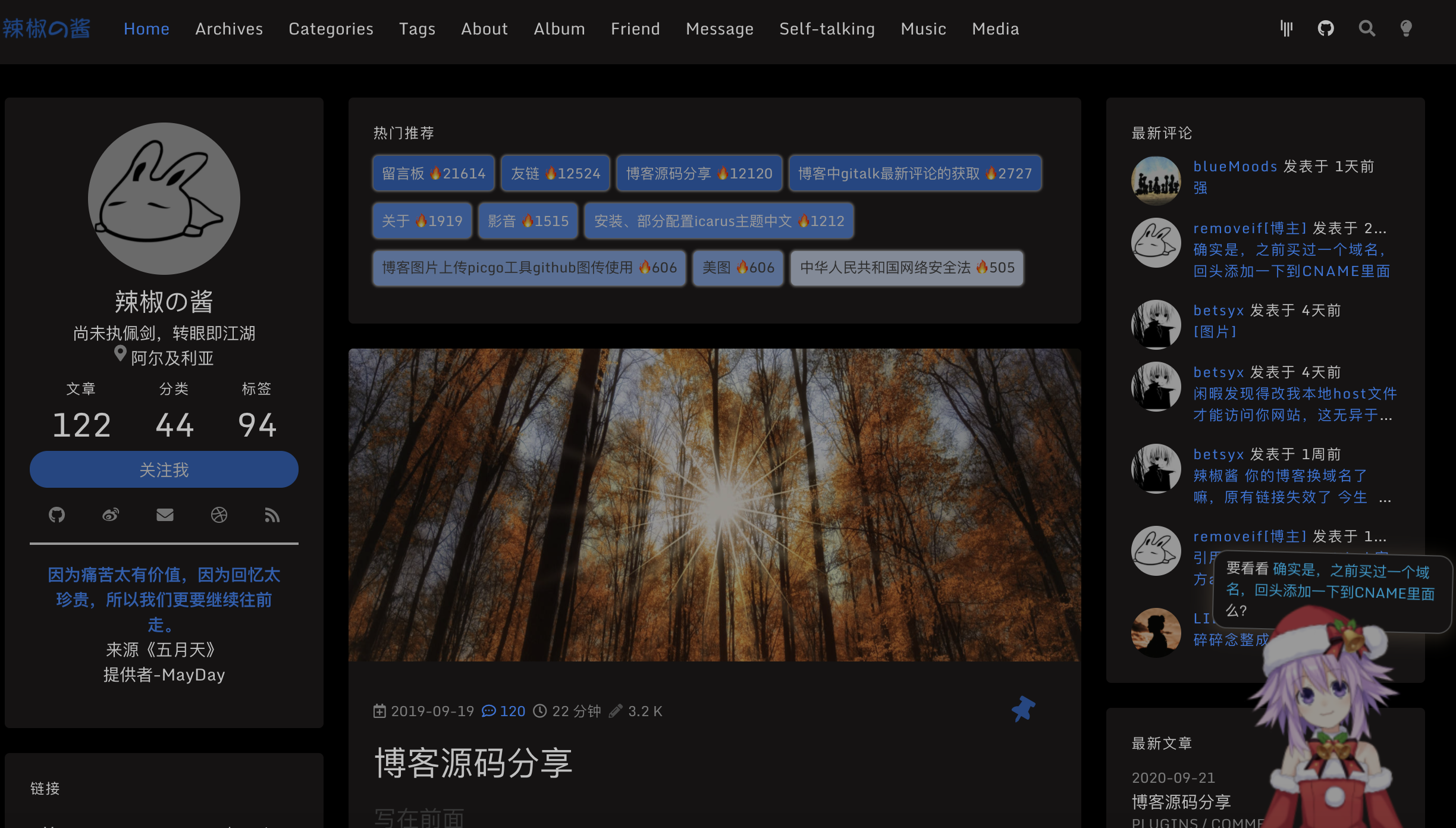
### 写在前面
博客源码在主题[icarus](http://github.com/ppoffice/hexo-theme-icarus)基础之上参照各网友博客,以及自己的一些想法做出的一些修改以及增加部分新元素。除了以下配置,其余配置请到[icarus官网查看](http://github.com/ppoffice/hexo-theme-icarus)。
因为修改了原作者源码,有什么问题请先联系我,不要去麻烦原作者了,能自己解决的问题就不要麻烦别人了,每个人的时间都很宝贵。
膜拜和感谢所有模块的原作者,orz👻,辛苦了。
**使用之前请详细阅读此文档,以及主题配置文件_config.yml**
**使用之前请详细阅读此文档,以及主题配置文件_config.yml**
**使用之前请详细阅读此文档,以及主题配置文件_config.yml**
**相关使用问题也在此[issue](https://github.com/removeif/hexo-theme-amazing/issues/16)有说明,请先查看**
**本仓库为纯主题仓库,博客主题完整仓库(已不维护)请移步为[hexo-theme-icarus-removeif](https://github.com/removeif/hexo-theme-icarus-removeif)**
**master分支已在信息流中加入adsense广告配置**
**提供site分支博客demo源码**
线上博客:[欢迎围观](https://removeif.github.io/),[博客源码Live Demo](https://removeif.github.io/removeif-demo/)
### 一、icarus主题之上主要改动
+ 新增gitalk最新评论widget
+ 首页增加热门推荐
+ 增加弹性配置影音(可加音乐、视频)模块
+ 丰富弹性配置about页面
+ 新增弹性配置友链模块
+ 整体布局左右拉伸了一点,紧凑一些
+ 文章页双栏模式、固定导航栏
+ 引入可配置看板娘
+ 归档页加入了一个文章贡献概览
+ 置顶文章的设置
+ 文章列表评论数显示
+ 文章中推荐文章模块配置
+ 增加深色主题切换
+ 加入加密文章
+ 碎碎念功能
+ 透明无界样式
+ 简化部分widget数据,加入`查看全部`按钮
+ gitalk评论增加评论开关,评论列表中标记博主
+ 加入pjax提升页面访问体验,配置文件中可开启关闭
+ 侧边栏加入可配置网易云歌单音乐插件,配合pjax可以实现页面间切换背景音乐不间断
+ 文章中加入相关文章模块,取分类相同的最新的5条文章
+ 支持valine最新评论以及文章评论数显示
+ utteranc评论随博客主题切换自动切换深色主题
+ 首页增加可配置banner参考自[水寒教程](https://dp2px.com/2019/08/13/hexo-carousel/)
+ 有问题可以在线询问[gitter.im](https://gitter.im/hexo-theme-amazing/community)
+ `还有什么新的,好的feature欢迎大家随时提出来,有能力有时间就做出来`
### 二、部分配置说明:
#### 本机环境:
```jshelllanguage
192:hexo-theme-icarus-removeif xx$ node -v
v11.1.0
192:hexo-theme-icarus-removeif xx$ npm -v
6.4.1
```
#### 在博客目录下clone主题代码
```jshelllanguage
git clone https://github.com/removeif/hexo-theme-amazing.git themes/amazing
```
#### 开始部分配置:
**敲黑板!!!!首先全局以及主题中的`_config.yml`配置成自己的对应参数。**
把主题中ex_pages文件夹中的文件复制到博客主目录相应目录下面。包含了文章模板、关于页、相册页、友链、留言板、音乐、影音、碎碎念页面(各个页面的.md文件可自定义修改内容),可以自己选择性需要哪些页面复制哪些过去,同时对应配置主题中`_config.yml`需要删除以及保留相应的menu,如下配置
```yaml
navbar:
# Naviagtion menu items
menu:
首页: /
归档: /archives
分类: /categories
标签: /tags
影音: /media
相册: /album
友链: /friend
碎碎念: /self-talking
留言: /message
关于: /about
```
#### 1.热门推荐,最新评论:
**热门推荐仅支持gitalk,最新评论支持gitalk & valine**
对应主题中的`_config.yml`要开启如下配置(此为gitalk,valine配置文件中也有示例),xxx换成自己的,否则无效。**对于gitalk部署博客后需要到相应文章评论处点击初始化issue评论,完成评论的初始化。**
```yaml
comment:
type: gitalk
owner: xxx # (required) GitHub user name
repo: xxx # (required) GitHub repository name
client_id: xxx # (required) OAuth application client id
client_secret: xxx # (required) OAuth application client secret
admin: xxx #此账户一般为用户名 GitHub user name 文章中能创建issue需要此用户登录才可以,点了创建issue后刷新一遍才能看到!!!!
create_issue_manually: true
distraction_free_mode: true
has_hot_recommend: true # 是否有热门推荐
has_latest_comment: true #是否有最新评论
```
说明:
+ `has_hot_recommend: true` 是否开启首页热评,false-不开启,true-开启
+ `has_latest_comment: true` 是否开启最新评论,false-不开启,true-开启
+ 热门推荐数据为评论数最多的文章,🔥后面的数字:根据文章的评论数*101 。
+ 最新评论:为该仓库下,所有issue中的最新评论。
+ 目前的最新评论有1分钟的本地缓存,评论后可能1分钟后才能看见最新评论,出于性能优化,每次请求接口处理还是挺耗时,comment-issue-data.js中可以自己去掉。
#### 2.友链数据文件:
文件路径:themes/amazing/source/js/friend.js
相应格式增加自己需要的数据。
友链数据中,"valid": 0 代表异常网站,"valid": 1或者不填此字段代表正常网站,可以自己配置;"stopTime": "2019.09.09"代表异常时访问的时间
```text
{
"date": "2019.09.09",
"stopTime": "2019.09.09",
"src": "https://cdn.jsdelivr.net/gh/removeif/removeif.github.io/images/tuzi.jpg",
"name": "@辣椒の酱",
"desc": "后端开发,技术分享。",
"url": "https://removeif.github.io/",
"valid": 0
}
```
#### 3.影音数据文件:
文件路径:
音乐:themes/amazing/source/json_data/music.json
视频:themes/amazing/source/json_data/video.json
相应格式增加自己需要的数据。
#### 4.关于页面时间轴记录数据文件:
文件路径:themes/amazing/source/json_data/record.json
相应格式增加自己需要的数据。
#### 5.看板娘配置
主题中的`_config.yml`配置如下设置
```text
has_live_2D_switch: true #live2D开关 true为打开,false为关闭
```
#### 6.置顶设置:
.md文章头部数据中加入top值,top值越大越靠前,大于0显示置顶图标。
修改依赖包中文件removeif/node_modules/hexo-generator-index/lib/generator.js如下:
```js
'use strict';
const pagination = require('hexo-pagination');
module.exports = function(locals){
var config = this.config;
var posts = locals.posts;
posts.data = posts.data.sort(function(a, b) {
if(a.top == undefined){
a.top = 0;
}
if(b.top == undefined){
b.top = 0;
}
if(a.top == b.top){
return b.date - a.date;
}else{
return b.top - a.top;
}
});
var paginationDir = config.pagination_dir || 'page';
return pagination('', posts, {
perPage: config.index_generator.per_page,
layout: ['index', 'archive'],
format: paginationDir + '/%d/',
data: {
__index: true
}
});
};
```
#### 7.配置文章中推荐文章模块
根据配置的recommend值(必须大于0),值越大越靠前,相等取最新的,最多取5条。recommend(6.中top值也在下面示例)配置在.md文章头中,如下
```yaml
title: 博客源码分享
top: 1
toc: true
recommend: 1
keywords: categories-github
date: 2019-09-19 22:10:43
thumbnail: https://cdn.jsdelivr.net/gh/removeif/blog_image/img/2019/20190919221611.png
tags: 工具教程
categories: [工具教程,主题工具]
```
#### 8.文章中某个代码块折叠的方法
代码块头部加入标记 `>folded`,如下代码块中使用。
```java main.java >folded
// 使用示例,.md 文件中头行标记">folded"
// ```java main.java >folded
// import main.java
// private static void main(){
// // test
// int i = 0;
// return i;
// }
// \\```
```
#### 9.加入加密文章
如下需要加密的文章头部加入以下代码
```text
---
title: 2019成长记01
top: -1
toc: true
keywords: categories-java
encrypt: true
password: 123456 #此处为文章密码
abstract: 咦,这是一篇加密文章,好像需要输入密码才能查看呢!
message: 嗨,请准确无误地输入密码查看哟!
wrong_pass_message: 不好意思,密码没对哦,在检查检查呢!
wrong_hash_message: 不好意思,信息无法验证!
---
```
注:**加密文章不会出现在最新文章列表widget中,也不会出现在文章中推荐列表中,首页列表中需要设置top: -1 让它排在最后比较合理一些。**
#### 10.碎碎念的使用
在github中,创建碎碎念issue,并且打上对应的label(`eg:Gitalk,666666`)如下图,此处666666对应下面配置代码中的id,填写到:博客目录/source/self-talking/index.md文件中如下对应位置,其余配置也要改成自己的,如clientID等。

```js
```
如下:

#### 11.本博客样式(透明无界)
只需要放开themes/amazing/source/css/base.styl文件中以下样式代码注释即可,默认是注释的没启用
```css
//=================本博客使用样式 start
// 首页去图
.body_hot_comment .comment-content .card-comment-item .ava, .media-left, .is-6-widescreen .card-image {
display: none;
}
hover-color = #deeafb;
// 去card
.card {
background-color: unset;
box-shadow: unset;
}
.navbar, footer.footer {
background-color: unset;
}
body:not(.night) .navbar:hover,
body:not(.night) .footer:hover,
body:not(.night) .card:hover,
body:not(.night) .pagination:hover,
body:not(.night) .post-navigation:hover{
background-color: hover-color;
box-shadow: 0 4px 10px rgba(0,0,0,0.05),0 0 1px rgba(0,0,0,0.1);
}
.pagination, .post-navigation{
padding: 10px;
}
.pagination .pagination-link:not(.is-current), .pagination .pagination-previous, .pagination .pagination-next {
background-color:rgba(255,255,255,0);
}
.timeline .media:last-child:after {
background: unset;
}
.content .gt-container .gt-comment-admin .gt-comment-content {
border: 2px solid #deeafb;
}
//=================本博客使用样式 end
```
如下:

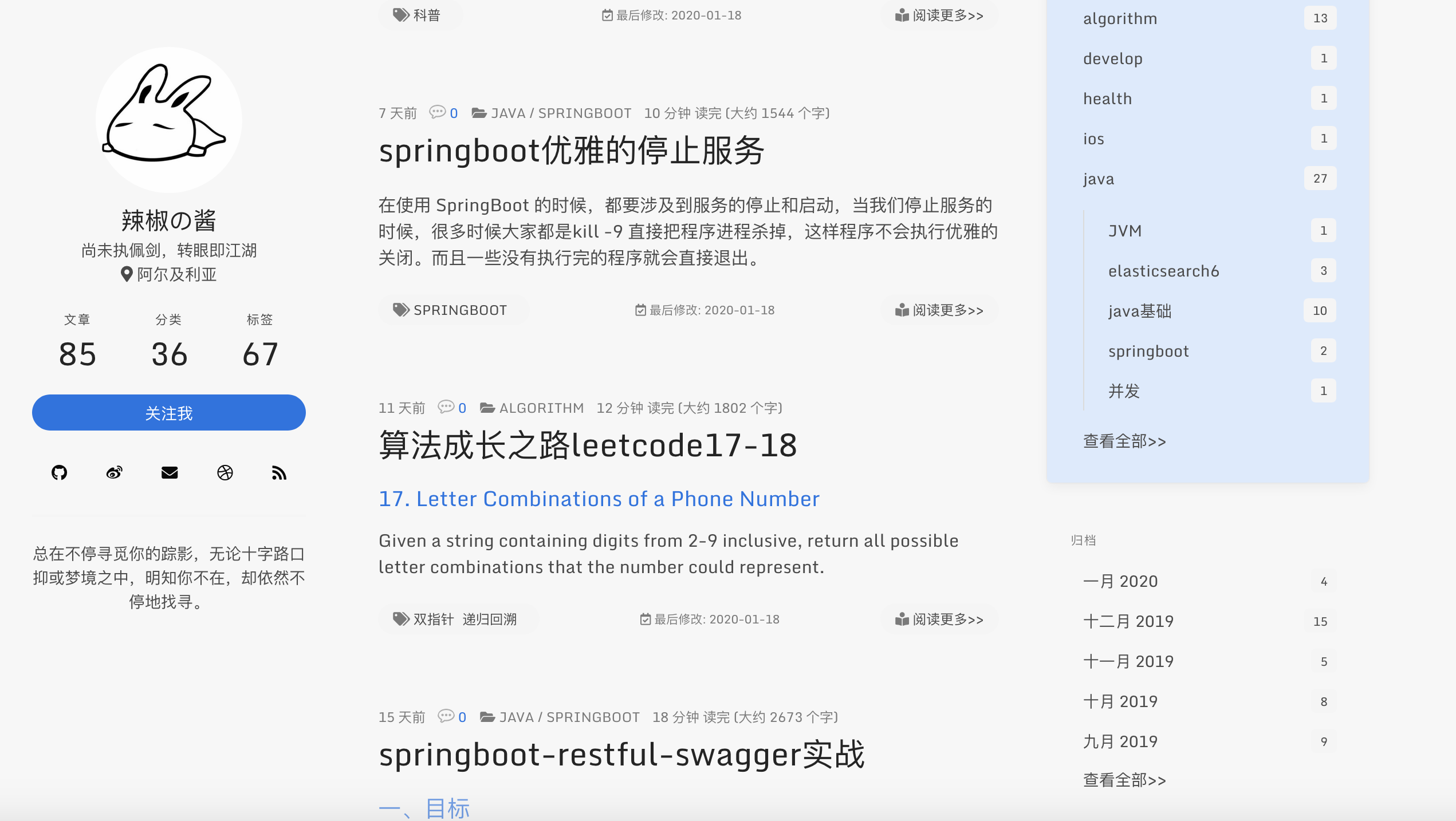
#### 精简部分widget数据
widget中的归档和分类和标签精简了,数据多时很丑,改为了分别展示5条和10条和20条,增加了查看全部。
#### gitalk评论增加评论开关,评论列表中标记博主
需要关闭评论的在文章头部加入 `comments: false`,原来已经评论的依然会显示,如下
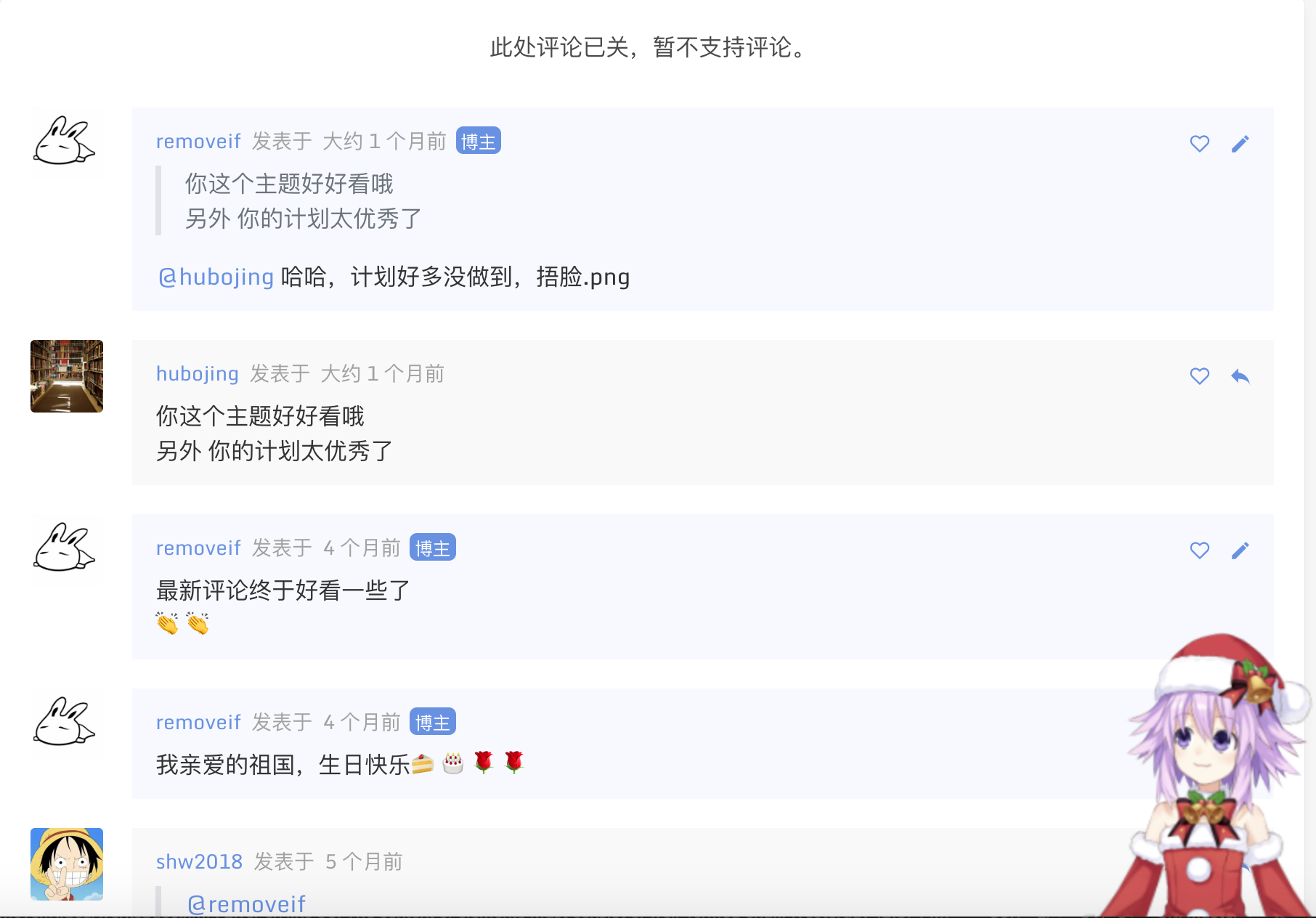
原来已有博客文章的迁移,只需要把原来对应的文章放到source/_posts里即可。然后去对应文章下面创建评论issue。
#### 其余配置
完整配置,请仔细阅读主题中**_config.yml**
```yaml
has_hitokoto: true #左边一言开关,true-开,false-关
has_latest_modify_time: true #是否显示最后修改时间 true开启,false-关闭
busuanzi_only_count: false #当上面plugins中busuanzi: true时,此配置busuanzi_only_count为true时,网站不显示不蒜子统计数据,但是会每次统计。false时显示统计数据。
has_copyright: true # 文中是否显示copyright true开启,false-关闭
# http://sachinchoolur.github.io/lightGallery/docs/api.html
lightgallery_is_full: true #图片灯箱是否显示完整的插件(包括放大,分享等),true-显示,false-显示简洁版
website_start_time: 2018/11/11 00:00:00 #网站运行开始时间,不填不显示
footer_registered_no: 测试-川ICP备20001070号-1 #备案号
footer_copyright_dsec: true #footer 版权说明 true-开 false-关
has_live_2D_switch: true #live2D开关 true-开 false-关
side_music_netease_id: 2364053447 #侧边栏网易云歌单id
use_pjax: false #是否开启pjax,false-不开启,true-开启,开启后局部更新网页信息,切换页面背景音乐不间断等特性
```
#### 以上配置好后
```yaml
$ npm install #安装依赖包(只需要执行一次)可直接把本文最后的json文件内容复制到博客下面的依赖文件package.json后在执行此命令,如果原来已有node_modules文件夹,请先删除在执行此命令
$ hexo clean #清除缓存
$ hexo g #编译
$ hexo s #启动服务
$ hexo d #推到远程
```
安装依赖包(只需要执行一次),以后修改了代码 只需要执行后面几条就好。
### 写在后面
如果你有问题请反馈: [issues](https://github.com/removeif/hexo-theme-amazing/issues) (请务必先于issues中寻找答案)
如果你喜欢该主题: [star](https://github.com/removeif/hexo-theme-amazing)
如果你想定制主题: [fork](https://github.com/removeif/hexo-theme-amazing)
### License
This project is licensed under the MIT License - see the [LICENSE](https://github.com/removeif/hexo-theme-amazing/blob/master/LICENSE) file for details.
### 其余主题彩蛋
**文章中横竖图demo;对于横竖图推荐分开使用,且长宽一致的,如统一手机拍照、电脑截图**
使用方法:md文章中放入以下代码
```html
+ 横竖图
    
+ 横图4
   
+ 竖图5
```
#### 效果如下(多图左右拉查看)
[查看效果](https://removeif.github.io/theme/%E5%8D%9A%E5%AE%A2%E6%BA%90%E7%A0%81%E5%88%86%E4%BA%AB.html#效果如下(多图左右拉查看))