# nvim
**Repository Path**: jackallink/nvim
## Basic Information
- **Project Name**: nvim
- **Description**: The Ultimate NeoVim Config for Colemak Users
- **Primary Language**: Unknown
- **License**: Not specified
- **Default Branch**: master
- **Homepage**: None
- **GVP Project**: No
## Statistics
- **Stars**: 0
- **Forks**: 0
- **Created**: 2020-03-16
- **Last Updated**: 2020-12-19
## Categories & Tags
**Categories**: Uncategorized
**Tags**: None
## README
## The Ultimate NeoVim Config for [Colemak](https://colemak.com/) Users
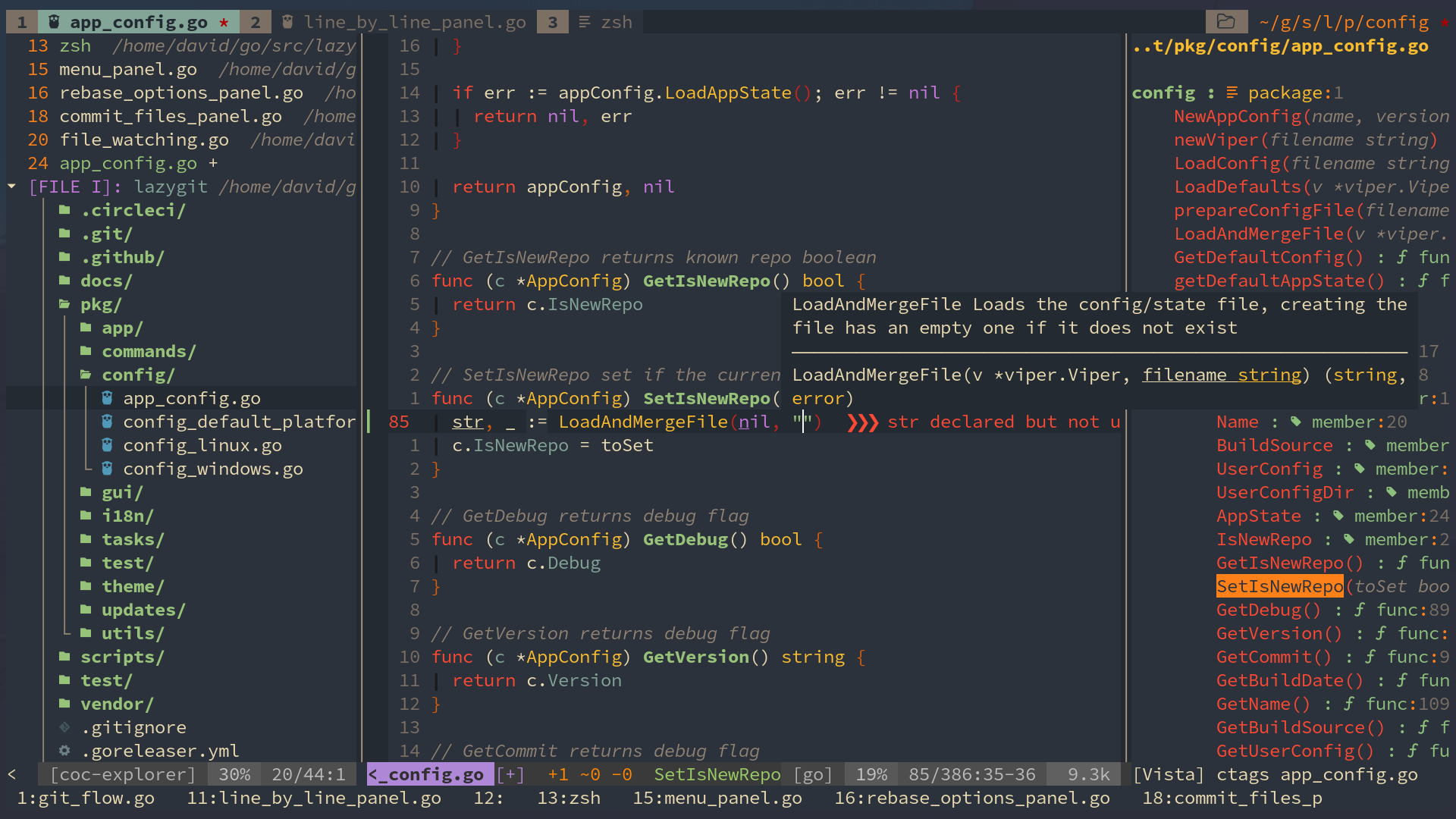 Please **DO NOT** just copy this configuration folder without really looking at it! Please, at least, read this README file!
* [After Installation, You Need To](#after-installation-you-need-to)
* [After Installation, You Might Want To](#after-installation-you-might-want-to)
- [First of all](#first-of-all)
- [For Python Debugger (via `vimspector`)](#for-python-debugger-via-vimspector)
- [Config `Python` path](#config-python-path)
- [For Taglist:](#for-taglist)
- [For FZF](#for-fzf)
- [And also...](#and-also)
* [Keyboard Shortcuts](#keyboard-shortcuts)
- [1 Basic Editor Features](#1-basic-editor-features)
+ [1.1 The Most Basics](#11-the-most-basics)
+ [1.2 Remapped Cursor Movement](#12-remapped-cursor-movement)
+ [1.3 Remapped Insert Mode Keys](#13-remapped-insert-mode-keys)
+ [1.4 Remapped Text Manipulating Commands in Normal Mode](#14-remapped-text-manipulating-commands-in-normal-mode)
+ [1.5 Other Useful Normal Mode Remappings](#15-other-useful-normal-mode-remappings)
+ [1.6 Remapped Commands in Visual Mode](#16-remapped-commands-in-visual-mode)
- [2 Window Management](#2-window-management)
+ [2.1 Creating Window Through Split Screen](#21-creating-window-through-split-screen)
+ [2.2 Moving the Cursor Between Different Windows](#22-moving-the-cursor-between-different-windows)
+ [2.3 Resizing Different Windows](#23-resizing-different-windows)
+ [2.4 Closing Windows](#24-closing-windows)
- [3 Tab Management](#3-tab-management)
- [4 Terminal Keyboard Shortcuts](#4-terminal-keyboard-shortcuts)
* [Plugins Keybindings (Screenshots/GIF provided!)](#plugins-keybindings-screenshotsgif-provided)
- [AutoCompletion](#autocompletion)
+ [COC (AutoCompletion)](#coc-autocompletion)
+ [Ultisnips](#ultisnips)
- [Debugger](#debugger)
+ [vimspector (debugger-plugin)](#vimspector-debugger-plugin)
- [File Navigation](#file-navigation)
+ [coc-explorer (file browser)](#coc-explorer-file-browser)
+ [rnvimr - file browser](#rnvimr---file-browser)
+ [FZF - the fuzzy file finder](#fzf---the-fuzzy-file-finder)
+ [xtabline (the fancy tab line)](#xtabline-the-fancy-tab-line)
- [Text Editing Plugins](#text-editing-plugins)
+ [vim-table-mode](#vim-table-mode)
+ [Undotree](#undotree)
+ [vim-multiple-cursors](#vim-multiple-cursors)
+ [vim-surround](#vim-surround)
+ [vim-subversive](#vim-subversive)
+ [vim-easy-align](#vim-easy-align)
+ [AutoFormat](#autoformat)
+ [vim-markdown-toc (generate table of contents for markdown files)](#vim-markdown-toc-generate-table-of-contents-for-markdown-files)
- [Navigation Within Buffer](#navigation-within-buffer)
+ [vim-easy-motion](#vim-easy-motion)
+ [Vista.vim](#vistavim)
+ [vim-signiture - Bookmarks](#vim-signiture---bookmarks)
- [Find and Replace](#find-and-replace)
+ [Far.vim - find and replace](#farvim---find-and-replace)
- [Git Related](#git-related)
+ [vim-gitgutter](#vim-gitgutter)
+ [fzf-gitignore](#fzf-gitignore)
- [Others](#others)
+ [vim-calendar](#vim-calendar)
+ [Goyo - Work without distraction](#goyo---work-without-distraction)
+ [suda.vim](#sudavim)
+ [coc-translator](#coc-translator)
* [Custom Snippets](#custom-snippets)
- [Markdown](#markdown)
* [Some Weird Stuff](#some-weird-stuff)
- [Press `tx` and enter your text](#press-tx-and-enter-your-text)
## After Installation, You Need To
- [ ] Install `pynvim` (pip)
- [ ] Install `nodejs`, and do `npm install -g neovim`
- [ ] Install nerd-fonts (actually it's optional but it looks real good)
## After Installation, You Might Want To
### First of all
- [ ] Do `:checkhealth`
### For Python Debugger (via `vimspector`)
- [ ] Install `debugpy` (`pip`)
### Config `Python` path
- [ ] Well, make sure you have python
- [ ] See `_machine_specific.vim`
### For Taglist:
- [ ] Install `ctags` for function/class/variable list
### For FZF
- [ ] Install `fzf`
- [ ] Install `ag` (`the_silver_searcher`)
### And also...
- [ ] Install `figlet` for inputing text ASCII art
- [ ] Install `xclip` for system clipboard access (`Linux` and `xorg` only)
## Keyboard Shortcuts
### 1 Basic Editor Features
#### 1.1 The Most Basics
**`k`** : switchs to **`INSERT`** : mode (same as key `i` in vanilla vim)
**`Q`** : quits current vim window (same as command `:q` in vanilla vim)
**`S`** : saves the current file (same as command `:w` in vanilla vim)
**_IMPORTANT_**
Since the `i` key has been mapped to `k`, every command (combination) that involves `i` should use `k` instead (for example, `ciw` should be `ckw`).
#### 1.2 Remapped Cursor Movement
| Shortcut | Action | Equivalent |
|------------|-----------------------------------------------------------|------------|
| `u` | Cursor up a terminal line | `k` |
| `e` | Cursor down a terminal line | `j` |
| `n` | Cursor left | `h` |
| `i` | Cursor right | `l` |
| `U` | Cursor up 5 terminal lines | `5k` |
| `E` | Cursor down 5 terminal lines | `5j` |
| `N` | Cursor to the start of the line | `0` |
| `I` | Cursor to the end of the line | `$` |
| `Ctrl` `u` | Move the view port up 5 lines without moving the cursor | `Ctrl` `y` |
| `Ctrl` `e` | Move the view port down 5 lines without moving the cursor | `Ctrl` `e` |
| `h` | Move to the end of this word | `e` |
| `W` | Move cursor five words forward | `5w` |
| `B` | Move cursor five words forward | `5b` |
#### 1.3 Remapped Insert Mode Keys
| Shortcut | Action |
|------------|----------------------------------------------------------------------|
| `Ctrl` `a` | Move cursor to the end of the line |
| `Ctrl` `u` | Move the character on the right of the cursor to the end of the line |
#### 1.4 Remapped Text Manipulating Commands in Normal Mode
| Shortcut | Action |
|-----------------|---------------------------------------|
| `l` | **undo** |
| `<` | Un-indent |
| `>` | Indent |
| `SPACE` `SPACE` | Goto the next placeholder (`<++>`) |
#### 1.5 Other Useful Normal Mode Remappings
| Shortcut | Action |
|-----------------|------------------------------------------------|
| `r` | **Compile/Run the current file** |
| `SPACE` `s` `c` | Toggle spell suggestion a |
| `SPACE` `d` `w` | Find adjacent duplicated word |
| `SPACE` `t` `t` | Convert every 4 Spaces to a tab |
| `SPACE` `o` | Fold |
| `SPACE` `-` | Previous quick-fix position |
| `SPACE` `+` | Next quick-fix position |
| `\` `p` | Show the path of the current file |
| `SPACE` `/` | Create a new terminal below the current window |
#### 1.6 Remapped Commands in Visual Mode
| Shortcut | Action |
|-----------------|----------------------------------------|
| `Y` | Copy selected text to system clipboard |
### 2 Window Management
#### 2.1 Creating Window Through Split Screen
| Shortcut | Action |
|-------------|-----------------------------------------------------------------------------|
| `s` `u` | Create a new horizontal split screen and place it above the current window |
| `s` `e` | Create a new horizontal split screen and place it below the current window |
| `s` `n` | Create a new vertical split screen and place it left to the current window |
| `s` `i` | Create a new vertical split screen and place it right to the current window |
| `s` `v` | Set the two splits to be vertical |
| `s` `h` | Set the two splits to be horizontal |
| `s` `r` `v` | Rotate splits and arrange splits vertically |
| `s` `r` `h` | Rotate splits and arrange splits horizontally |
#### 2.2 Moving the Cursor Between Different Windows
| Shortcut | Action |
|---------------|--------------------------------|
| `SPACE` + `w` | Move cursor to the next window |
| `SPACE` + `n` | Move cursor one window left |
| `SPACE` + `i` | Move cursor one window right |
| `SPACE` + `u` | Move cursor one window up |
| `SPACE` + `e` | Move cursor one window down |
#### 2.3 Resizing Different Windows
Use the arrow keys to resize the current window.
#### 2.4 Closing Windows
| Shortcut | Action |
|-------------|------------------------------------------------------------------------------------------------------------|
| `Q` | Close the current window |
| `SPACE` `q` | Close the window below the current window. (The current window will be closed if there is no window below) |
### 3 Tab Management
| Shortcut | Action |
|-------------|------------------|
| `t` `u` | Create a new tab |
| `t` `n` | Go one tab left |
| `t` `i` | Go One tab right |
| `t` `m` `n` | Move tab left |
| `t` `m` `i` | Move tab right |
### 4 Terminal Keyboard Shortcuts
| Shortcut | Action |
|-------------|-------------------------------------------------------------|
| `Ctrl` `n` | Escape from terminal input mode |
## Plugins Keybindings (Screenshots/GIF provided!)
### AutoCompletion
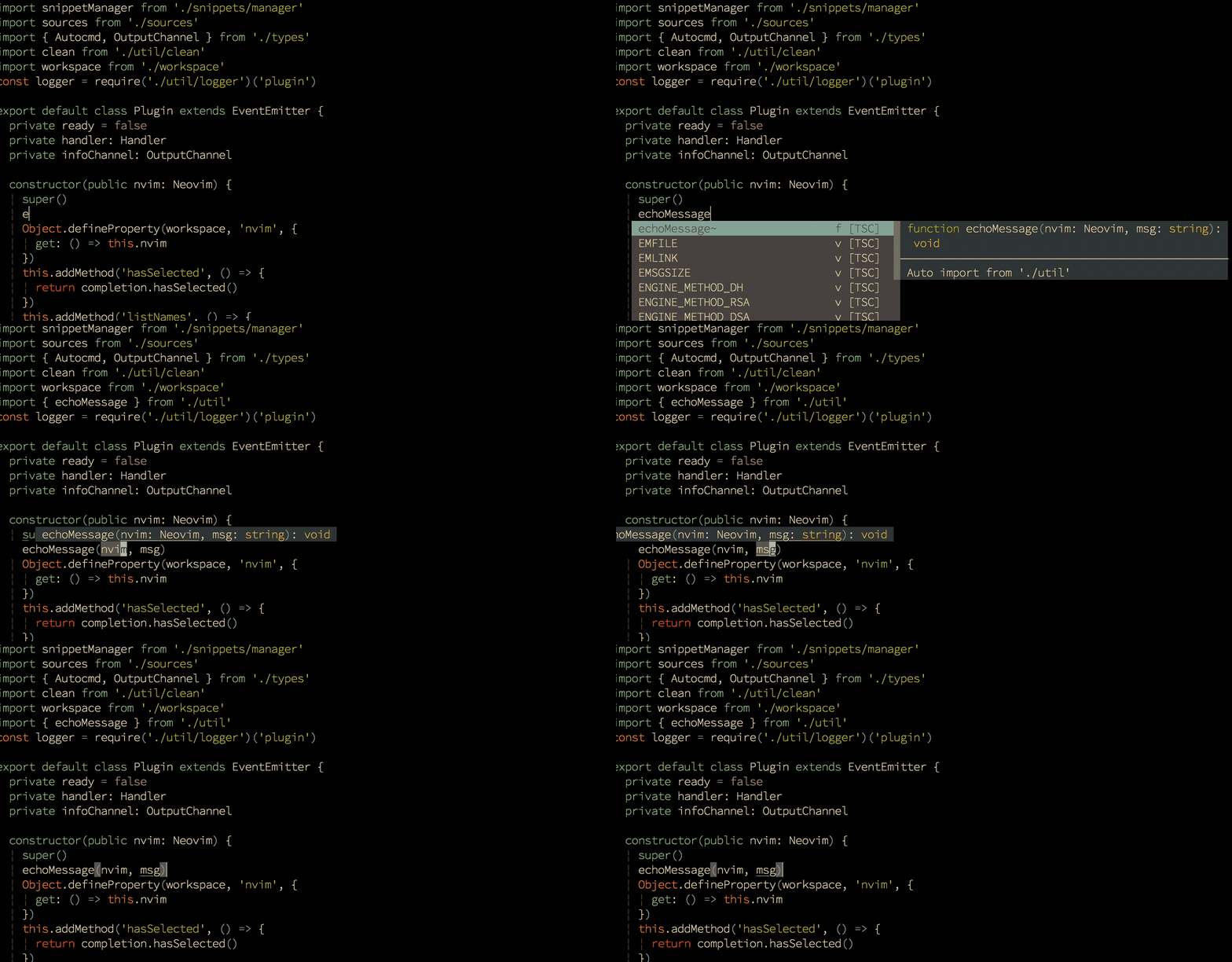
#### COC (AutoCompletion)
| Shortcut | Action |
|-----------------|---------------------------|
| `Space` `y` | **Get yank history list** |
| `gd` | Go to definition |
| `gr` | List references |
| `gi` | List implementation |
| `gy` | Go to type definition |
| `Space` `r` `n` | Rename a variable |
Please **DO NOT** just copy this configuration folder without really looking at it! Please, at least, read this README file!
* [After Installation, You Need To](#after-installation-you-need-to)
* [After Installation, You Might Want To](#after-installation-you-might-want-to)
- [First of all](#first-of-all)
- [For Python Debugger (via `vimspector`)](#for-python-debugger-via-vimspector)
- [Config `Python` path](#config-python-path)
- [For Taglist:](#for-taglist)
- [For FZF](#for-fzf)
- [And also...](#and-also)
* [Keyboard Shortcuts](#keyboard-shortcuts)
- [1 Basic Editor Features](#1-basic-editor-features)
+ [1.1 The Most Basics](#11-the-most-basics)
+ [1.2 Remapped Cursor Movement](#12-remapped-cursor-movement)
+ [1.3 Remapped Insert Mode Keys](#13-remapped-insert-mode-keys)
+ [1.4 Remapped Text Manipulating Commands in Normal Mode](#14-remapped-text-manipulating-commands-in-normal-mode)
+ [1.5 Other Useful Normal Mode Remappings](#15-other-useful-normal-mode-remappings)
+ [1.6 Remapped Commands in Visual Mode](#16-remapped-commands-in-visual-mode)
- [2 Window Management](#2-window-management)
+ [2.1 Creating Window Through Split Screen](#21-creating-window-through-split-screen)
+ [2.2 Moving the Cursor Between Different Windows](#22-moving-the-cursor-between-different-windows)
+ [2.3 Resizing Different Windows](#23-resizing-different-windows)
+ [2.4 Closing Windows](#24-closing-windows)
- [3 Tab Management](#3-tab-management)
- [4 Terminal Keyboard Shortcuts](#4-terminal-keyboard-shortcuts)
* [Plugins Keybindings (Screenshots/GIF provided!)](#plugins-keybindings-screenshotsgif-provided)
- [AutoCompletion](#autocompletion)
+ [COC (AutoCompletion)](#coc-autocompletion)
+ [Ultisnips](#ultisnips)
- [Debugger](#debugger)
+ [vimspector (debugger-plugin)](#vimspector-debugger-plugin)
- [File Navigation](#file-navigation)
+ [coc-explorer (file browser)](#coc-explorer-file-browser)
+ [rnvimr - file browser](#rnvimr---file-browser)
+ [FZF - the fuzzy file finder](#fzf---the-fuzzy-file-finder)
+ [xtabline (the fancy tab line)](#xtabline-the-fancy-tab-line)
- [Text Editing Plugins](#text-editing-plugins)
+ [vim-table-mode](#vim-table-mode)
+ [Undotree](#undotree)
+ [vim-multiple-cursors](#vim-multiple-cursors)
+ [vim-surround](#vim-surround)
+ [vim-subversive](#vim-subversive)
+ [vim-easy-align](#vim-easy-align)
+ [AutoFormat](#autoformat)
+ [vim-markdown-toc (generate table of contents for markdown files)](#vim-markdown-toc-generate-table-of-contents-for-markdown-files)
- [Navigation Within Buffer](#navigation-within-buffer)
+ [vim-easy-motion](#vim-easy-motion)
+ [Vista.vim](#vistavim)
+ [vim-signiture - Bookmarks](#vim-signiture---bookmarks)
- [Find and Replace](#find-and-replace)
+ [Far.vim - find and replace](#farvim---find-and-replace)
- [Git Related](#git-related)
+ [vim-gitgutter](#vim-gitgutter)
+ [fzf-gitignore](#fzf-gitignore)
- [Others](#others)
+ [vim-calendar](#vim-calendar)
+ [Goyo - Work without distraction](#goyo---work-without-distraction)
+ [suda.vim](#sudavim)
+ [coc-translator](#coc-translator)
* [Custom Snippets](#custom-snippets)
- [Markdown](#markdown)
* [Some Weird Stuff](#some-weird-stuff)
- [Press `tx` and enter your text](#press-tx-and-enter-your-text)
## After Installation, You Need To
- [ ] Install `pynvim` (pip)
- [ ] Install `nodejs`, and do `npm install -g neovim`
- [ ] Install nerd-fonts (actually it's optional but it looks real good)
## After Installation, You Might Want To
### First of all
- [ ] Do `:checkhealth`
### For Python Debugger (via `vimspector`)
- [ ] Install `debugpy` (`pip`)
### Config `Python` path
- [ ] Well, make sure you have python
- [ ] See `_machine_specific.vim`
### For Taglist:
- [ ] Install `ctags` for function/class/variable list
### For FZF
- [ ] Install `fzf`
- [ ] Install `ag` (`the_silver_searcher`)
### And also...
- [ ] Install `figlet` for inputing text ASCII art
- [ ] Install `xclip` for system clipboard access (`Linux` and `xorg` only)
## Keyboard Shortcuts
### 1 Basic Editor Features
#### 1.1 The Most Basics
**`k`** : switchs to **`INSERT`** : mode (same as key `i` in vanilla vim)
**`Q`** : quits current vim window (same as command `:q` in vanilla vim)
**`S`** : saves the current file (same as command `:w` in vanilla vim)
**_IMPORTANT_**
Since the `i` key has been mapped to `k`, every command (combination) that involves `i` should use `k` instead (for example, `ciw` should be `ckw`).
#### 1.2 Remapped Cursor Movement
| Shortcut | Action | Equivalent |
|------------|-----------------------------------------------------------|------------|
| `u` | Cursor up a terminal line | `k` |
| `e` | Cursor down a terminal line | `j` |
| `n` | Cursor left | `h` |
| `i` | Cursor right | `l` |
| `U` | Cursor up 5 terminal lines | `5k` |
| `E` | Cursor down 5 terminal lines | `5j` |
| `N` | Cursor to the start of the line | `0` |
| `I` | Cursor to the end of the line | `$` |
| `Ctrl` `u` | Move the view port up 5 lines without moving the cursor | `Ctrl` `y` |
| `Ctrl` `e` | Move the view port down 5 lines without moving the cursor | `Ctrl` `e` |
| `h` | Move to the end of this word | `e` |
| `W` | Move cursor five words forward | `5w` |
| `B` | Move cursor five words forward | `5b` |
#### 1.3 Remapped Insert Mode Keys
| Shortcut | Action |
|------------|----------------------------------------------------------------------|
| `Ctrl` `a` | Move cursor to the end of the line |
| `Ctrl` `u` | Move the character on the right of the cursor to the end of the line |
#### 1.4 Remapped Text Manipulating Commands in Normal Mode
| Shortcut | Action |
|-----------------|---------------------------------------|
| `l` | **undo** |
| `<` | Un-indent |
| `>` | Indent |
| `SPACE` `SPACE` | Goto the next placeholder (`<++>`) |
#### 1.5 Other Useful Normal Mode Remappings
| Shortcut | Action |
|-----------------|------------------------------------------------|
| `r` | **Compile/Run the current file** |
| `SPACE` `s` `c` | Toggle spell suggestion a |
| `SPACE` `d` `w` | Find adjacent duplicated word |
| `SPACE` `t` `t` | Convert every 4 Spaces to a tab |
| `SPACE` `o` | Fold |
| `SPACE` `-` | Previous quick-fix position |
| `SPACE` `+` | Next quick-fix position |
| `\` `p` | Show the path of the current file |
| `SPACE` `/` | Create a new terminal below the current window |
#### 1.6 Remapped Commands in Visual Mode
| Shortcut | Action |
|-----------------|----------------------------------------|
| `Y` | Copy selected text to system clipboard |
### 2 Window Management
#### 2.1 Creating Window Through Split Screen
| Shortcut | Action |
|-------------|-----------------------------------------------------------------------------|
| `s` `u` | Create a new horizontal split screen and place it above the current window |
| `s` `e` | Create a new horizontal split screen and place it below the current window |
| `s` `n` | Create a new vertical split screen and place it left to the current window |
| `s` `i` | Create a new vertical split screen and place it right to the current window |
| `s` `v` | Set the two splits to be vertical |
| `s` `h` | Set the two splits to be horizontal |
| `s` `r` `v` | Rotate splits and arrange splits vertically |
| `s` `r` `h` | Rotate splits and arrange splits horizontally |
#### 2.2 Moving the Cursor Between Different Windows
| Shortcut | Action |
|---------------|--------------------------------|
| `SPACE` + `w` | Move cursor to the next window |
| `SPACE` + `n` | Move cursor one window left |
| `SPACE` + `i` | Move cursor one window right |
| `SPACE` + `u` | Move cursor one window up |
| `SPACE` + `e` | Move cursor one window down |
#### 2.3 Resizing Different Windows
Use the arrow keys to resize the current window.
#### 2.4 Closing Windows
| Shortcut | Action |
|-------------|------------------------------------------------------------------------------------------------------------|
| `Q` | Close the current window |
| `SPACE` `q` | Close the window below the current window. (The current window will be closed if there is no window below) |
### 3 Tab Management
| Shortcut | Action |
|-------------|------------------|
| `t` `u` | Create a new tab |
| `t` `n` | Go one tab left |
| `t` `i` | Go One tab right |
| `t` `m` `n` | Move tab left |
| `t` `m` `i` | Move tab right |
### 4 Terminal Keyboard Shortcuts
| Shortcut | Action |
|-------------|-------------------------------------------------------------|
| `Ctrl` `n` | Escape from terminal input mode |
## Plugins Keybindings (Screenshots/GIF provided!)
### AutoCompletion
#### COC (AutoCompletion)
| Shortcut | Action |
|-----------------|---------------------------|
| `Space` `y` | **Get yank history list** |
| `gd` | Go to definition |
| `gr` | List references |
| `gi` | List implementation |
| `gy` | Go to type definition |
| `Space` `r` `n` | Rename a variable |
 #### Ultisnips
| Shortcut | Action |
|------------|--------------------------------------------------|
| `Ctrl` `e` | Expand a snippet |
| `Ctrl` `n` | (in snippet) Previous Cursor position in snippet |
| `Ctrl` `e` | (in snippet) Next Cursor position in snippet |

### Debugger
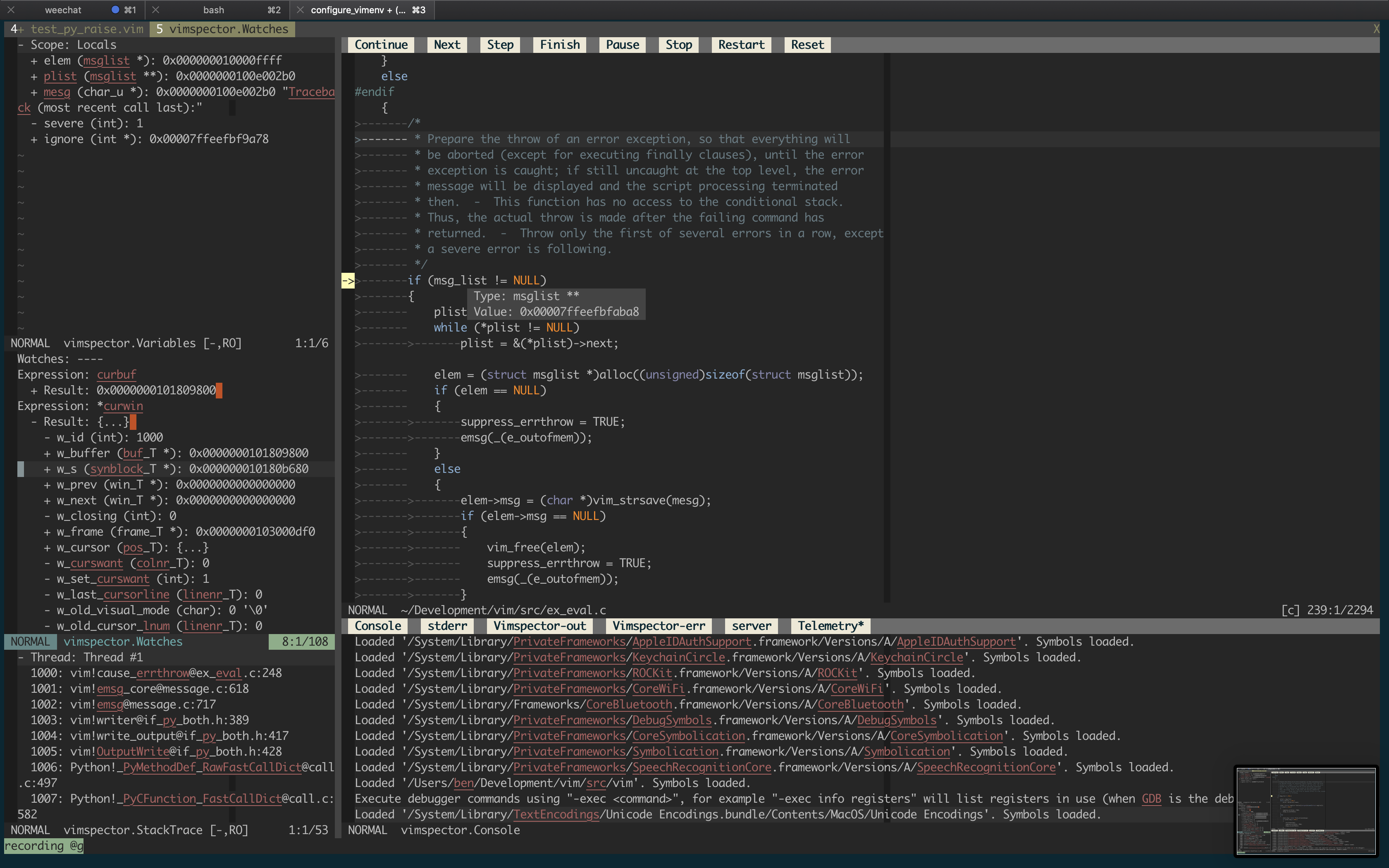
#### vimspector (debugger-plugin)
| Key | Function |
|-------|-----------------------------------------------------------|
| `F5` | When debugging, continue. Otherwise start debugging. |
| `F3` | Stop debugging. |
| `F4` | Restart debugging with the same configuration. |
| `F6` | Pause debugee. |
| `F9` | Toggle line breakpoint on the current line. |
| `F8` | Add a function breakpoint for the expression under cursor |
| `F10` | Step Over |
| `F11` | Step Into |
| `F12` | Step out of current function scope |
#### Ultisnips
| Shortcut | Action |
|------------|--------------------------------------------------|
| `Ctrl` `e` | Expand a snippet |
| `Ctrl` `n` | (in snippet) Previous Cursor position in snippet |
| `Ctrl` `e` | (in snippet) Next Cursor position in snippet |

### Debugger
#### vimspector (debugger-plugin)
| Key | Function |
|-------|-----------------------------------------------------------|
| `F5` | When debugging, continue. Otherwise start debugging. |
| `F3` | Stop debugging. |
| `F4` | Restart debugging with the same configuration. |
| `F6` | Pause debugee. |
| `F9` | Toggle line breakpoint on the current line. |
| `F8` | Add a function breakpoint for the expression under cursor |
| `F10` | Step Over |
| `F11` | Step Into |
| `F12` | Step out of current function scope |
 ### File Navigation
#### coc-explorer (file browser)
| Shortcut | Action |
|----------|-------------------------|
| `tt` | **Open file browser** |
| `?` | show help (in explorer) |
### File Navigation
#### coc-explorer (file browser)
| Shortcut | Action |
|----------|-------------------------|
| `tt` | **Open file browser** |
| `?` | show help (in explorer) |
 #### rnvimr - file browser
- [ ] Make sure you have ranger installed
Press `R` to open Ranger (file selector)
And Within rnvimr (ranger), you can:
| Shortcut | Action |
|------------|------------------------------------|
| `Ctrl` `t` | Open the file in a new tab |
| `Ctrl` `x` | Split up and down with the file |
| `Ctrl` `v` | Split left and right with the file |
#### rnvimr - file browser
- [ ] Make sure you have ranger installed
Press `R` to open Ranger (file selector)
And Within rnvimr (ranger), you can:
| Shortcut | Action |
|------------|------------------------------------|
| `Ctrl` `t` | Open the file in a new tab |
| `Ctrl` `x` | Split up and down with the file |
| `Ctrl` `v` | Split left and right with the file |
 #### FZF - the fuzzy file finder
| Shortcut | Action |
|------------|--------------------|
| `Ctrl` `p` | **FZF Files** |
| `Ctrl` `u` | Move up 1 item |
| `Ctrl` `e` | Move down 1 item |
| `Ctrl` `w` | FZF Buffers |
| `Ctrl` `f` | FZF Files' Content |
| `Ctrl` `h` | FZF Recent Files |
| `Ctrl` `t` | FZF Tags |
#### FZF - the fuzzy file finder
| Shortcut | Action |
|------------|--------------------|
| `Ctrl` `p` | **FZF Files** |
| `Ctrl` `u` | Move up 1 item |
| `Ctrl` `e` | Move down 1 item |
| `Ctrl` `w` | FZF Buffers |
| `Ctrl` `f` | FZF Files' Content |
| `Ctrl` `h` | FZF Recent Files |
| `Ctrl` `t` | FZF Tags |
 #### xtabline (the fancy tab line)
| Shortcut | What it creates |
|----------|-------------------|
| `to` | Cycle tab mode |
| `\p` | Show current path |
#### xtabline (the fancy tab line)
| Shortcut | What it creates |
|----------|-------------------|
| `to` | Cycle tab mode |
| `\p` | Show current path |
 ### Text Editing Plugins
#### vim-table-mode
| Shortcut | Action |
|-----------------|-------------------|
| `SPACE` `t` `m` | Toggle table mode |
| `SPACE` `t` `r` | Realign table |
See `:help table-mode.txt` for more.
#### Undotree
| Shortcut | Action |
|---------------|---------------|
| `Shift` + `L` | Open Undotree |
| `u` | Newer Version |
| `e` | Older Version |
### Text Editing Plugins
#### vim-table-mode
| Shortcut | Action |
|-----------------|-------------------|
| `SPACE` `t` `m` | Toggle table mode |
| `SPACE` `t` `r` | Realign table |
See `:help table-mode.txt` for more.
#### Undotree
| Shortcut | Action |
|---------------|---------------|
| `Shift` + `L` | Open Undotree |
| `u` | Newer Version |
| `e` | Older Version |
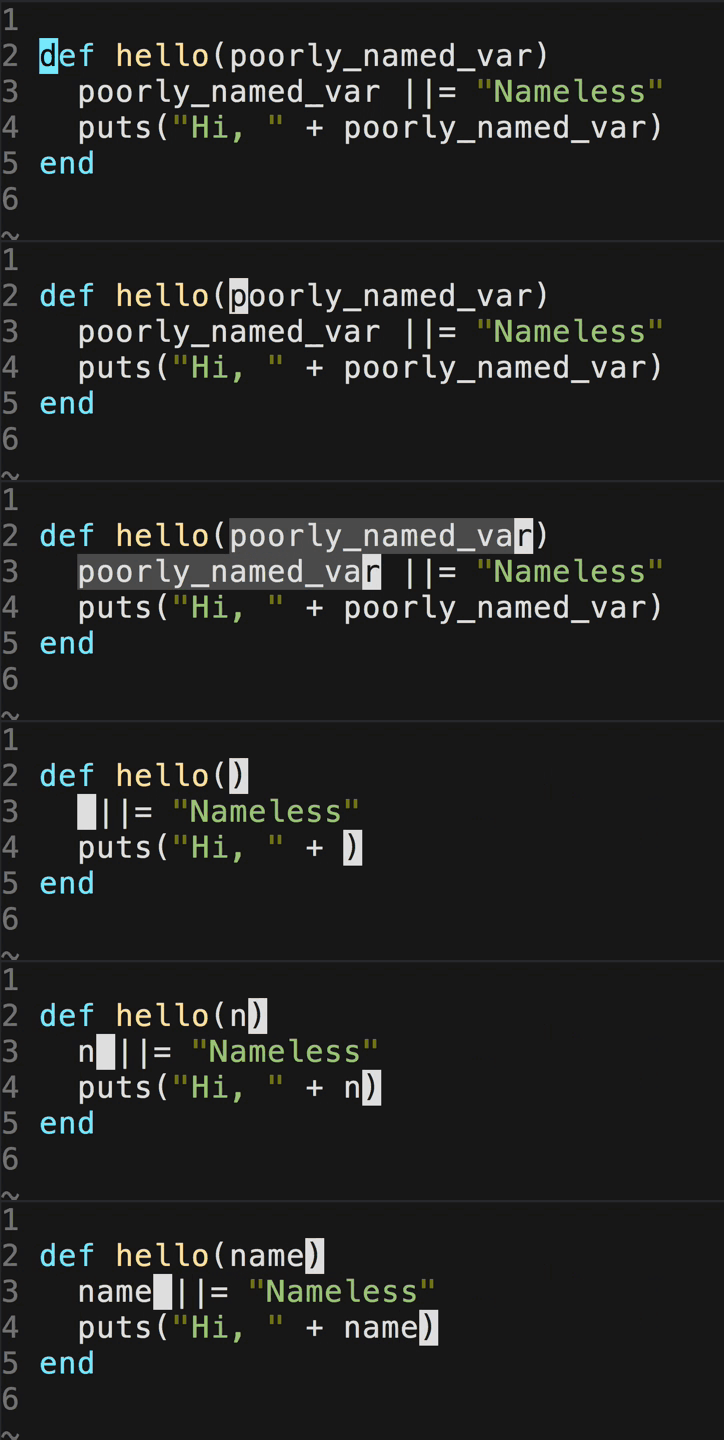
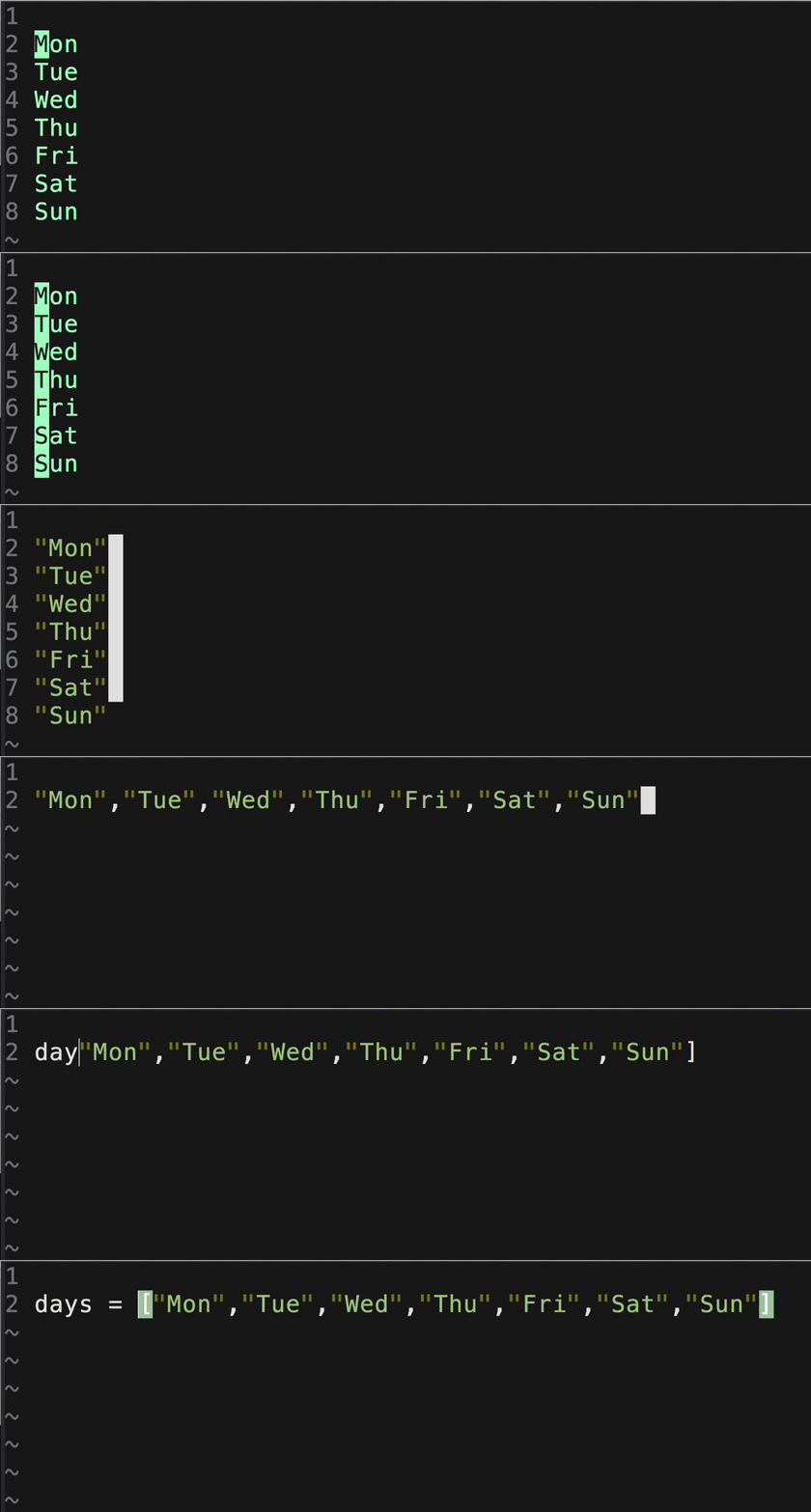
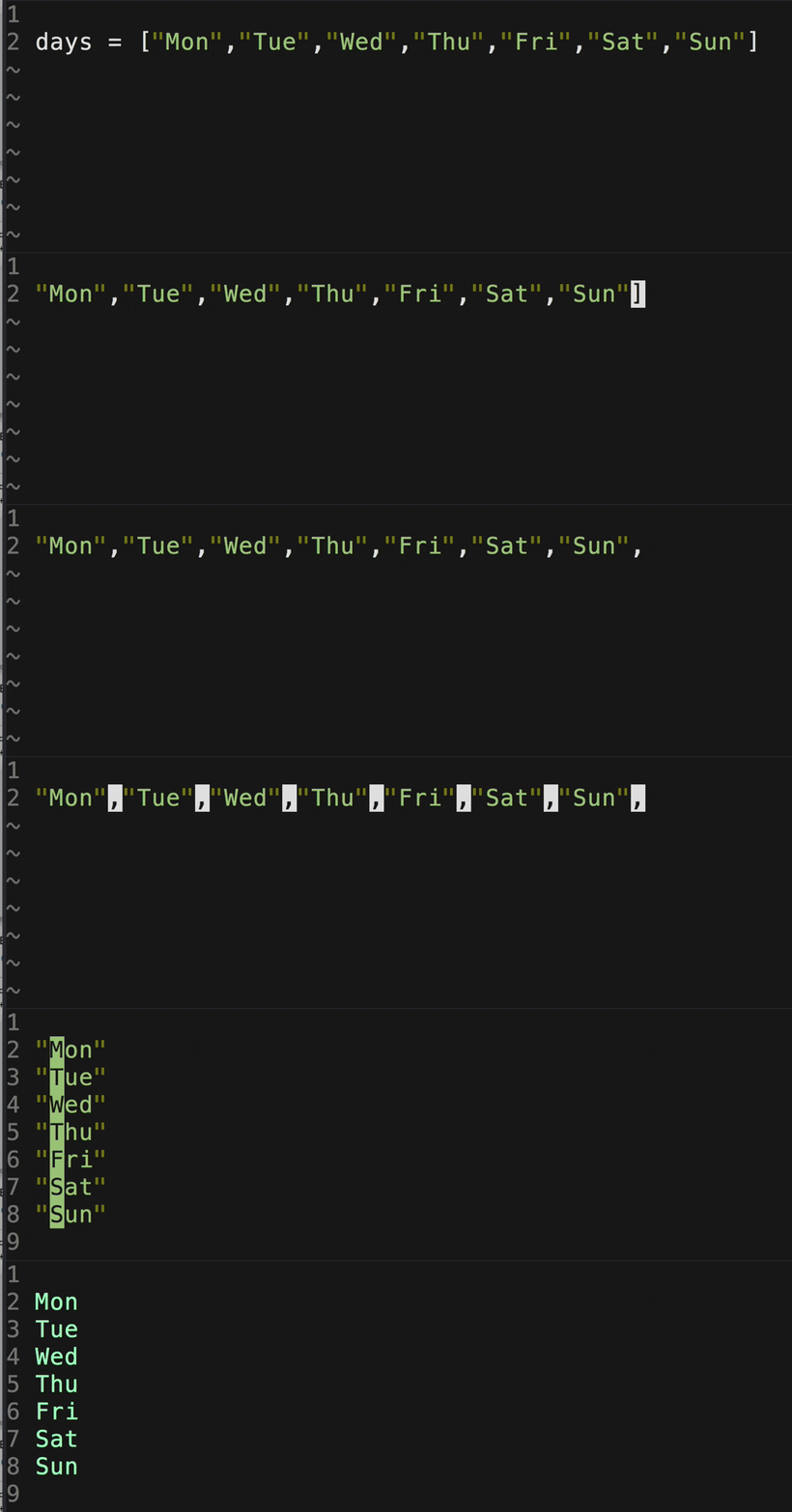
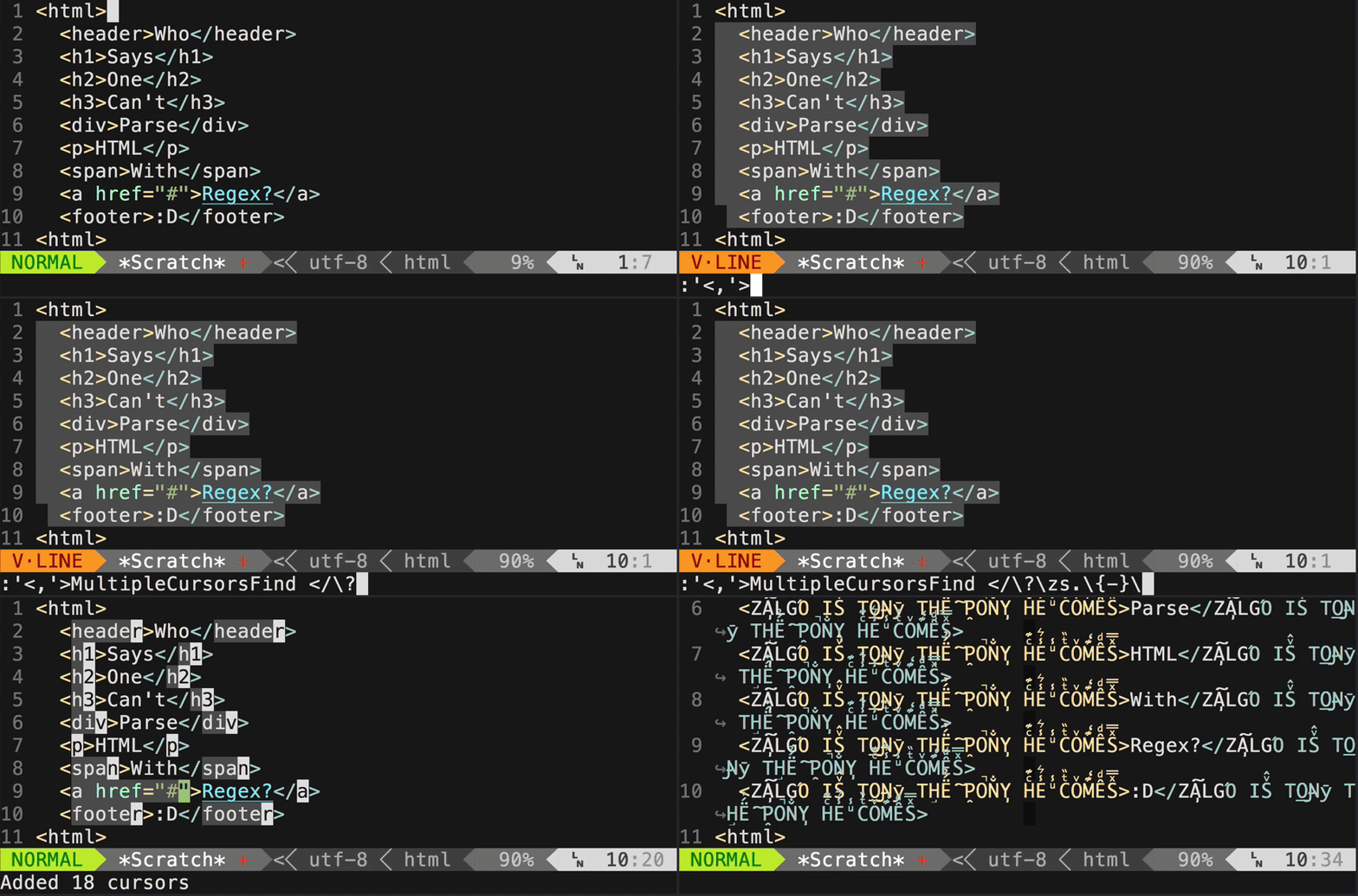
 #### vim-multiple-cursors
| Shortcut | Action |
|------------|----------------------------------------|
| `Ctrl`+`k` | **Select next key (multiple cursors)** |
| `Alt`+`k` | **Select all keys (multiple cursors)** |
| `Ctrl`+`p` | Select previous key |
| `Ctrl`+`s` | Skip key |
| `Esc` | Quit mutiple cursors |
#### vim-multiple-cursors
| Shortcut | Action |
|------------|----------------------------------------|
| `Ctrl`+`k` | **Select next key (multiple cursors)** |
| `Alt`+`k` | **Select all keys (multiple cursors)** |
| `Ctrl`+`p` | Select previous key |
| `Ctrl`+`s` | Skip key |
| `Esc` | Quit mutiple cursors |
 #### vim-surround
To add surround (`string` -> `"string"`):
```
string
```
press: `yskw'`:
```
'string'
```
To change surround
```
'string'
```
press: `cs'"`:
```
"string"
```
#### vim-surround
To add surround (`string` -> `"string"`):
```
string
```
press: `yskw'`:
```
'string'
```
To change surround
```
'string'
```
press: `cs'"`:
```
"string"
```
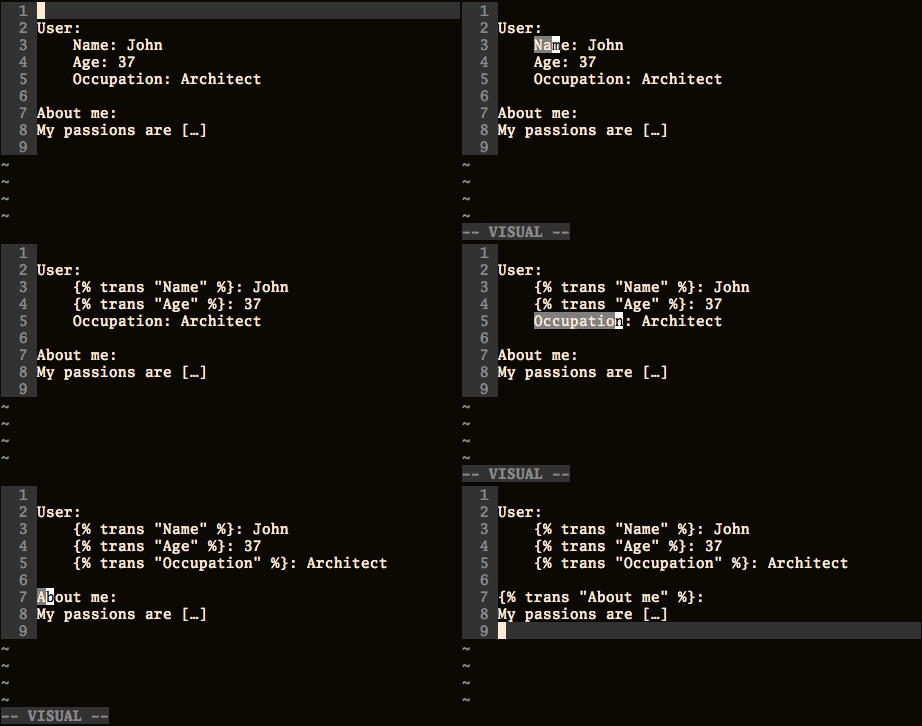 #### vim-subversive
New operator: `s`:
You can execute `s` to substitute the text object provided by the motion with the contents of the default register (or an explicit register if provided). For example, you could execute `skw` to replace the current word under the cursor with the current yank, or `skp` to replace the paragraph, etc.
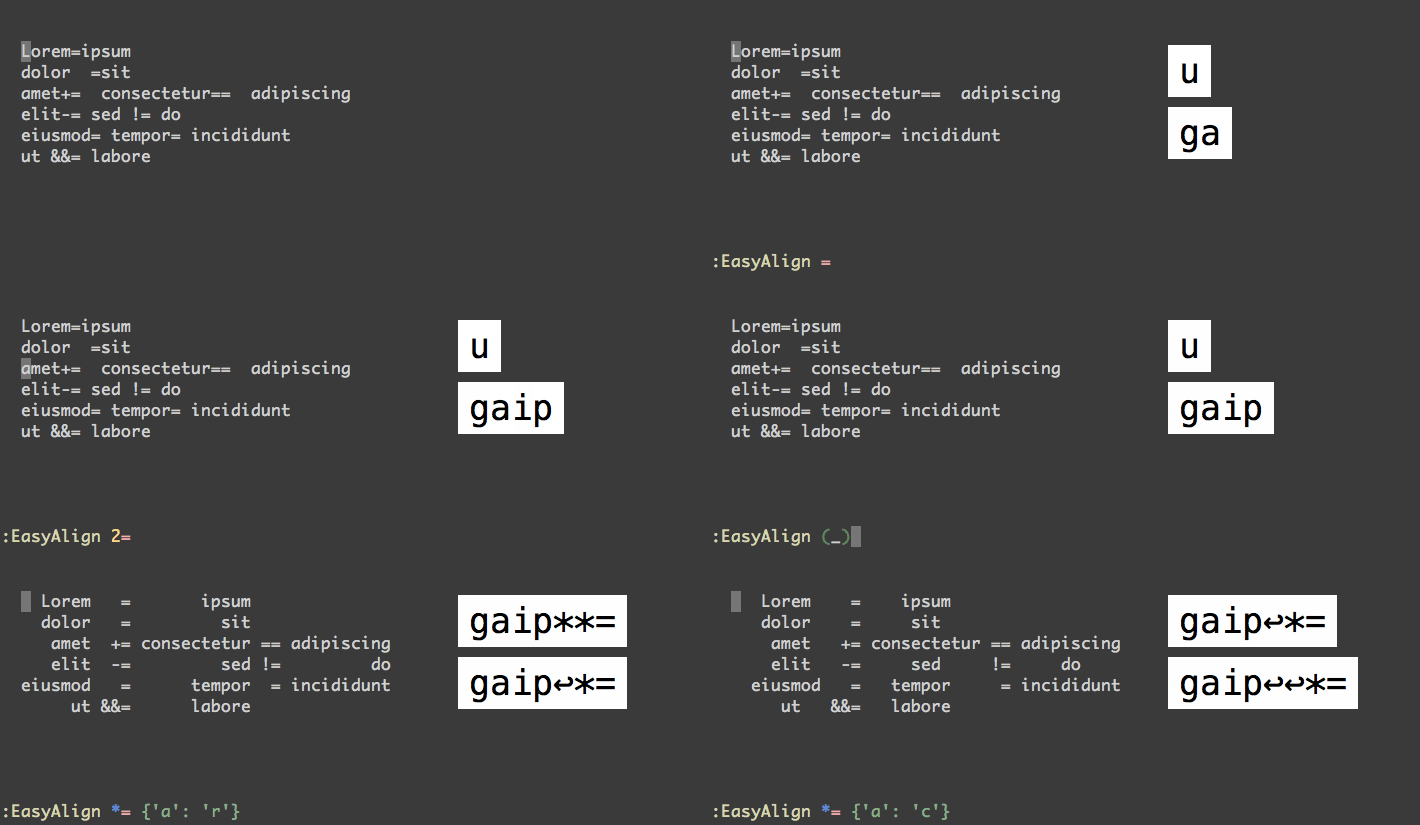
#### vim-easy-align
Press `ga` + **symbol** in normal or visual mode to align text based on **symbol**
#### vim-subversive
New operator: `s`:
You can execute `s` to substitute the text object provided by the motion with the contents of the default register (or an explicit register if provided). For example, you could execute `skw` to replace the current word under the cursor with the current yank, or `skp` to replace the paragraph, etc.
#### vim-easy-align
Press `ga` + **symbol** in normal or visual mode to align text based on **symbol**
 #### AutoFormat
Press `\` `f` to format code
#### vim-markdown-toc (generate table of contents for markdown files)
In `markdown` files, type `:Gen` then tab, you'll see your options.
#### AutoFormat
Press `\` `f` to format code
#### vim-markdown-toc (generate table of contents for markdown files)
In `markdown` files, type `:Gen` then tab, you'll see your options.
 ### Navigation Within Buffer
#### vim-easy-motion
Press `'` and a `character` jump to `character` (similar to Emacs' [AceJump](https://www.emacswiki.org/emacs/AceJump))
### Navigation Within Buffer
#### vim-easy-motion
Press `'` and a `character` jump to `character` (similar to Emacs' [AceJump](https://www.emacswiki.org/emacs/AceJump))
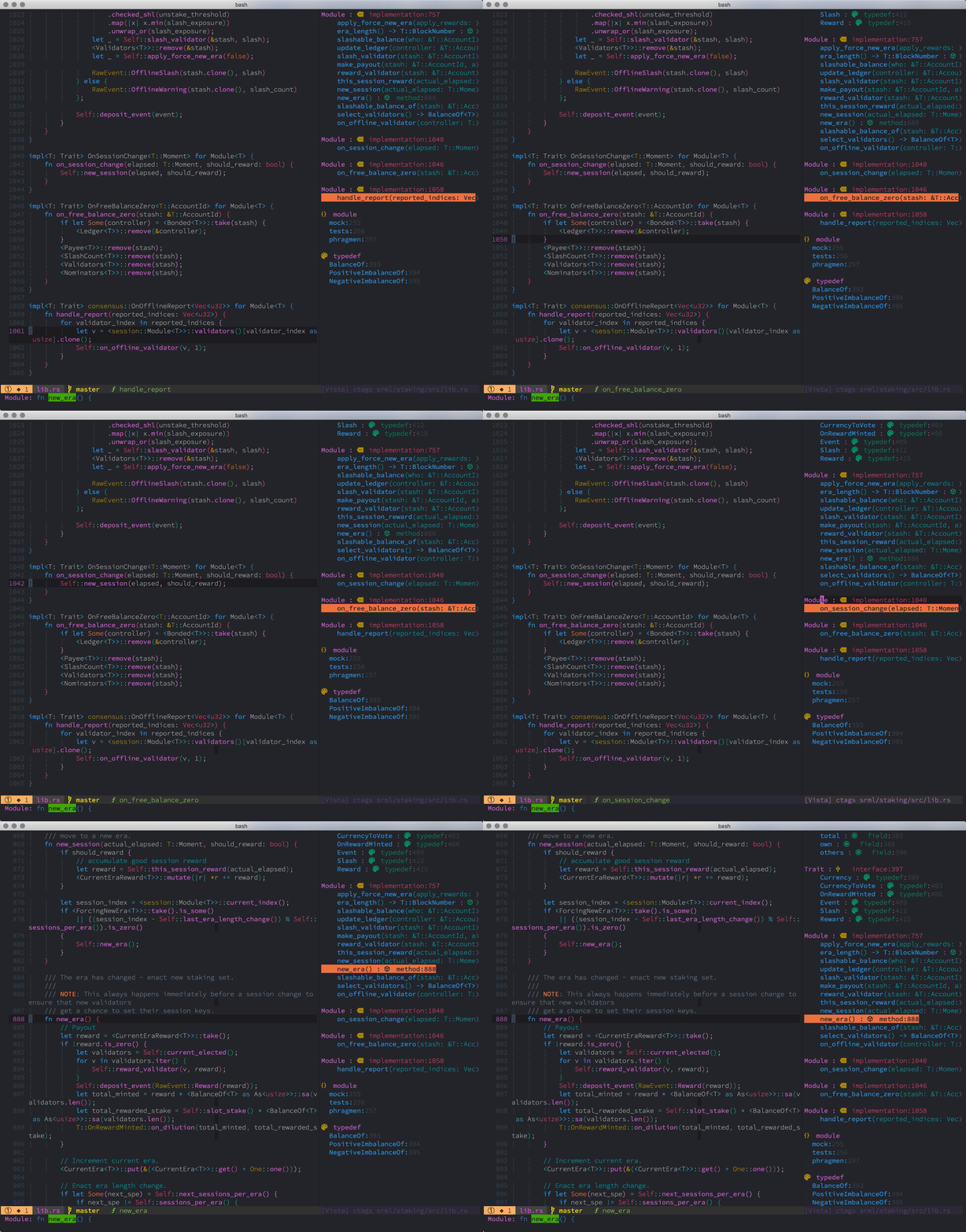
 #### Vista.vim
Press `T` to toggle function and variable list
#### Vista.vim
Press `T` to toggle function and variable list
 #### vim-signiture - Bookmarks
| Shortcut | Action |
|-------------|---------------------------------|
| `m` | Add/remove mark at current line |
| `m/` | List all marks |
| `mSPACE` | Jump to the next mark in buffer |
| `mt` | Add/remove mark at current line |
| `ma` | Add annotation at current line |
| `ml` | Show all bookmarks |
| `mi` | Next bookmark |
| `mn` | Previous bookmark |
| `mC` | Clear bookmarks |
| `mX` | Clear all bookmarks |
| `mu` | Move bookmark up a line |
| `me` | Move bookmark down a line |
| `SPC` `g` | Move bookmark to line... |
#### vim-signiture - Bookmarks
| Shortcut | Action |
|-------------|---------------------------------|
| `m` | Add/remove mark at current line |
| `m/` | List all marks |
| `mSPACE` | Jump to the next mark in buffer |
| `mt` | Add/remove mark at current line |
| `ma` | Add annotation at current line |
| `ml` | Show all bookmarks |
| `mi` | Next bookmark |
| `mn` | Previous bookmark |
| `mC` | Clear bookmarks |
| `mX` | Clear all bookmarks |
| `mu` | Move bookmark up a line |
| `me` | Move bookmark down a line |
| `SPC` `g` | Move bookmark to line... |
 ### Find and Replace
#### Far.vim - find and replace
Press `SPACE` `f` `r` to search in cwd.
### Find and Replace
#### Far.vim - find and replace
Press `SPACE` `f` `r` to search in cwd.
 ### Git Related
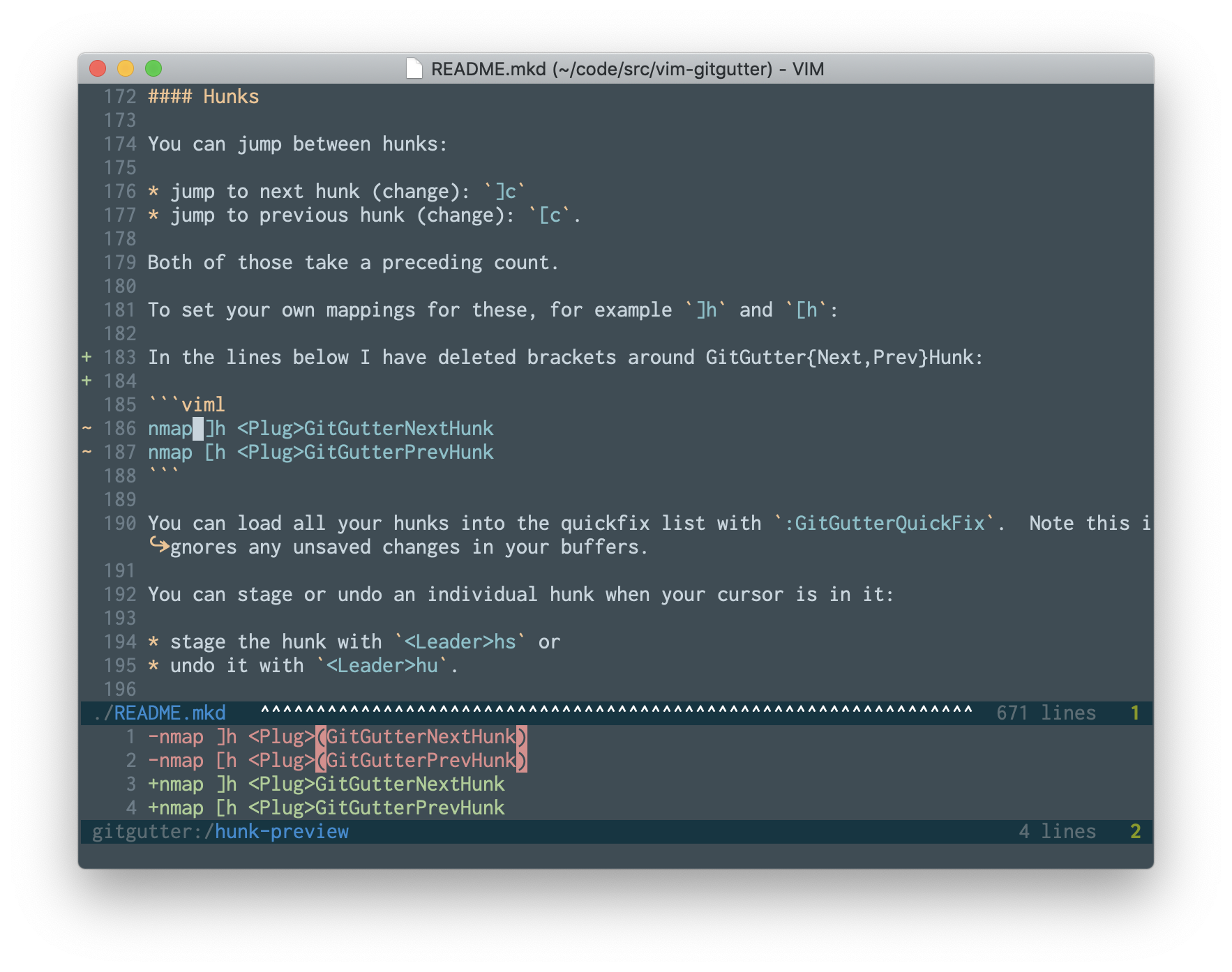
#### vim-gitgutter
| Shortcut | Action |
|-----------------|-----------------------------------|
| `H` | **Show git hunk at current line** |
| `SPACE` `g` `-` | Go to previous git hunk |
| `SPACE` `g` `+` | Go to next git hunk |
| `SPACE` `g` `f` | Fold everything except hunks |
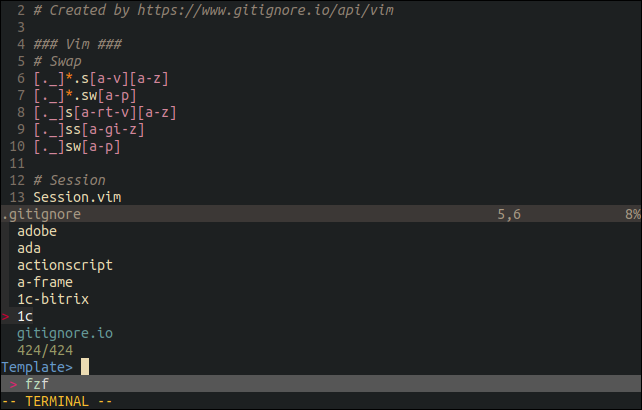
#### fzf-gitignore
Press `Space` `g` `i` to create a `.gitignore` file
### Git Related
#### vim-gitgutter
| Shortcut | Action |
|-----------------|-----------------------------------|
| `H` | **Show git hunk at current line** |
| `SPACE` `g` `-` | Go to previous git hunk |
| `SPACE` `g` `+` | Go to next git hunk |
| `SPACE` `g` `f` | Fold everything except hunks |
#### fzf-gitignore
Press `Space` `g` `i` to create a `.gitignore` file
 ### Others
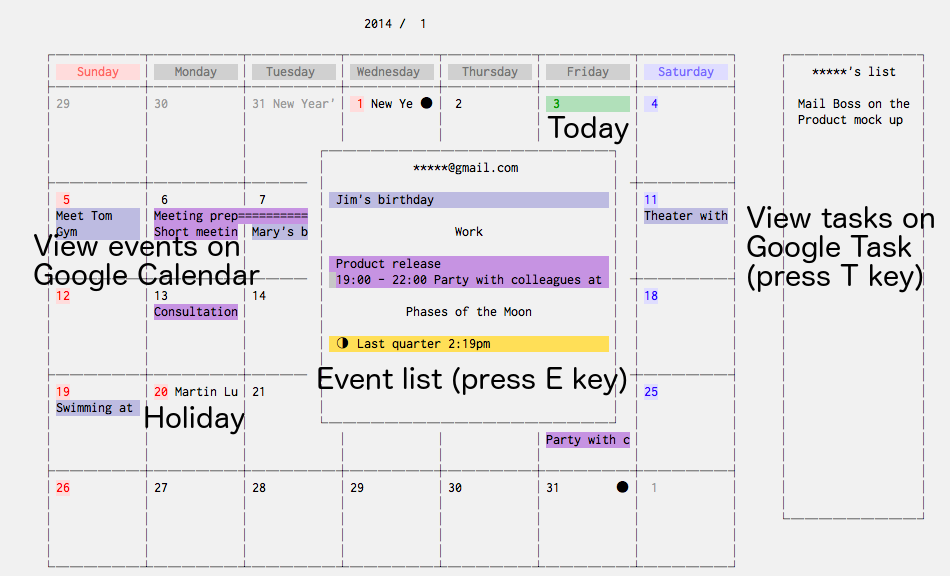
#### vim-calendar
| Shortcut | Action |
|----------|---------------|
| `\` `\` | Show clock |
| `\` `c` | Show calendar |
### Others
#### vim-calendar
| Shortcut | Action |
|----------|---------------|
| `\` `\` | Show clock |
| `\` `c` | Show calendar |
 #### Goyo - Work without distraction
Press `g` `y` to toggle Goyo
#### Goyo - Work without distraction
Press `g` `y` to toggle Goyo
 #### suda.vim
Forgot to `sudo vim ...`? Just do `:sudowrite` or `:sw`
#### coc-translator
Press `ts` to **translate word under cursor**.
#### suda.vim
Forgot to `sudo vim ...`? Just do `:sudowrite` or `:sw`
#### coc-translator
Press `ts` to **translate word under cursor**.
 ## Custom Snippets
### Markdown
| Shortcut | What it creates |
|----------|---------------------|
| `,n` | --- |
| `,b` | **Bold** text |
| `,s` | ~~sliced~~ text |
| `,i` | *italic* text |
| `,d` | `code block` |
| `,c` | big `block of code` |
| `,m` | - [ ] check mark |
| `,p` | picture |
| `,a` | [link]() |
| `,1` | # H1 |
| `,2` | ## H2 |
| `,3` | ### H3 |
| `,4` | #### H4 |
| `,l` | -------- |
`,f` to go to the next `<++>` (placeholder)
`,w` to go to the next `<++>` (placeholder) and then press `Enter` for you
## Some Weird Stuff
### Press `tx` and enter your text
`tx Hello`
```
_ _ _ _
| | | | ___| | | ___
| |_| |/ _ \ | |/ _ \
| _ | __/ | | (_) |
|_| |_|\___|_|_|\___/
```
## Custom Snippets
### Markdown
| Shortcut | What it creates |
|----------|---------------------|
| `,n` | --- |
| `,b` | **Bold** text |
| `,s` | ~~sliced~~ text |
| `,i` | *italic* text |
| `,d` | `code block` |
| `,c` | big `block of code` |
| `,m` | - [ ] check mark |
| `,p` | picture |
| `,a` | [link]() |
| `,1` | # H1 |
| `,2` | ## H2 |
| `,3` | ### H3 |
| `,4` | #### H4 |
| `,l` | -------- |
`,f` to go to the next `<++>` (placeholder)
`,w` to go to the next `<++>` (placeholder) and then press `Enter` for you
## Some Weird Stuff
### Press `tx` and enter your text
`tx Hello`
```
_ _ _ _
| | | | ___| | | ___
| |_| |/ _ \ | |/ _ \
| _ | __/ | | (_) |
|_| |_|\___|_|_|\___/
```