# TTime **Repository Path**: lhmfsh/TTime ## Basic Information - **Project Name**: TTime - **Description**: 🚀 一款简洁、高效、高颜值的输入、截图、划词翻译软件 - **Primary Language**: Unknown - **License**: AGPL-3.0 - **Default Branch**: main - **Homepage**: https://ttime.timerecord.cn/ - **GVP Project**: No ## Statistics - **Stars**: 0 - **Forks**: 35 - **Created**: 2023-06-14 - **Last Updated**: 2023-06-14 ## Categories & Tags **Categories**: Uncategorized **Tags**: None ## README
# TTime 🚀 A concise, efficient, good-looking input, screenshot, and word translation software (English | [中文](README.md))

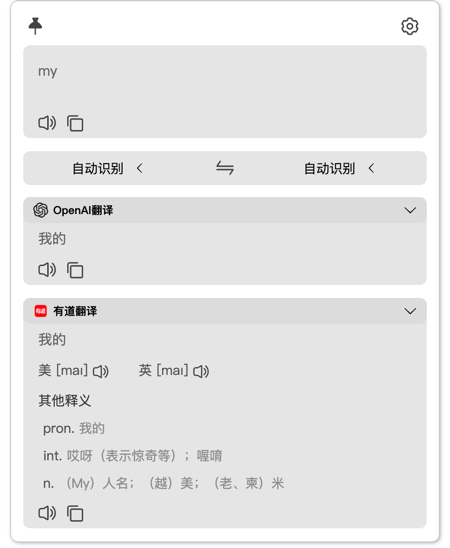
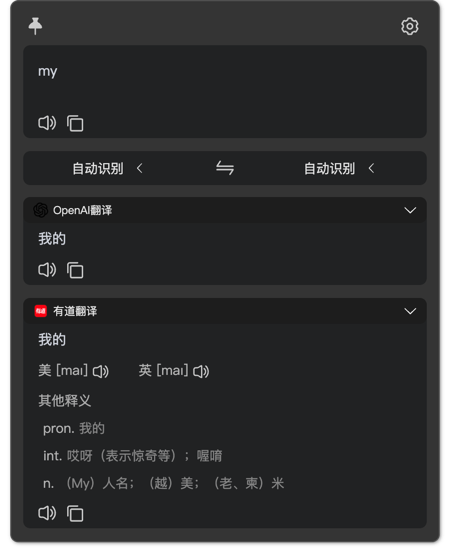
## brief introduction The main functions are `input translation`, `screenshot translation`, `selected translation`、`Hover Ball Translation`、`Screenshot OCR`、`Screenshot Silence OCR` ## Interface

Bright Mode

Dark Mode

| 方式 | 描述 | 预览 | | :---: | :---: | :---: | | Screenshot translation | Press the screenshot translation shortcut key (default ` Alt + W `) to intercept the area to be translated | ![Screenshot translation](https://raw.githubusercontent.com/InkTimeRecord/TTime/dev/README.assets/screenshot.gif) | | Selected translation | After selecting the text to be translated, press the word translation shortcut key (the default is ` Alt + E `) | ![Selected translation](https://raw.githubusercontent.com/InkTimeRecord/TTime/dev/README.assets/choice.gif) | | Input Translation | Press the input translation shortcut key (default 'Alt+Q'), enter the text to be translated, and use the 'Enter' key to translate | ![Input Translation](https://raw.githubusercontent.com/InkTimeRecord/TTime/dev/README.assets/input.gif) | | Hover Ball Translation | After selecting the text to be translated, click the floating ball icon (it is closed by default, and needs to be opened in the settings by itself) | ![Hover Ball Translation](https://raw.githubusercontent.com/InkTimeRecord/TTime/dev/README.assets/hover-ball.gif) | | Screenshot OCR | Pressing this shortcut key will recognize the text according to your screenshot area | ![Screenshot OCR](https://raw.githubusercontent.com/InkTimeRecord/TTime/dev/README.assets/screenshot-ocr.gif) | | Screenshot Silence OCR | Pressing this shortcut key will recognize the text according to your screenshot area, and the recognized content will be automatically written into the clipboard without opening the OCR window | ![Screenshot Silence OCR](https://raw.githubusercontent.com/InkTimeRecord/TTime/dev/README.assets/screenshot-silence-ocr.gif) | ## Currently, integrated with translation/text recognition services [Translation source/text recognition application reference](https://ttime.timerecord.cn/pages/93e0f8/#%E7%BF%BB%E8%AF%91%E6%BA%90%E4%BB%8B%E7%BB%8D) - [x] Translation source - [x] TTime (built-in) - [x] Google Translation (built-in) - [x] DeepL Translation (built-in) = DeepLX Translation - [x] Bing Translation (built-in) - [x] Bing dict Translation (built-in) - [x] Tencent TranSmart Translation (built-in) - [x] NiuTrans (built-in) - [x] Tencent Translator - [x] Baidu Translation - [x] Alibaba Translation - [x] Google Translation - [x] OpenAI(ChatGPT) Translation - [x] YouDao Translation - [x] DeepL Translation - [x] Volcano Translation - [x] NiuTrans - [x] CaiYun Translation - [x] OCR - [x] TTime - [x] TTime Online OCR - [x] Baidu OCR - [x] Volcano OCR ## Thanks * Thanks [electron-vite](https://github.com/alex8088/electron-vite) The provided electron framework saved me a lot of time and cost * Thanks [Bob](https://github.com/ripperhe/Bob) Main sources of inspiration * Thanks [bob-plugin-openai-translator](https://github.com/yetone/bob-plugin-openai-translator) Reference for the original implementation of OpenAI * Thanks [eSearch](https://github.com/xushengfeng/eSearch) Reference for offline OCR and initial version screenshot implementation