# printing_vvv5.10.4
**Repository Path**: shutan-yang/printing_vvv5.10.4
## Basic Information
- **Project Name**: printing_vvv5.10.4
- **Description**: xxxxxxxxxxxxxxxxxxx
- **Primary Language**: Unknown
- **License**: Apache-2.0
- **Default Branch**: master
- **Homepage**: None
- **GVP Project**: No
## Statistics
- **Stars**: 0
- **Forks**: 0
- **Created**: 2025-01-23
- **Last Updated**: 2025-03-07
## Categories & Tags
**Categories**: Uncategorized
**Tags**: None
## README
# Printing
A plugin that allows Flutter apps to generate and print
documents to android or ios compatible printers
See the example on how to use the plugin.
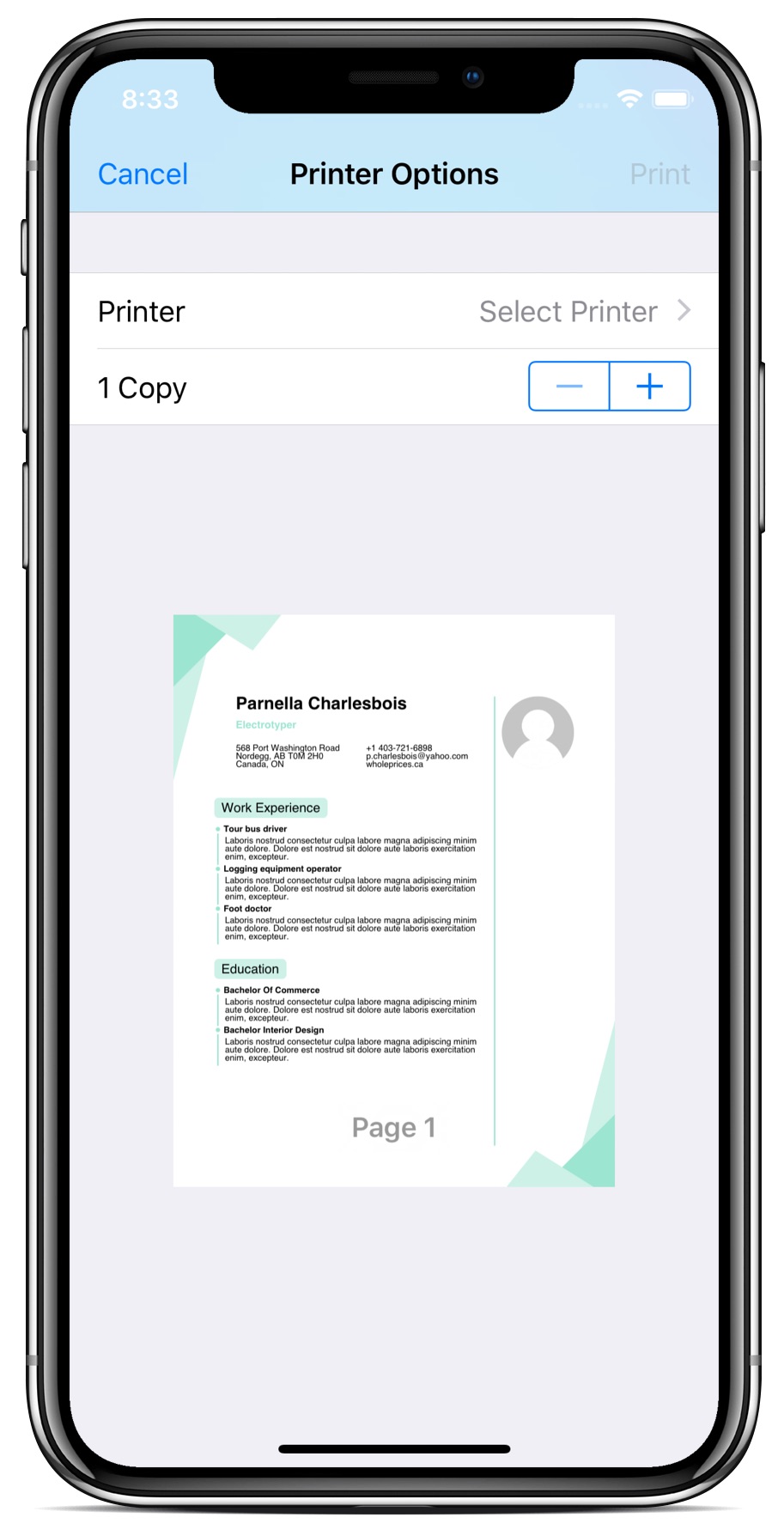 This example is also available on the web here: .
This plugin uses the `pdf` package
for pdf creation. Please refer to
for documentation.
[](https://www.buymeacoffee.com/JORBmbw9h "Buy Me A Coffee")
## Installing
1. Add this package to your package's `pubspec.yaml` file as described
on the installation tab
2. Import the libraries
```dart
import 'package:pdf/pdf.dart';
import 'package:pdf/widgets.dart' as pw;
import 'package:printing/printing.dart';
```
3. Enable Swift on the iOS project, in `ios/Podfile`:
```Ruby
target 'Runner' do
use_frameworks! # <-- Add this line
```
4. For macOS applications, add the following print entitlement to the files
`macos/Runner/Release.entitlements` and `macos/Runner/DebugProfile.entitlements`:
```xml
com.apple.security.print
```
5. If you want to manually set the PdfJs library version for the web, a small script
has to be added to your `web/index.html` file, just before ``.
Otherwise it is loaded automatically:
```html
```
6. For Windows and Linux, you can force the pdfium version and architecture
on your main `CMakeLists.txt` with:
```python
set(PDFIUM_VERSION "4929" CACHE STRING "" FORCE)
set(PDFIUM_ARCH "x64" CACHE STRING "" FORCE)
```
See the releases here:
## Examples
```dart
final doc = pw.Document();
doc.addPage(pw.Page(
pageFormat: PdfPageFormat.a4,
build: (pw.Context context) {
return pw.Center(
child: pw.Text('Hello World'),
); // Center
})); // Page
```
To load an image from a Flutter asset:
```dart
final image = await imageFromAssetBundle('assets/image.png');
doc.addPage(pw.Page(
build: (pw.Context context) {
return pw.Center(
child: pw.Image(image),
); // Center
})); // Page
```
To use a TrueType font from a flutter bundle:
```dart
final ttf = await fontFromAssetBundle('assets/open-sans.ttf');
doc.addPage(pw.Page(
build: (pw.Context context) {
return pw.Center(
child: pw.Text('Dart is awesome', style: pw.TextStyle(font: ttf, fontSize: 40)),
); // Center
})); // Page
```
To save the pdf file using the [path_provider](https://pub.dev/packages/path_provider) library:
```dart
final output = await getTemporaryDirectory();
final file = File('${output.path}/example.pdf');
await file.writeAsBytes(await doc.save());
```
You can also print the document using the iOS or Android print service:
```dart
await Printing.layoutPdf(
onLayout: (PdfPageFormat format) async => doc.save());
```
Or share the document to other applications:
```dart
await Printing.sharePdf(bytes: await doc.save(), filename: 'my-document.pdf');
```
To print an HTML document:
```dart
await Printing.layoutPdf(
onLayout: (PdfPageFormat format) async => await Printing.convertHtml(
format: format,
html: '
This example is also available on the web here: .
This plugin uses the `pdf` package
for pdf creation. Please refer to
for documentation.
[](https://www.buymeacoffee.com/JORBmbw9h "Buy Me A Coffee")
## Installing
1. Add this package to your package's `pubspec.yaml` file as described
on the installation tab
2. Import the libraries
```dart
import 'package:pdf/pdf.dart';
import 'package:pdf/widgets.dart' as pw;
import 'package:printing/printing.dart';
```
3. Enable Swift on the iOS project, in `ios/Podfile`:
```Ruby
target 'Runner' do
use_frameworks! # <-- Add this line
```
4. For macOS applications, add the following print entitlement to the files
`macos/Runner/Release.entitlements` and `macos/Runner/DebugProfile.entitlements`:
```xml
com.apple.security.print
```
5. If you want to manually set the PdfJs library version for the web, a small script
has to be added to your `web/index.html` file, just before ``.
Otherwise it is loaded automatically:
```html
```
6. For Windows and Linux, you can force the pdfium version and architecture
on your main `CMakeLists.txt` with:
```python
set(PDFIUM_VERSION "4929" CACHE STRING "" FORCE)
set(PDFIUM_ARCH "x64" CACHE STRING "" FORCE)
```
See the releases here:
## Examples
```dart
final doc = pw.Document();
doc.addPage(pw.Page(
pageFormat: PdfPageFormat.a4,
build: (pw.Context context) {
return pw.Center(
child: pw.Text('Hello World'),
); // Center
})); // Page
```
To load an image from a Flutter asset:
```dart
final image = await imageFromAssetBundle('assets/image.png');
doc.addPage(pw.Page(
build: (pw.Context context) {
return pw.Center(
child: pw.Image(image),
); // Center
})); // Page
```
To use a TrueType font from a flutter bundle:
```dart
final ttf = await fontFromAssetBundle('assets/open-sans.ttf');
doc.addPage(pw.Page(
build: (pw.Context context) {
return pw.Center(
child: pw.Text('Dart is awesome', style: pw.TextStyle(font: ttf, fontSize: 40)),
); // Center
})); // Page
```
To save the pdf file using the [path_provider](https://pub.dev/packages/path_provider) library:
```dart
final output = await getTemporaryDirectory();
final file = File('${output.path}/example.pdf');
await file.writeAsBytes(await doc.save());
```
You can also print the document using the iOS or Android print service:
```dart
await Printing.layoutPdf(
onLayout: (PdfPageFormat format) async => doc.save());
```
Or share the document to other applications:
```dart
await Printing.sharePdf(bytes: await doc.save(), filename: 'my-document.pdf');
```
To print an HTML document:
```dart
await Printing.layoutPdf(
onLayout: (PdfPageFormat format) async => await Printing.convertHtml(
format: format,
html: 'Hello!
',
));
```
Convert a Pdf to images, one image per page, get only pages 1 and 2 at 72 dpi:
```dart
await for (var page in Printing.raster(await doc.save(), pages: [0, 1], dpi: 72)) {
final image = page.toImage(); // ...or page.toPng()
print(image);
}
```
To print an existing Pdf file from a Flutter asset:
```dart
final pdf = await rootBundle.load('document.pdf');
await Printing.layoutPdf(onLayout: (_) => pdf.buffer.asUint8List());
```
## Display your PDF document
This package also comes with a PdfPreview widget to display a pdf document.
```dart
PdfPreview(
build: (format) => doc.save(),
);
```
This widget is compatible with Android, iOS, macOS, Linux, Windows and web.
## Designing your PDF document
A good starting point is to use PdfPreview which features hot-reload pdf build
and refresh.
Take a look at the [example tab](example) for a sample project.
Update the `_generatePdf` method with your design.
```dart
Future _generatePdf(PdfPageFormat format, String title) async {
final pdf = pw.Document();
pdf.addPage(
pw.Page(
pageFormat: format,
build: (context) => pw.Placeholder(),
),
);
return pdf.save();
}
```
This widget also features a debug switch at the bottom right to display the
drawing constraints used. This switch is available only on debug builds.
Moving on to your production application, you can keep the `_generatePdf`
function and print the document using:
```dart
final title = 'Flutter Demo';
await Printing.layoutPdf(onLayout: (format) => _generatePdf(format, title));
```
## Encryption, Digital Signature, and loading a PDF Document
Encryption using RC4-40, RC4-128, AES-128, and AES-256 is fully supported using a separate library.
This library also provides SHA1 or SHA-256 Digital Signature using your x509 certificate. The graphic signature is represented by a clickable widget that shows Digital Signature information.
It implememts a PDF parser to load an existing document and add pages, change pages, and add a signature.
More information here: