# FmvMaker
**Repository Path**: swordfishx/FmvMaker
## Basic Information
- **Project Name**: FmvMaker
- **Description**: No description available
- **Primary Language**: C#
- **License**: MIT
- **Default Branch**: master
- **Homepage**: None
- **GVP Project**: No
## Statistics
- **Stars**: 0
- **Forks**: 1
- **Created**: 2025-10-23
- **Last Updated**: 2025-11-18
## Categories & Tags
**Categories**: Uncategorized
**Tags**: None
## README
- [FmvMaker](#fmvmaker)
- [Getting started](#getting-started)
- [Using the visual editor (the simple approach)](#simple-approach)
- [How does it work?](#how-to-visual)
- [The different nodes](#nodes-overview)
- [The FmvMaker Nodes](#nodes-fmvmaker)
- [The FmvMaker Event Nodes](#event-nodes-fmvmaker)
- [The FmvMaker Control Nodes](#control-nodes-fmvmaker)
- [Using JSON files (the complex approach)](#complex-approach)
- [How do I build a video JSON list?](#json-basics)
- [What does a “VideoElement” look like?](#video-element)
- [Basic structure](#basic-structure-video)
- [Add navigation actions](#navigation-actions-video)
- [What does a “ClickableElement” look like?](#clickable-element)
- [Basic structure](#basic-structure-clickable)
- [Add Clickable data](#clickable-data)
- [Online video mapping configuration](#online-video-mapping)
- [Enough explanation, can't we start already?](#start-now)
- [Advanced video navigation](#advanced)
- [Use Clickable Items to enhance your game](#enhance)
- [Key bindings and already implemented game mechanics](#key-bindings)
- [Use icons for NavigationTargets and Items](#icons)
- [The full VideoData JSON](#full-video-data)
- [The full Clickable JSON](#full-clickable-data)
- [FmvMaker configuration](#configuration)
- [The full VideoMapping JSON](#video-mapping)
- [Adding your own logic](#custom-logic)
- [Future plans](#future-plans)
- [Known issues](#known-issues)
# FmvMaker
**FmvMaker** was designed for creating FMVs, point'n click adventures, or other types of games/plugins, which use some kind of video playlist with possible interactions. **FmvMaker** uses only (!) native Unity components to ensure a maximum of compatibility with all of Unity's supported build platforms. If you encounter errors or problems, pls create a new issue at the Github repository. We'll try to help you asap. :)
# Getting started
You can get **FmvMaker** either via the Unity AssetStore (https://assetstore.unity.com/packages/tools/video/fmvmaker-182868) or the Releases section of this Github repository. After importing the **FmvMaker** asset into your Unity project, you'll find a separate **FmvMaker** folder as subfolder of your Assets folder. The **FmvMaker** directory contains all necessary data, to get started. All examples are currently online videos, provided via static link on github, as Unity does not support Youtube video streaming. Furthermore Unity AssetStore developers are not allowed to ship videos, with their packages. Please note, that the music tracks used in our demos are from https://www.bensound.com
Important for you are the Resources folder (within the **FmvMaker** folder) where you'll be placing your content (videos, images, etc...) as well as your configuration files. The Prefabs folder contains default prefabs, especially for prototyping. In the Scenes folder are demo scenes, to give you an overview of the comprehensive possibilities of **FmvMaker**.
If you want to use the demo videos provided by us (Unity doesn't like video files in their AssetStore assets), pls check out the Releases section of this repository. Each release will contain a separate .zip file with the current demo videos in it. See https://github.com/FireDragonGameStudio/FmvMaker/releases for details. For an easier start, we decided to add an online reference for all demo videos. For how to use videos from within your Assets folder, check the [**FmvMaker** configuration](#configuration) section.
**PLEASE NOTE THAT THE JSON VERSION WILL NOT BE MAINTAINED IN FUTURE AND IS VERY LIKELY TO BE OMITTED!**
**THE GRAPH (SIMPLER) VERSION IS OUR MAIN FOCUS!**
# Using the visual editor (the simple approach)
Based in Unitys VisualScripting (https://docs.unity3d.com/Packages/com.unity.visualscripting@1.8/manual/index.html), which is installed by default as a package from Unity Editor version 2021.1 onward, **FmvMaker** integrates smoothly within this environment. Every node, control and event added by **FmvMaker** is based on the default VisualScripting nodes and can therefore seemingly be used with the other nodes (although you don't have to).
## How does it work?
It's basically building a VisualScripting state machine. You define states, create transitions between them and act accordingly to events, that take place within your created graph. For a in-depth explanation check out the tutorial video here -> https://www.youtube.com/watch?v=D8sc7XC06cg This should give you a good impression, how to work with the **FmvMaker** State-Graph in Unity.
## The different nodes
The next chapters will explain how the various nodes work and what they are doing to create your FMV game with **FmvMaker**.
### The FmvMaker Nodes
These nodes are used to control the flow of the graph. Although not every output trigger is needed, we added them in case someone wants to add custom logic or graph elements.
All the event nodes can be found under the script graph context menu category **FmvMaker/**.
#### Fmv Video Node
The main node, which handles video playback and creation of the current "state". The **Clickables** property lets the user define how many **Clickables** are within the current screen and is clamped between 0 and 10. Which video should be played is handled by the selection of dropdown, which consists of every video entered in **FmvVideoEnum**.
On the left upper corner is the **InputTrigger** for receiving the graph flow. On the right upper corner are 2 green arrows, where the upper one is for handling the flow **OutputTrigger** and the second one handling the output, when the wrong video was played. The *OutputTrigger*s are not used, but maybe you'll find a way to make use of them. :)
**ClickableTargets** can be either used for pure navigation or items.
**FmvTargetVideo** either gets the **FmvGraphElementData** from a previous flow node, or an **ItemNode** or a **NagivationNode**.

| Field | Type | Default value | Optional | Description |
| --- | --- | --- | --- | --- |
| ClickablesCount | int | 2 | | The number of clickables, that are available in the current "state". |
| TransitionVideo | enum | None | | Which video should be played is handled by the selection of dropdown, which consists of every video entered in **FmvVideoEnum**. |
#### Fmv LoopVideo Node
In general the same node as **FmvVideoNode**, but this video is looping, which makes it perfect for idle states or "background videos".

| Field | Type | Default value | Optional | Description |
| --- | --- | --- | --- | --- |
| ClickablesCount | int | 2 | | The number of clickables, that are available in the current "state". |
| TransitionVideo | enum | None | | Which video should be played is handled by the selection of dropdown, which consists of every video entered in **FmvVideoEnum**. |
#### Fmv Navigation Node
Used for creating a **Clickable**, which enables a transition between "states". This **Clickable** is NOT an item and can be configured via the graph inspector. The node creates an **FmvGraphElementData**, which can be used as input for e.g. an **FmvVideoNode**.

| Field | Type | Default value | Optional | Description |
| --- | --- | --- | --- | --- |
| Name | string | "" | | The video element needs a unique name, which is set via the *Name* field. |
| VideoTarget | enum | None | | This is set via the *VideoTarget* field and should match the filename of the video file, which should be played. |
| IsLooping | bool | false | x | The *IsLooping* field can be used to create a looped video state, when set to true. This gives the player a better idea of the scenes by showing various impressions. E.g. wind movement, lively places, traffic, etc… Pls make sure to use loopable videos when using this property. If this field is not used or set to false, the video playing atm will stop at the last frame. |
| AlreadyWatched | bool | false | x | This is set to true after first watching the **VideoTarget** clip and enables video skipping. |
| RelativeScreenPosition | Vector2 | x=0.5, y=0.5 | x| The *RelativeScreenPosition* will define where this **Clickable** will be shown on screen. Pls make sure to only use values between 0 and 1, where x=0, y=0 refers to the lower left corner, x=0.5,y=0.5 to the center (default) and x=1, y=1 to the upper right corner. |
#### Fmv Item Node
Again creating a **Clickable**, but this time it's an item, which can be added to the players inventory by clicking on it. Similar to the **FmvNavigationNade** a video is played when picking it up. But in addtion, another video is played, when used in the right "state".

| Field | Type | Default value | Optional | Description |
| --- | --- | --- | --- | --- |
| Name | string | "" | | The video element needs a unique name, which is set via the *Name* field. |
| VideoTarget | enum | None | | This is set via the *VideoTarget* field and should match the filename of the video file, which should be played, when picking the item up. |
| UsageTarget | enum | None | | This is set via the *UsageTarget* field and should match the filename of the video file, which should be played, when using the item in the right "state". |
| IsInInventory | bool | false | x | The *IsInInventory* field indicates it this particular item is already in the players inventory. If that's the case, it will no longer be visible in the current "state". |
| WasUsed | bool | false | x | This is set to true after using the item in the correct "state" and will prevent **FmvMaker** from showing it either in "states" or the inventory. |
| RelativeScreenPosition | Vector2 | x=0.5, y=0.5 | x| The *RelativeScreenPosition* will define where this **Clickable** will be shown on screen. Pls make sure to only use values between 0 and 1, where x=0, y=0 refers to the lower left corner, x=0.5,y=0.5 to the center (default) and x=1, y=1 to the upper right corner. |
#### Fmv Exit State Node
As we're talking about "states", which are not real states, this node is used to clean up after leaving "states". Originally this was part of **FmvVideoNode** and **FmvLoopVideoNode**, but in order to give users more flexibility, this was implemented as a separte node, which will just be integrated into the graph flow.

#### Fmv Load Inventory Node
The name already explains, what this node is doing. Placed at the start of our graph, this node will load inventory items, if present.

### The FmvMaker Event Nodes
All events available via **FmvMaker** can be used via event nodes too. These event nodes are fired, when a connected state triggerd a corresponding event. E.g. if a **FmvNavigationNode** **Clickable** is clicked in a "state", all connected **OnFmvNavigationClicked** events are fired. The result of such an event is a **FmvGraphElementData** object, which can be used as input for other **FvmMaker** nodes.
The available events are:
* OnFmvInventoryClicked
* OnFmvItemPickupClicked
* OnFmvNavigationClicked
* OnFmvVideoPaused
* OnFmvVideoSkipped
* OnFmvVideoStarted
* OnFmvVideoFinished
Users can furthermore add custom logic to theses events, without having to use C# code and the **IFmvMakerVideoEvents** interface.
All the event nodes can be found under the the script graph context menu category **Events/FmvMaker/**.

### The FmvMaker Control Nodes
While Unity's VisualScripting already contains a bunch of control nodes, one had to be added for **FmvMaker**, the **SwitchOnFmvVideoEnum**, to enable users check for specific videos, when entering a "state". This switch will always contain ALL videos from **FmvVideoEnum**, but this list can be quite long, so we added 2 index fields, for limiting the available possibilities by only displaying options within a certain range. For this to work property, users must ensure to create the **FmvVideoEnum** in a "chuncked" way, where e.g. videos from chapters are on close positions within the **FmvVideoEnum**.
The upper left corner hat the **InputTrigger** for the graph flow. Each switch option is an **OutputTrigger** to pass on the graph flow to the next node. The second input entry, is an **FmvGraphElementData** element to do the selection on. This is usually set via an event node, where the values may vary, depending which "state" you're coming from.
All the control nodes can be found under the the script graph context menu category **Control/FmvMaker/**.

| Field | Type | Default value | Optional | Description |
| --- | --- | --- | --- | --- |
| StartIndex | int | 0 | | The inclusive start index. |
| EndIndex | int | **FmvVideoEnum** length | | The inclusive end index of all videos in **FmvVideoEnum**. |
# Using JSON files (the complex approach)
**VideoData** for FmvMaker is a configuration file stored within its Resources folder (*FmvMaker/Resources/*) and is basically a JSON list of single video elements, which are qualified via their names. This means that there is no complex hierarchy to build, each video element stands for its own. Please always choose simple, but unique names for your video elements. You can compare a video element to some kind of *state*, which will lead to *1 to n* next *states*. The previous *state* doesn't matter at all. Yes, this leads to a long list of elements, but it also helps to keep things simple.
The next kind of important data are so called **Clickables**. Information about **Clickables** is also stored within the **FmvMaker** Resources folder in the Unity project (*FmvMaker/Resources/*) in a separate configuration file. These elements stand for triggering actions when clicking on it. It doesn't matter if these actions are e.g. items or the trigger for the next video. The only difference is the item handling, of which a basic version is already included in **FmvMaker** and will be explained in the further sections.
## How do I build a video JSON list?
For those who are not familiar with JSON everything you need to know for now is, that there is a certain structure that has to be followed. Everything where a single "Element" (either **VideoData** or **Clickables**) belongs, is represented by …
```
{ [ {...},{...},{...},{...},{...},{...},{...} ] }
```
So there is one pair of curly brackets (one bracket at the beginning and on at the end), which defines a single element scope. The square brackets represent an array. This array is the collection of either **Video Data** elements or **Clickables**, depending on what file you're creating. Curly brackets, within the square brackets represent the scope for an item (represented by ...) of the previous defined array. It´s simple right? Usually there is some formatting done, to keep the overview. Like this:
```
{
[{
...
},{
...
},{
...
},{
...
}
]
}
```
A good introduction to JSON can be found here https://developer.mozilla.org/en-US/docs/Learn/JavaScript/Objects/JSON
Please make sure, you don't forget the brackets or commas in your configuration file!!! There is no JSON error check at the moment (it's on our ToDo list!), so if you're encountering an error, when loading your data it's very likely that you forgot a bracket, or have an issue with the overall structure.
We'll create a simple prototype called CircleFmv along the next sections. This prototype is also shipped as demo project within **FmvMaker**.
## What does a “VideoElement” look like?
In this section we'll start to create our configuration file for our **VideoData** as well as our first video element. We'll add data step by step, so pls make sure to follow along and don't skip a section. First create a new configuration file (e.g. DemoVideoData.json) within the **FmvMaker** Resources folder (*FmvMaker/Resources/*), which will hold the **VideoData** information.
### Basic structure
The version, including a basic structure of our **VideoData** file will look like this:
```javascript
{
"VideoList": [{
"Name": "UniqueVideoName",
"VideoTarget": "UniqueVideoName",
}
]
}
```
This is the minimum configuration for a single video elememt. It has a *Name* field, which can be chosen by you. Make sure to keep it UNIQUE, because it will be used as a reference to this specific video. The *VideoTarget* field corresponds to your desired video filename within the **FmvMaker** Resources video folder (*FmvMaker/Resources/FmvMakerVideos*). Please remember to use the filename without the file extension within the configuration files.
### Add navigation actions
Having the player moving from one to the next video file is made possible via the so called **NavigationTargets**. A video can have *1-n* **NavigationTargets** which are represented as an array of so called **Clickables**. This array contains the name/s of objects which control the next video/s and actions. Dont't forget: the value of the *Name* field (in this Case UniqueVideName) corresponds to your desired video filename within the Resources folder (*FmvMaker/Resources/FmvMakerVideos*). Remember to use the filename without the file extension. The *Name* field/s of the **NavigationTargets** corresponds to **Clickables** which are defined in a separate configuration file. When having multiple **NavigationTargets**, make sure that the entries are separated via ,
```javascript
{
"VideoList": [{
"Name": "UniqueVideoName",
"VideoTarget": "UniqueVideoName",
"NavigationTargets": [{
"Name": "NextUniqueClickable"
}, {
"Name": "AnotherUniqueClickable"
}
]
}
]
}
```
| Field | Type | Default value | Optional | Description |
| --- | --- | --- | --- | --- |
| Name | string | "" | | A unique name, which is set via the *Name* field. |
| VideoTarget | string | "" | | This is set via the *VideoTarget* field and should match the filename of the video file, which should be played. |
| NavigationTargets | string[] | [] | | A video can have *1-n* **NavigationTargets** which are represented as an array of so called **Clickables**. This array contains the name/s of objects which control the next video/s and actions. |
Each name used as **NavigationTarget** must have its own **Clickable** within our **Clickables** configuration file. Similar to our first video element, the additional video elements can also reference **NagivationTargets**.
Let's try to build a circle navigation, where our player can move from **UniqueVideoName** to **NextUniqueVideoName**. From there to **AnotherUniqueVideoName** and from **AnotherUniqueVideoName** back to **UniqueVideoName**. Usually there is some kind of video element to start, so we'll use **UniqueVideoName** for that. As a result we need a fourth video element called **DifferentUniqueVideoName** to have a video transition from **AnotherUniqueVideoName** back to **UniqueVideoName**. This results in a simple circular video route through our game. Pls note that the needed **Clickables** will be created within the next sections.
IMPORTANT: The **UniqueVideoName** and **DifferentUniqueVideoName** are representing basically the same video element, but offer different approaches.
**FmvVideoData.json**
```javascript
{
"VideoList": [{
"Name": "UniqueVideoName",
"VideoTarget": "UniqueVideoName",
"NavigationTargets": [{
"Name": "UniqueClickable"
}
]
}, {
"Name": "NextUniqueVideoName",
"VideoTarget": "NextUniqueVideoName",
"NavigationTargets": [{
"Name": "NextClickable"
}
]
}, {
"Name": "AnotherUniqueVideoName",
"VideoTarget": "AnotherUniqueVideoName",
"NavigationTargets": [{
"Name": "AnotherClickable"
}
]
}, {
"Name": "DifferentUniqueVideoName",
"VideoTarget": "DifferentUniqueVideoName",
"NavigationTargets": [{
"Name": "UniqueClickable"
}
]
}
]
}
```
## What does a “ClickableElement” look like?
In this section we'll start to create our configuration file for our **Clickables** as well as reference our video elements to our **Clickables**. We'll add data step by step, so pls make sure to follow along and don't skip a section.
### Basic structure
The version, including a basic structure of our **Clickables** file will look like this:
```javascript
{
"ClickableList": [{
"Name": "ClickableMe",
"PickUpVideo": "WhichVideoToPlayOnClick",
}
]
}
```
### Add Clickable data
After defining our video route, we'll need **Clickables** to navigate through our defined route. This will we configured in our **Clickables** configuration file. Create a new file (e.g. DemoClickableData.json) in *FmvMaker/Resources/*, which will hold the **Clickables** information. A basic structure with one **Clickable** element will look like this:
```javascript
{
"ClickableList": [{
"Name": "ClickableMe",
"Description": "Fancy, but short description.",
"PickUpVideo": "WhichVideoToPlayOnClick",
"IsNavigation": true,
"RelativeScreenPosition": {
"x": 0.5,
"y": 0.2
}
}
]
}
```
| Field | Type | Default value | Optional | Description |
| --- | --- | --- | --- | --- |
| Name | string | "" | | Similar to our **VideoData** the **Clickables** also need a unique name, which is set via the *Name* field. |
| Description | string | "" | x | The *Description* will help to identify the usage. |
| PickUpVideo | string | "" | | *PickUpVideo* will refer to the video element to play, when the player clicks on this **Clickable**. The referred video element must exist with the same name within the **VideoData** configuration file. |
| IsNavigation | bool | false | x | *IsNavigation* helps to distinguish between pure navigation and collectable items. The item section will explain this in more detail. |
| RelativeScreenPosition | Vector2 | x=0.5, y=0.5 | x | Last but not least, the *RelativeScreenPosition* will define where this **Clickable** will be shown on screen. Pls make sure to only use values between 0 and 1, where x=0, y=0 refers to the lower left corner, x=0.5,y=0.5 to the center (default) and x=1, y=1 to the upper right corner. |
If you're not providing optional fields, **FmvMaker** will use the default values. When now taking our already defined video data, we can now create the **Clickables**, which will result in a **Clickables** configuration file with the following content (Pls note that the *RelativeScreenPosition* was not filled in the third **Clickable** to show you a possible usage of the default values):
**FmvClickableData.json**
```javascript
{
"ClickableList": [{
"Name": "UniqueClickable",
"Description": "Go to NextUniqueVideo.",
"PickUpVideo": "NextUniqueVideoName",
"IsNavigation": true,
"RelativeScreenPosition": {
"x": 0.8,
"y": 0.2
}
}, {
"Name": "NextClickable",
"Description": "Go to AnotherUniqueVideo.",
"PickUpVideo": "AnotherUniqueVideoName",
"IsNavigation": true,
"RelativeScreenPosition": {
"x": 0.2,
"y": 0.5
}
}, {
"Name": "AnotherClickable",
"Description": "Go back to UniqueVideo.",
"PickUpVideo": "DifferentUniqueVideoName",
"IsNavigation": true
}
]
}
```
## Online video mapping configuration
In case you're using videos provided by an online resource, it's necessary to set your **VideoSourceType** to *ONLINE* in your [FmvMaker configuration](#fmvMaker-configuration) and provide links to your video data. Platforms like Youtube are currently not supported by native Unity VideoPlayer component. We're trying to provide a workaround asap. To get the correct mapping, you'll have to create a OnlineVideoMapping configuration file. Please check the following sample of our CircleFmv:
**FmvOnlineVideoMapping.json**
```javascript
{
"OnlineVideoSourceMappingList": [{
"Name": "UniqueVideoName",
"Link": "https://github.com/FireDragonGameStudio/FmvMaker/blob/master/Assets/FmvMaker/Resources/FmvMakerVideos/UniqueVideoName.mp4?raw=true"
}, {
"Name": "NextUniqueVideoName",
"Link": "https://github.com/FireDragonGameStudio/FmvMaker/blob/master/Assets/FmvMaker/Resources/FmvMakerVideos/NextUniqueVideoName.mp4?raw=true"
}, {
"Name": "AnotherUniqueVideoName",
"Link": "https://github.com/FireDragonGameStudio/FmvMaker/blob/master/Assets/FmvMaker/Resources/FmvMakerVideos/AnotherUniqueVideoName.mp4?raw=true"
}, {
"Name": "DifferentUniqueVideoName",
"Link": "https://github.com/FireDragonGameStudio/FmvMaker/blob/master/Assets/FmvMaker/Resources/FmvMakerVideos/DifferentUniqueVideoName.mp4?raw=true"
}, {
"Name": "UniqueToDifferentVideoName",
"Link": "https://github.com/FireDragonGameStudio/FmvMaker/blob/master/Assets/FmvMaker/Resources/FmvMakerVideos/UniqueToDifferentVideoName.mp4?raw=true"
}, {
"Name": "UniqueIdleVideoName",
"Link": "https://github.com/FireDragonGameStudio/FmvMaker/blob/master/Assets/FmvMaker/Resources/FmvMakerVideos/UniqueIdleVideoName.mp4?raw=true"
}
]
}
```
| Field | Type | Default value | Optional | Description |
| --- | --- | --- | --- | --- |
| Name | string | "" | | The name used in the **VideoData** configuration file. As it's the same with video element file names, pls make sure that the name you'll choose here is also unique. |
| Link | string | "" | | The link which'll provide the static video file to stream within your Unity game. Unity doesn't support direct streaming from platforms like Youtube (yet?). For more information about how to provide a link for the Unity VideoPlayer component, pls check the [Unity VideoPlayer component documentation](https://docs.unity3d.com/Manual/class-VideoPlayer.html).
## Enough explanation, can't we start already?
YES, we can. With the examples from the previous sections you've already created a simple prototype, which will allow us to navigate between video elements. If you want to use your own .mp4 videos, just copy them into *FmvMaker/Resources/FmvMakerVideos* and replace their names in the **VideoData** and **Clickables** configuration files. For the final touches, open Unity and open the EmptyFmv scenes, located in FmvMaker/Scenes. After selecting the FmvHelper GameObject in the hierarchy, drag the created JSON files into their corresponding fields of the FmvData component.

Select the *FmvMaker/FmvVideoView* from the hierarchy and set the field "Name Of Start Video" to the filename (without file extension) of the video which you want to be the initial/start video. In our example this will be changed to **UniqueVideoName**. This data can also be changed later, to react to the players progress.

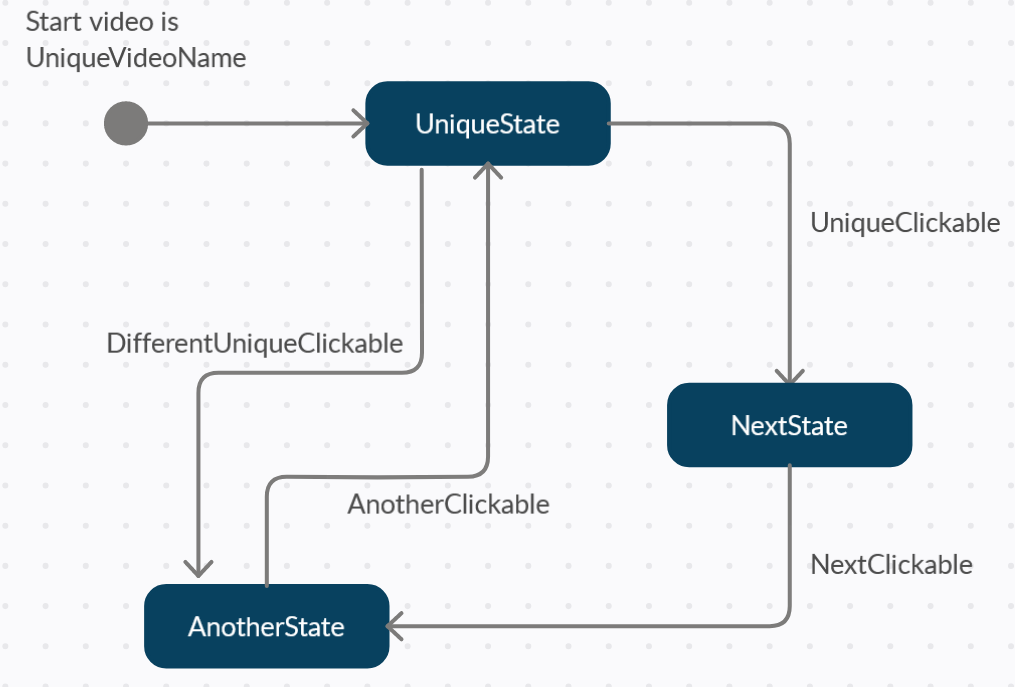
Press play in Unity Editor and watch your **VideoData** play and interact with your configured **Clickables** to navigate. A predefined project (CircleFmv), which is based on the previous sections is also shipped with the FmvMaker package. To give you a better understanding, of how this behaviour works in this example, pls have a look at the following "state diagram". As mentioned before the **UniqueVideoName** and **DifferentUniqueVideoName** video elements are representing **UniqueState**, but offer different approaches to the player. The **Clickables** are transitions from an origin to the target, which is set via the *PickUpVideo* field.

The short explanation for this "state diagram" is:
* UniqueVideoName starts. After it's finished the FMV is in **UniqueState** and shows the possible **NavigationTargets**
* By clicking on **UniqueClickable**, the video **NextUniqueVideoName** is started and we'll transition to the **NextState**. When reached all **NavigationTargets** of **NextUniqueVideoName** will be shown.
* Clicking on **NextClickable**, after the video has finished, will transition to **AnotherState**, where all **NavigationTargets** of **AnotherUniqueVideoName** will be shown.
* Clicking on **AnotherClickable** will transfer us to **DifferentUniqueVideoName** which is basically the same as **UniqueVideoName**, but without the intro video part.
## Advanced video navigation
The previous sections showed how to create a very simple FMV game. But **FmvMaker** will enable you to create far more complex games.
### Multiple NavigationTargets in one screen
As you may already have noticed, each **VideoData** element has the possility to hold multiple **NavigationTargets**. This JSON array will accept multiple **Clickables**, as long as they are present in the **Clickables** configuration file.
You can either reuse already existing **Clickables** or create new ones. This may greatly depend on your game and design. For our example, we'll just add another **NavigationTarget** to our first video element and create a new **Clickable** (DifferentClickable). I'm sure you already guessed, that we'll need an additional video element to configure the movement from **UniqueState** to **AnotherState**. So we'll need to create a new element of **VideoData** and a new **Clickable**.
The new **VideoData** element (DifferentUniqueVideoName) will basically be the same like the AnotherUniqueVideoName video element, except for the linked video file. This kind of "duplication" behaviour is intended to give you the greatest possible flexibility, when configuring your game. E.g. the **NavigationTargets** can differ, depending on which route the player chooses, to get to his/her destination. Let's see how a full configuration example looks, based on our CircularFmv prototype:
**CircleFmvVideoData.json**
```javascript
{
"VideoList": [{
"Name": "UniqueVideoName",
"VideoTarget": "UniqueVideoName",
"NavigationTargets": [{
"Name": "UniqueClickable"
}, {
"Name": "DifferentUniqueClickable"
}
]
}, {
"Name": "NextUniqueVideoName",
"VideoTarget": "NextUniqueVideoName",
"NavigationTargets": [{
"Name": "NextClickable"
}
]
}, {
"Name": "AnotherUniqueVideoName",
"VideoTarget": "AnotherUniqueVideoName",
"NavigationTargets": [{
"Name": "AnotherClickable"
}
]
}, {
"Name": "DifferentUniqueVideoName",
"VideoTarget": "DifferentUniqueVideoName",
"NavigationTargets": [{
"Name": "UniqueClickable"
}, {
"Name": "DifferentUniqueClickable"
}
]
}, {
"Name": "UniqueToDifferentVideoName",
"VideoTarget": "UniqueToDifferentVideoName",
"NavigationTargets": [{
"Name": "AnotherClickable"
}
]
}
]
}
```
**CircleFmvClickableData.json**
```javascript
{
"ClickableList": [{
"Name": "UniqueClickable",
"Description": "Go to NextUniqueVideo.",
"PickUpVideo": "NextUniqueVideoName",
"IsNavigation": true,
"RelativeScreenPosition": {
"x": 0.8,
"y": 0.2
}
}, {
"Name": "NextClickable",
"Description": "Go to AnotherUniqueVideo.",
"PickUpVideo": "AnotherUniqueVideoName",
"IsNavigation": true,
"RelativeScreenPosition": {
"x": 0.2,
"y": 0.5
}
}, {
"Name": "AnotherClickable",
"Description": "Go back to UniqueVideo.",
"PickUpVideo": "DifferentUniqueVideoName",
"IsNavigation": true
}, {
"Name": "DifferentUniqueClickable",
"Description": "Go to AnotherUniqueVideo.",
"PickUpVideo": "UniqueToDifferentVideoName",
"IsNavigation": true,
"RelativeScreenPosition": {
"x": 0.2,
"y": 0.2
}
}
]
}
```
Our "state diagram" has now changed to this:
### Instant NavigationTargets
Sometimes you want to jump from video element directly to another, without letting the user decide where to go. This can be useful in storytelling to avoid dead ends, or go quickly back to a video element from where the player can continue. Usually you'd record a video, which shows everything, but as things can become complex and you'll somehow have to combine videos, without shipping them multiple times with your projects, "Instant **NavigationTargets** can be rather useful. Let's take our CircleFmv prototype and replace our **AnotherClickable** & **DifferentUniqueClickable** with an "Instant **NavigationTarget**". A possibility for this behavour may be to show the player, that he'll have to approach **AnotherUniqueVideoName** by a different route. To change a **Clickable** into an "Instant **NavigationTarget**" you'll just omit the *Description* and *RelativeScreenPosition* fields. FmvMaker will take care of the rest. In this example the **DifferentUniqueClickable** points to **UniqueToDifferentVideoName**, which then points to **InstantAnotherUniqueClickable** and results in **DifferentUniqueVideoName**.
**CircleFmvVideoData.json**
```javascript
{
"VideoList": [{
"Name": "UniqueVideoName",
"VideoTarget": "UniqueVideoName",
"NavigationTargets": [{
"Name": "UniqueClickable"
}, {
"Name": "DifferentUniqueClickable"
}
]
}, {
"Name": "NextUniqueVideoName",
"VideoTarget": "NextUniqueVideoName",
"NavigationTargets": [{
"Name": "NextClickable"
}
]
}, {
"Name": "AnotherUniqueVideoName",
"VideoTarget": "AnotherUniqueVideoName",
"NavigationTargets": [{
"Name": "AnotherClickable"
}
]
}, {
"Name": "DifferentUniqueVideoName",
"VideoTarget": "DifferentUniqueVideoName",
"NavigationTargets": [{
"Name": "UniqueClickable"
}, {
"Name": "DifferentUniqueClickable"
}
]
}, {
"Name": "UniqueToDifferentVideoName",
"VideoTarget": "UniqueToDifferentVideoName",
"NavigationTargets": [{
"Name": "InstantAnotherUniqueClickable"
}
]
}
]
}
```
**CircleFmvClickableData.json**
```javascript
{
"ClickableList": [{
"Name": "UniqueClickable",
"Description": "Go to NextUniqueVideo.",
"PickUpVideo": "NextUniqueVideoName",
"IsNavigation": true,
"RelativeScreenPosition": {
"x": 0.8,
"y": 0.2
}
}, {
"Name": "NextClickable",
"Description": "Go to AnotherUniqueVideo.",
"PickUpVideo": "AnotherUniqueVideoName",
"IsNavigation": true,
"RelativeScreenPosition": {
"x": 0.2,
"y": 0.5
}
}, {
"Name": "AnotherClickable",
"Description": "Go to UniqueVideo.",
"PickUpVideo": "UniqueVideoName",
"IsNavigation": true
}, {
"Name": "DifferentUniqueClickable",
"Description": "Go to AnotherUniqueVideo.",
"PickUpVideo": "DifferentUniqueVideoName",
"IsNavigation": true,
"RelativeScreenPosition": {
"x": 0.2,
"y": 0.2
}, {
"Name": "InstantAnotherUniqueClickable",
"PickUpVideo": "UniqueVideoName",
"IsNavigation": true
}
}
]
}
```
Our "state diagram" has now changed to this:

### Loopable video elements
It often makes sense to have some kind of hub, where the player originates from, or can choose multiple ways. A good example for this would be some kind of hanger in a space FMV game (Wing Commander FTW!!!). As a still image doesn't seem lively, a looping video makes sense, to convey an impression of an active environment to the player. For this you can define *Loopable* videos. When combining all configuration details from the previous sections, this is no longer a problem. Let's define our **UniqueState** as *Loopable* and create the necessary configuration, with the help of "Instant **NavigationTargets**.
**CircleFmvVideoData.json**
```javascript
{
"VideoList": [{
"Name": "UniqueVideoName",
"VideoTarget": "UniqueVideoName",
"NavigationTargets": [{
"Name": "InstantUniqueIdleClickable"
}
]
}, {
"Name": "NextUniqueVideoName",
"VideoTarget": "NextUniqueVideoName",
"NavigationTargets": [{
"Name": "NextClickable"
}
]
}, {
"Name": "AnotherUniqueVideoName",
"VideoTarget": "AnotherUniqueVideoName",
"NavigationTargets": [{
"Name": "AnotherClickable"
}
]
}, {
"Name": "DifferentUniqueVideoName",
"VideoTarget": "DifferentUniqueVideoName",
"NavigationTargets": [{
"Name": "InstantUniqueIdleClickable"
}
]
}, {
"Name": "UniqueToDifferentVideoName",
"VideoTarget": "UniqueToDifferentVideoName",
"NavigationTargets": [{
"Name": "InstantAnotherUniqueClickable"
}
]
}, {
"Name": "UniqueIdleVideoName",
"VideoTarget": "UniqueIdleVideoName",
"IsLooping": true,
"NavigationTargets": [{
"Name": "UniqueClickable"
}, {
"Name": "DifferentUniqueClickable"
}
]
}
]
}
```
**CircleFmvClickableData.json**
```javascript
{
"ClickableList": [{
"Name": "UniqueClickable",
"Description": "Go to NextUniqueVideo.",
"PickUpVideo": "NextUniqueVideoName",
"IsNavigation": true,
"RelativeScreenPosition": {
"x": 0.8,
"y": 0.2
}
}, {
"Name": "NextClickable",
"Description": "Go to AnotherUniqueVideo.",
"PickUpVideo": "AnotherUniqueVideoName",
"IsNavigation": true,
"RelativeScreenPosition": {
"x": 0.2,
"y": 0.5
}
}, {
"Name": "AnotherClickable",
"Description": "Go back to UniqueVideo.",
"PickUpVideo": "DifferentUniqueVideoName",
"IsNavigation": true
}, {
"Name": "DifferentUniqueClickable",
"Description": "Go to AnotherUniqueVideo.",
"PickUpVideo": "UniqueToDifferentVideoName",
"IsNavigation": true,
"RelativeScreenPosition": {
"x": 0.2,
"y": 0.2
}
}, {
"Name": "InstantAnotherUniqueClickable",
"PickUpVideo": "DifferentUniqueVideoName",
"IsNavigation": true
}, {
"Name": "InstantUniqueIdleClickable",
"PickUpVideo": "UniqueIdleVideoName",
"IsNavigation": true
}
]
}
```
Our "state diagram" has now changed to this:

## Use Clickable Items to enhance your game
For now, we've only focused on the video navigation with the help of **NavigationTargets**. But **Clickables** can be used for different purposes to. **Items** are basically the same as **NavigationTargets**, but they can be stored in an inventory and used to trigger actions. **FmvMaker** already comes with a basic inventory implementation, which allows you to already build a FMV game with various items. As it's for **NagivationTargets** there can be multiple **Items** (to either find and/or use) per video element. Let's take the example from our CircleFmv and add a few **Items** to enhance the prototype.
### Items to find and use
Create a **Clickable** and a **VideoData** element for every **Item** you'd like to find. You can place them with the *RelativeScreenPosition* field. The **Items** themselfes will be linked via the *ItemsToFind* and *ItemsToUse* fields of the designated video element. In this example two items will trigger video sequences from our **UniqueState** when being found. Furthermore, these items can also be used with different video elements.
**CircleFmvVideoData.json**
```javascript
{
"VideoList": [{
"Name": "UniqueVideoName",
"VideoTarget": "UniqueVideoName",
"NavigationTargets": [{
"Name": "InstantUniqueIdleClickable"
}
]
}, {
"Name": "NextUniqueVideoName",
"VideoTarget": "NextUniqueVideoName",
"NavigationTargets": [{
"Name": "NextClickable"
}
]
}, {
"Name": "AnotherUniqueVideoName",
"VideoTarget": "AnotherUniqueVideoName",
"NavigationTargets": [{
"Name": "AnotherClickable"
}
],
"ItemsToUse": [{
"Name": "SecondItemClickable"
}
]
}, {
"Name": "DifferentUniqueVideoName",
"VideoTarget": "DifferentUniqueVideoName",
"NavigationTargets": [{
"Name": "InstantUniqueIdleClickable"
}
]
}, {
"Name": "UniqueToDifferentVideoName",
"VideoTarget": "UniqueToDifferentVideoName",
"NavigationTargets": [{
"Name": "InstantAnotherUniqueClickable"
}
]
}, {
"Name": "UniqueIdleVideoName",
"VideoTarget": "UniqueIdleVideoName",
"IsLooping": true,
"NavigationTargets": [{
"Name": "UniqueClickable"
}, {
"Name": "DifferentUniqueClickable"
}
],
"ItemsToFind": [{
"Name": "FirstItemClickable"
}, {
"Name": "SecondItemClickable"
}
],
"ItemsToUse": [{
"Name": "FirstItemClickable"
}
]
}
]
}
```
**CircleFmvClickableData.json**
```javascript
{
"ClickableList": [{
"Name": "UniqueClickable",
"Description": "Go to NextUniqueVideo.",
"PickUpVideo": "NextUniqueVideoName",
"IsNavigation": true,
"RelativeScreenPosition": {
"x": 0.8,
"y": 0.2
}
}, {
"Name": "NextClickable",
"Description": "Go to AnotherUniqueVideo.",
"PickUpVideo": "AnotherUniqueVideoName",
"IsNavigation": true,
"RelativeScreenPosition": {
"x": 0.2,
"y": 0.5
}
}, {
"Name": "AnotherClickable",
"Description": "Go back to UniqueVideo.",
"PickUpVideo": "DifferentUniqueVideoName",
"IsNavigation": true
}, {
"Name": "DifferentUniqueClickable",
"Description": "Go to AnotherUniqueVideo.",
"PickUpVideo": "UniqueToDifferentVideoName",
"IsNavigation": true,
"RelativeScreenPosition": {
"x": 0.2,
"y": 0.2
}
}, {
"Name": "InstantAnotherUniqueClickable",
"PickUpVideo": "DifferentUniqueVideoName",
"IsNavigation": true
}, {
"Name": "InstantUniqueIdleClickable",
"PickUpVideo": "UniqueIdleVideoName",
"IsNavigation": true
}, {
"Name": "FirstItemClickable",
"Description": "Hungry? Try this.",
"PickUpVideo": "UniqueToDifferentVideoName",
"UseageVideo": "NextUniqueVideoName",
"DisplayText": "Delicious FirstItemClickable",
"RelativeScreenPosition": {
"x": 0.2,
"y": 0.4
}
}, {
"Name": "SecondItemClickable",
"Description": "To buy something.",
"PickUpVideo": "NextUniqueVideoName",
"UseageVideo": "DifferentUniqueVideoName",
"DisplayText": "Valueable SecondItemClickable",
"RelativeScreenPosition": {
"x": 0.6,
"y": 0.8
}
}
]
}
```
## Key bindings and already implemented game mechanics
**FmvMaker** already has common KeyBindings implemented, to help you. These bindings can be changed, when you click on the *FmvMaker/FmvVideoView* within the hierarchy objects and select the appropriate key from the dropdown field on the *FmvVideoView* component.


| Key | Description |
| --- | --- |
| P | Pauses/Unpauses the playing video. |
| Escape | Skips the currently playing video. Note that the videos has to be watched at least once, to be able to skip it. |
| Q | Quits the game, when running the build. Doesn't stop the Editor from running. |
| S | Saves game data. Will be loaded automatically if game data is present. |
| I | Toggles the inventory visibility. |
## Use icons for NavigationTargets and Items
In the previous created FMV prototype, every **NavigationTarget** as well as the **Clickables** were represented by a Unity UI button with a text. To give your game your personal touch, it's possible to add icons to it. The easiest way to do this, is to add your icons (ideally square icons sized 256x256 pixels) to the *FmvMaker/Resources/FmvMakerTextures* and name them equally to your **Clickables** in your configuration file. **FmvMaker** will load these icons automatically, when a match is found. There are already a few icons shipped with the package. To prevent **FmvMaker** from showing the default text, remove the *DisplayText* field from your configuration file.
## The full VideoData JSON
```javascript
{
"VideoList": [{
"Name": "UniqueVideoNameToChoose",
"VideoTarget": "UniqueVideoNameToChoose",
"IsLooping": false,
"NavigationTargets": [{
"Name": "..."
}, {
"Name": "..."
}, {
"Name": "..."
}
],
"ItemsToFind": [{
"Name": "..."
}, {
"Name": "..."
}, {
"Name": "..."
}
],
"ItemsToUse": [{
"Name": "..."
}
],
"AlreadyWatched": false,
"DisplayText": "DisplayText",
"RelativeScreenPosition": {
"x": 0,
"y": 0
}
}
]
}
```
| Field | Type | Default value | Optional | Description |
| --- | --- | --- | --- | --- |
| Name | string | "" | | The video element need a unique name, which is set via the *Name* field. |
| VideoTarget | string | "" | | This is set via the *VideoTarget* field and should match the filename of the video file, which should be played. |
| IsLooping | bool | false | x | The *IsLooping* field can be used to create a looped video state, when set to true. This gives the player a better idea of the scenes by showing various impressions. E.g. wind movement, lively places, traffic, etc… Pls make sure to use loopable videos when using this property. If this field is not used or set to false, the video playing atm will stop at the last frame. After reaching this last frame all possible further actions (**NavigationTargets**, **ItemsToFind**) will be presented to the player (which is usually the way traditional FMV games do).|
| NavigationTargets | string[] | [] | | A video can have *1-n* **NavigationTargets** which are represented as an array of the current video element. This array contains the name/s of the next video/s. Again the name corresponds to your desired video filename within the Resources folder (FmvMaker/Resources/FmvMakerVideos). Please remember to use the filename without the file extension. When having multiple names, make that the entries are separated via , |
| ItemsToFind | string[] | [] | x | *ItemsToFind* references all items **Clickables** which can be found within this video element. |
| ItemsToUse | string[] | [] | x | *ItemsToFind* references all items **Clickables** which can be used within this video element. To use items, they have to be found first. |
| AlreadyWatched | bool | false | x | *AlreadyWatched* checks if a video was already watched. Players can skip already watched videos by pressing a predefined key. This field should NOT be used within your configuration files. |
| DisplayText | string | "" | x | *DisplayText* does what it name says. It shows a set text. This field should NOT be used within your configuration files. |
| RelativeScreenPosition | Vector2 | x=0.5, y=0.5 | x| The *RelativeScreenPosition* should NOT be used within your video configuration file. This field is reserved for further usage to display multiple videos at once. |
## The full Clickable JSON
```javascript
{
"ClickableList": [{
"Name": "ClickableMe",
"Description": "Description? Try this.",
"PickUpVideo": "UniqueVideoName",
"UseageVideo": "AnotherUniqueVideoName",
"IsNavigation": false,
"IsInInventory": false,
"WasUsed": false,
"DisplayText": "Delicious apple",
"RelativeScreenPosition": {
"x": 0.2,
"y": 0.8
}
}
]
}
```
| Field | Type | Default value | Optional | Description |
| --- | --- | --- | --- | --- |
| Name | string | "" | | The **Clickable** needs a unique name, which is set via the *Name* field. |
| Description | string | "" | x | *Description* does what it name says. It shows a set text, maybe as tooltip or something similar. When dealing with an instant **NavigationTarget** this field can be ommited, to tell FmvMaker that the next video (linked in *PickUpVideo*) should be instantly played. |
| PickUpVideo | string | "" | | The *PickUpVideo* field links to the video element, which should be played, when this **Clickable** item is selected.|
| UseageVideo | string | "" | x | The *UseageVideo* field links to the video element, which should be played, when this **Clickable** item is selected from the inventory in the correct screen. That means this **Clickable** must be referenced as a *ItemToUse* in the current video element. |
| IsNavigation | bool | false | x | *IsNavigation* helps to distinguish between pure navigation and collectable items. It it's true, the **Clickable** will be used as a **NavigationTarget**. It it's set to false, or the default value is used (by ommiting this field), this **Clickable** will be an item. |
| IsInInventory | bool | false | x | *IsInInventory* checks if this item was already collected or not. It can be used to track the players progress, or preload certain items for the players inventory. |
| WasUsed | bool | false | x | *WasUsed* checks if item was already used, like intended. Items where this property is true, will not be loaded by FmvMaker. This can be useful for either testing, or tracking player progress. |
| DisplayText | string | "" | x | *DisplayText* does what it name says. It shows a set text. This field should NOT be used within your configuration files. |
| RelativeScreenPosition | Vector2 | x=0.5, y=0.5 | x| The *RelativeScreenPosition* places your **Clickable** on the designated screen position. Pls make sure to only use values between 0 and 1, where x=0, y=0 refers to the lower left corner, x=0.5,y=0.5 to the center (default) and x=1, y=1 to the upper right corner. |
# FmvMaker configuration
```javascript
{
"AspectRatio": "16:9",
"VideoSourceType": "ONLINE",
"ImageSourceType": "INTERNAL",
"LocalFilePath": "C:\\Data\\UnityProjects\\FmvMakerFiles\\"
}
```
| Field | Type | Default value | Optional | Description |
| --- | --- | --- | --- | --- |
| AspectRatio | string | "" | | Currently unused. Will be used in future to support different AspectRatios (e.g. 4:3, ...) |
| VideoSourceType | string | "" | | Tells **FmvMaker** where to look for video files. *ONLINE* will check for a video link provided via a online **VideoMapping** configuration file. *INTERNAL* will check for video files matching the video element name from the **VideoData** configuration file. Other types are currently not supported. |
| ImageSourceType | string | "" | | Tells **FmvMaker** where to look for image files (**Items** and **NagivationTargets**). *INTERNAL* will check for files matching the name from the **Clickable** configuration file. Other types are currently not supported. |
| LocalFilePath | string | "" | | Currently unused. Intended to load video files from local disk. Future use for prototyping or to keep git repository small. |
# The full VideoMapping JSON
```javascript
{
"OnlineVideoSourceMappingList": [{
"Name": "UniqueVideoName",
"Link": "https://static.video.link.com/video1.mp4"
}, {
"Name": "NextUniqueVideoName",
"Link": "https://static.video.link.com/video2.mp4"
}, {
"Name": "AnotherUniqueVideoName",
"Link": "https://static.video.link.com/video3.mp4"
}, {
"Name": "DifferentUniqueVideoName",
"Link": "https://static.video.link.com/video4.mp4"
}
]
}
```
| Field | Type | Default value | Optional | Description |
| --- | --- | --- | --- | --- |
| Name | string | "" | | The unique name of the video element, which should be used throughout the configuration. |
| Link | string | "" | | The static link to the video element. As there is no Unity support for streaming videos from platforms like Youtube, you'll have to provide a static link here yourself. |
# Adding your own logic
Sometimes it's necessary to have your own events triggered. **FmvMaker** offers you events for every type of video interactions (OnVideoStarted, OnVideoPaused, OnVideoSkipped, OnVideoFinished). First you either add the interface **IFmvMakerVideoEvents** to your Monobehaviour or implement the needed methods on your own. The Monobehaviour **CheckFmvMakerEvents** gives you a better idea, of how to use the interface and how the methods must look like. After that, you'll have to register your implemented methods to the FmvMaker events and that's it. An example for console outputs registered with FmvMakers video events is shipped with the package.

```c#
using FmvMaker.Core.Models;
using FmvMaker.Utilities.Interfaces;
using UnityEngine;
namespace FmvMaker.Examples.Scripts {
public class CheckFmvMakerEvents : MonoBehaviour, IFmvMakerVideoEvents {
public void OnVideoFinished(VideoModel videoModel) {
Debug.Log($"CustomEvent: Video {videoModel.Name} finished.");
}
public void OnVideoPaused(VideoModel videoModel, bool isPaused) {
Debug.Log($"CustomEvent: Video {videoModel.Name} paused. Pause: {isPaused}");
}
public void OnVideoSkipped(VideoModel videoModel) {
Debug.Log($"CustomEvent: Video {videoModel.Name} skipped.");
}
public void OnVideoStarted(VideoModel videoModel) {
Debug.Log($"CustomEvent: Video {videoModel.Name} started. Looping: {videoModel.IsLooping}");
}
}
}
```
# Future plans
- [x] ~~It's currently not possible to have 100% transparent **Clickables**. We're on it.~~
- [ ] There is already a possibility to use events, provided by FmvMaker. We'll extend them in future versions, to give you more possibilities to configure and adjust everything for your needs.
- [ ] We're already working on a JSON checker, to display possible errors, when reading to configuration files.
- [x] ~~Another extension on our ToDo list is a node-based editor window, to omit the troublesome configuration file writing and make it easier to create your project (like Bolt, VFX graph, etc...).~~
- [ ] Including online videos, as well as locally (outside of Unity) stored videos will also be possible soon.
- [ ] Including online images, as well as locally (outside of Unity) stored images will also be possible soon.
- [ ] Show multiple videos at the same time, to create some kind video matrix. Rare useage, but it's fancy. ^^
- [x] ~~FmvMaker currently only supports the Unity UI system. We're working on TextMeshPro support.~~
- [ ] **Clickables** are currently not resizeable by the configuration file and bound to the prefab size. We're working on it, to make it easier configurable.
- [ ] Item tooltips are not available yet. It's on our list.
- [ ] It's currently not possible to combine items within the inventory. We're also working on this feature.
- [x] ~~It's nowadays common, to show all available, clickable options when pressing Spacebar. We'll implement this feature asap.~~
# Known issues
* FmvMaker only supports video files, which are supported by Unity (https://docs.unity3d.com/Manual/VideoSources-FileCompatibility.html). Our recommendation: Pls try to use .mp4 or ogv files.
* It's not possible to edit or transform videos within Unity. Pls use an external video editor like Shotcut (https://shotcut.org/) to prepare your videos for use with FmvMaker.
* No UnitTests shipped yet. We run a few of them in the background, but they are not checking every critical point of our package.
* There is no menu or similar thing, when quitting the game. We're currently investigating a way to give developers a useful template for quitting.
* We only support videos with a ratio from 16:9 (currently).