# GoViewFIle
**Repository Path**: topseten/GoViewFIle
## Basic Information
- **Project Name**: GoViewFIle
- **Description**: No description available
- **Primary Language**: Unknown
- **License**: MIT
- **Default Branch**: main
- **Homepage**: None
- **GVP Project**: No
## Statistics
- **Stars**: 0
- **Forks**: 0
- **Created**: 2021-12-14
- **Last Updated**: 2021-12-14
## Categories & Tags
**Categories**: Uncategorized
**Tags**: None
## README
Go View File
============
在线体验地址
http://39.97.98.75:8082/view/upload
(不会经常更新,保留最基本的预览功能。服务器配置较低,如果出现链接超时请等待几秒刷新重试,或者换Chrome)
目前已经完成
============
docker部署 (不用为运行环境烦恼)
Word、Excel、PPT转码为PDF
PDF转码为图片
对Word,Excel,PPT和PDF的图片式在线预览
本地上传预览
MarkDown文件预览
Excel转html
预览缓存
定时清理缓存文件
邮件(.eml .msg)预览
添加水印
# 目录介绍 (本项目用的是GoFrame框架)
```
.
├── app
│ ├── api 控制器
│ ├── model 结构体定义
| |—— service 业务逻辑
├── cache
│ ├── convert 转图片后的文件
│ ├── download 预览文件下载目录
│ ├── local 本地预览上传
│ └── pdf 转pdf后的文件
├── config
│ └── config.toml 配置文件
├── library 公共方法
├── log 日志
├── main.go
├── public
│ ├── html 前端资源html,css,js
│ └── index.html 首页
├── router
│ └── router.go 路由
├── template 模板
│ └── index.html 本地上传页面
```
# 项目截图

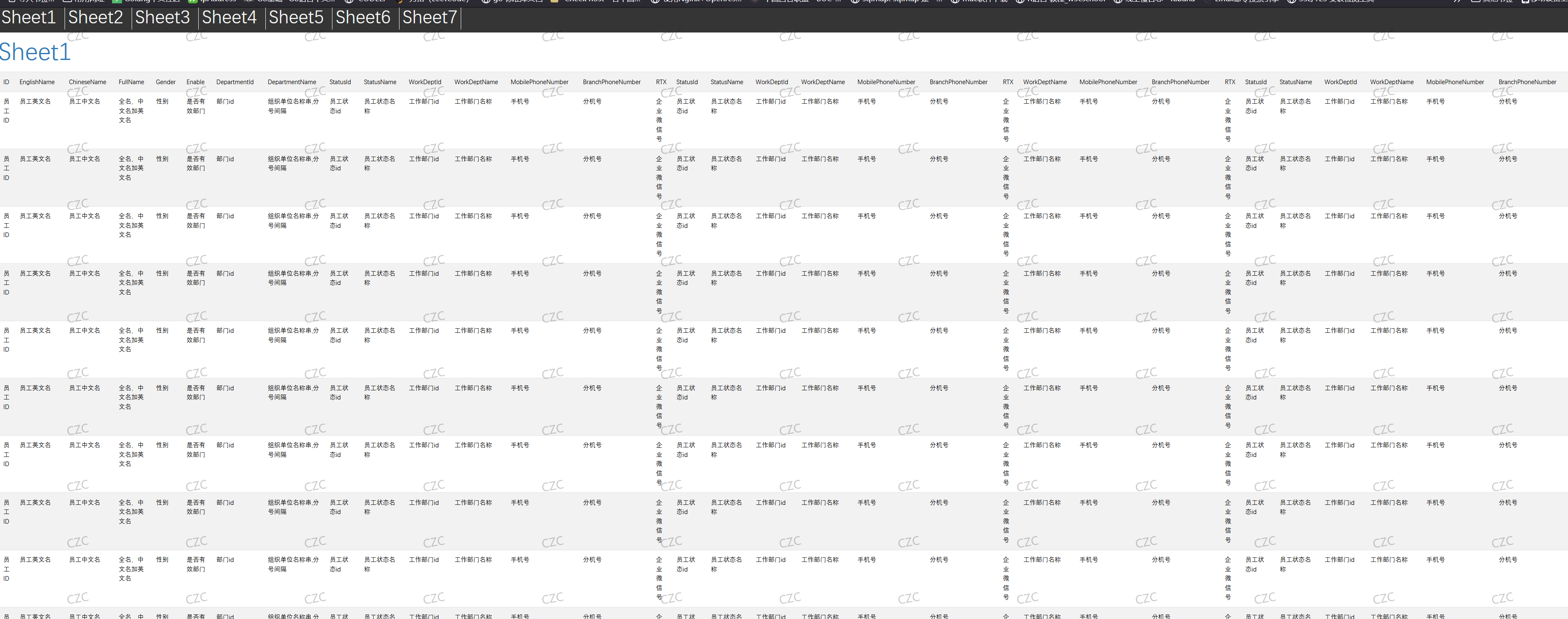
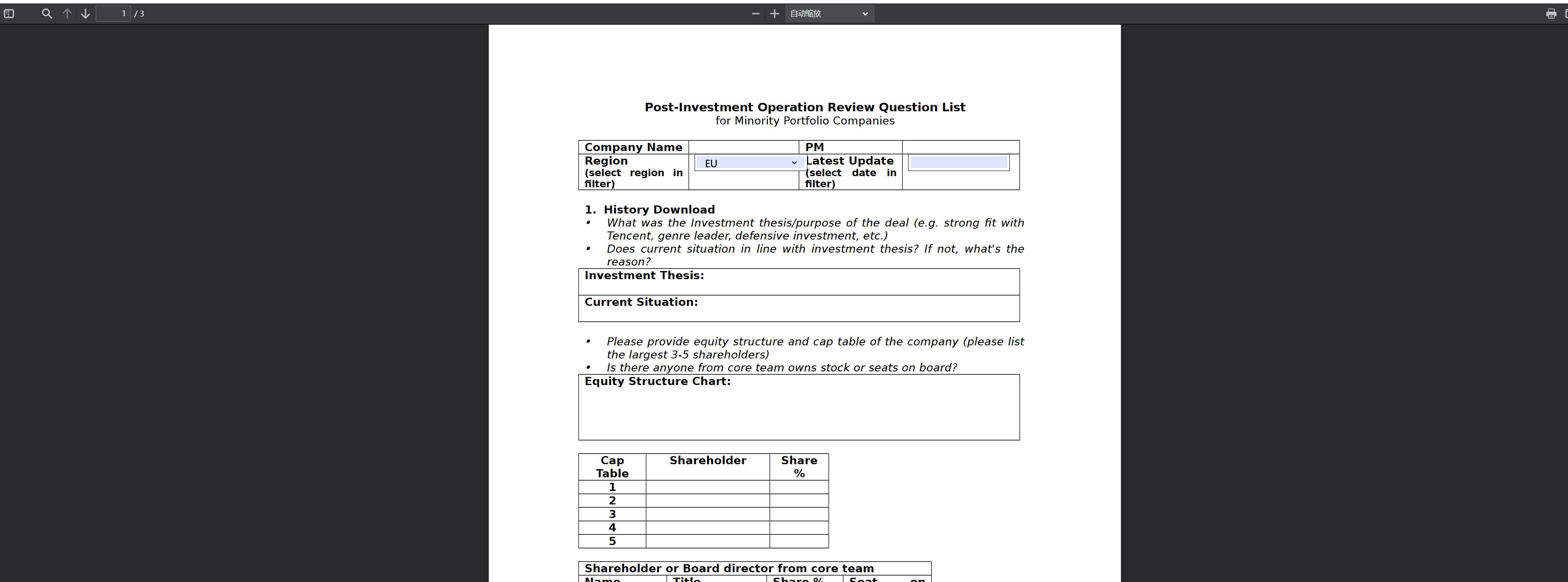
部署编译
========
docker 部署
-----
因为没有推送远程镜像,所以需要自己手动打包镜像
0 : 安装docker
1 : git clone https://github.com/CZHIC/GoViewFIle.git
2 : 进入GoViewFIle 目录
3 : 打包镜像 docker build -t goviewfile:v0.7 .
4 : 查看镜像 docker images
5 : 运行容器 docker run -d -p 8082:8082 goviewfile:v0.7
Windows版
----
准备
1.安装Libreoffice,下载官方msi包,傻瓜式安装即可 (https://zh-cn.libreoffice.org)
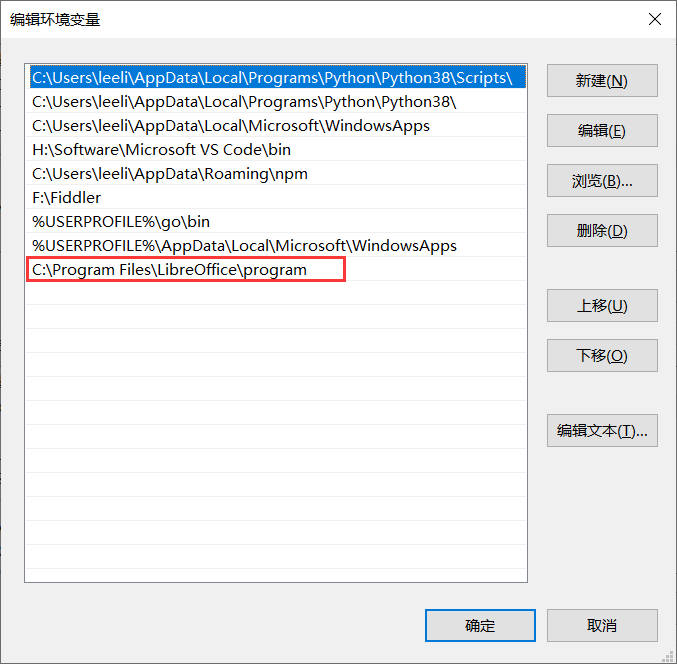
2.将Libreoffice安装路径下的program文件夹加入PATH中
3.安装ImageMagick,官方包,傻瓜式安装即可,安装7.0以上版本 (https://ghostscript.com/download/gsdnld.html)
4.安装GhostScript,官方包,傻瓜式安装即可 (https://ghostscript.com/download/gsdnld.html)
编译
1.git clone https://github.com/CZHIC/GoViewFIle.git
2.cd GoViewFIle
3.go build
运行
GoViewFile.exe
Linux版
----
准备
1.安装Libreoffice:yum install libreoffice
2.安装ImageMagick:yum install imagemagick
4.修改ImageMagick的配置,vi etc/ImageMagick-6/policy.xml
修改
为
下方新增一行
wq退出保存
5 如果出现报错
yum install libreoffice-headless
yum install libreoffice-writer
export DISPLAY=:0.0
5.安装字体(如果出现乱码)
打包一台Windows机器的C:\Windows\Fonts下的所有文件
发送到Linux机器上
解压后进入Fonts文件夹,依次执行mkfontscale,mkfontdir,fc-cache
编译
1.git clone https://github.com/CZHIC/GoViewFIle.git
2.cd GoViewFIle
3.go build
运行
1. ./GoViewFIle
# 访问
远程预览: http://127.0.0.1:8082/view/view?url=被预览文件的url
本地上传: http://127.0.0.1:8082/view/upload
首页 : http://127.0.0.1:8082